
Widgets: Navigation Links and Mega Menu
Widgets: Navigation Links
Widget Categories: Basic The Navigation Links widget is automatically added to the site’s header when the site is created. By default, it displays all pages listed in the pages panel that are set to show in the navigation. Alternatively, you can customize the menu to include only the most useful links (see the section in this article, Content Editor for more information on this options). Well-structured navigation guides your site visitors and help them quickly locate the information they are looking for. For information on adding widgets, see Add Widgets.
NOTE
Navigation can have up to three levels.
To learn more about the navigation menu and sub-pages, see the following video: https://player.vimeo.com/video/718880209?
Content Editor
The option to access the content editor is available in the floating menu. Click the element to open the floating menu, then click the option for the content editor.
- Select one of the following:
- Site pages. Populate the content of the navigation links with site pages, navigation folders, and anchors. This menu will be generated automatically based on the site pages. This is a quick way to place basic navigation on your site. To edit the pages in your site, see Pages.
- Custom links. Build your own menu with custom links. This option allows great flexibility in creating quick navigation bars to add inner page navigation, footer navigation with only most useful links, social accounts menu, and more.
- If you select to create navigation with Custom links, the editor will prompt you to populate the list of links with custom elements. Add folders and items to link them to external pages, internal pages, and anchors
NOTE
URL parameters are not supported.
Design Editor
To access the design editor, right-click the element, and click Edit Design. Or if you are in flex mode or Editor 2.0, select Edit Design from the floating menu to open the design panel. Click the element to open the floating menu, then click the option to edit design.
The following are some of the sections and settings that can be found:
-
Layout
- Change various layouts (the orientation as well as the main and sub navigation layout).
-
Pages
- Configure the text and link style of all pages as well as the currently selected page and hover state. Link style settings:
-
Link style settings:
- Number of visible items.
- Frame background color.
- Space between items.
- Alignment - Alignment of the pages within the widget, rather than the alignment of the widget itself.
- Navigation item direction.
- Divider style - If desired, add a divider between the listed pages.
-
Selected page and hover settings:
- Effect - Select a display effect the selected page and hover. Some effects offer further customization options.
-
Subpages
- Configure the links style and text. Options include shadow, adjusting spacing between items, divider style, and background color for selected subpage (and hover state).
For information about design options that are not specific to this widget (for example, layout, style, or spacing), see Widget Design
FAQs and Troubleshooting
How do I add a main navigation item that isn't an actual page?
To add a main navigation item that isn't clickable, add a folder. With the help of folders, you do not need to create an extra page to organize related pages or anchors. You can add a non-clickable folder item to the navigation and group all related pages or anchors as its sub-items.
Folders are available in the Pages area to help organize your navigation items, however, folders themselves are not actual pages. They are elements intended for grouping other items together. This is why page-specific elements (such as URL and SEO optimization) or editing options (such as duplicate or set password) are not available in the folder settings.
NOTE
Navigation can have up to 3 levels, so folders can nest up to 2 levels of sub-items. You can place folders inside folders as 2nd level navigation items. However, because navigation cannot have more than 3 levels, you cannot use a folder as 3rd level item (it would have to be empty).
Deleting or hiding a folder in navigation will delete or hide all of its nested elements.
Add Navigation Folder
To add a folder:
- In the side panel, click Pages.
- Click +New Page.
- Select Folder.
- Type a name for the folder and click + Add Page. When adding a folder, ensure it is compatible with the layout of the navigation on mobile view. Folders have no effect if they are placed on the slot allocated for clickable elements only, which is why they may not work on some mobile menu layouts.
- The new folder appears on the list of the pages of your site. It displays with a folder icon to distinguish it from pages.
Group Items under Folders
You can move pages or anchors under the folder item by dragging pages slightly to the right under the folder.
Edit Folders
To edit a folder, click the settings icon next to the folder for options to Rename, Hide in navigation (per device or in general), or Delete the folder.
My site's navigation was accidentally deleted or it's missing. How do I get it back?
Depending on how customized the navigation widget was, it may be easiest to add it back from the widgets library by clicking and dragging it into the desired location (for more information, see Add Widgets). If there was significant customization, restoring a backup may be an option.
The pages in the navigation aren't matching up with what is in the Pages area in the side panel.
It is possible the widget is using the Custom internal or external links option. With this option, the widget is disconnected from the pages area and any adjustments to pages, would need to be done in the content area of the widget.
To access the content editor, right click the widget and select Edit Content. Or, if you are in flex mode or Editor 2.0, the option to access the content editor is available in the floating menu. Click the element to open the floating menu, then click the option for the content editor.
Mega Menu
NOTE
This information is specific to the Editor 2.0, formerly known as the All-Flex Editor. To identify your current editor version, see How to Identify the Editor Version Your Site Uses.
A Mega Menu is a type of navigation menu commonly used on websites to organize and display a large amount of content or options in a structured, visually appealing way. Unlike a traditional drop down menu that displays a single column of links, Mega Menu expands further horizontally. Common use cases include eCommerce sites with many product categories, travel sites with many destinations, or services businesses that offer a wide range of services.
Mega Menu is enabled from the Navigation Links widget and creates a new section linked to a navigation item. This allows the user to edit and design the new section as they would any other section such as adding a widget or creating a structure/layout. Any navigation item can be turned into a Mega Menu.
You can select from blank, pre-designed, custom, or AI created sections. In addition, you can save mega menu sections and use them on other sites in your account.
Important considerations:
- The Mega Menu can only be added to navigation items that aren’t sub items or that include sub items of their own.
- Only supported on desktop screen size.
Create a Mega Menu
To create a Mega Menu:
-
If you do not already have a Navigation Links widget added, you need to add one. In the side panel click Add, then click Widgets. Search for Navigation Links, then drag and drop it onto the canvas.
- Currently, the Mega Menu can only be enabled on desktop if the Navigation Links widget is in the header and has a horizontal layout. Not supported on mobile.
-
Click the Navigation Links widget to open the floating bar and select Manage Links.
-
At the top of the modal, For What should navigation items include? select Custom Links.
-
Click to select the desired item. On the right side of the modal, select Mega menu. This turns the item into a Mega Menu.
-
Enter a name for your Mega Menu. Repeat steps 4 and 5 for each item you want to turn into a Mega Menu.
-
Drag and drop the existing items into the desired order and nesting. Note that Mega Menu can only be added to navigation items that are not sub items or include sub items of their own.
-
Click Edit mega menu to make design changes. The design changes only apply to the current section you are editing and not the sections that contain other Mega Menus.
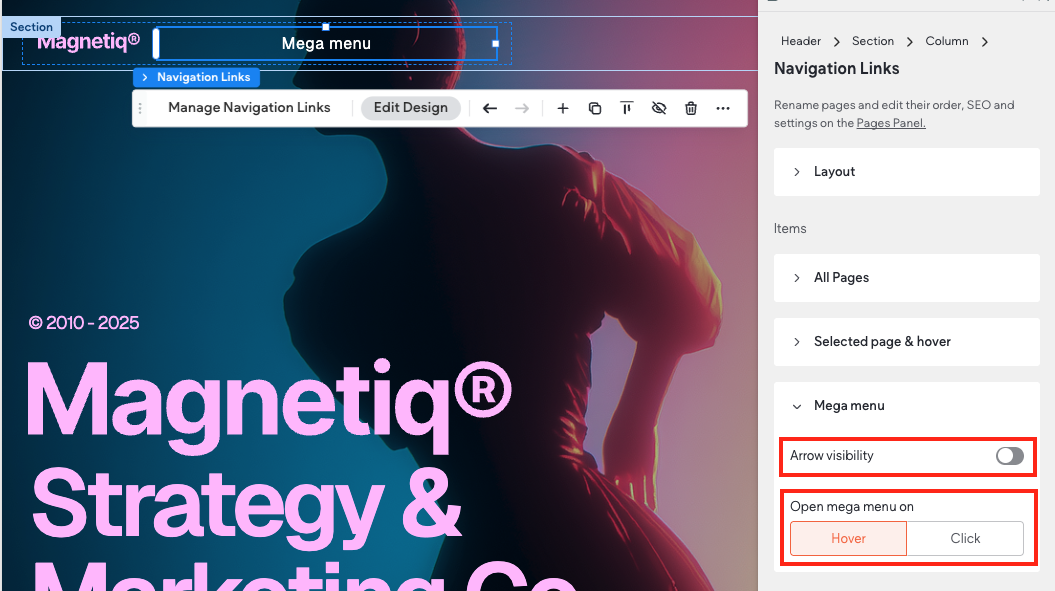
Following are two design elements that define how users open your mega menu. To access them, scroll down to the Mega Menu section of the design panel.
- A popular design element is using a chevron arrow to indicate to site visitors the menu can be expanded by clicking it. By default, this arrow is not enabled. To add the arrow, enable the Arrow visibility toggle. The arrow inherits the design style of the links.
- Specify how users open your mega menu by selecting either Hover or Click. Hover is the default state. If you switch to Click, the mega menu will open on the first click and close on the second click.
For more information about configuration and design options for the Navigation Links widget, see Widget: Navigation Links
Edit Mega Menu
To open the Mega Menu for editing you can:
- Hover over the Navigation widget and when the Mega Menu section appears, click either the Mega Menu section or the Mega Menu navigation item.
- Click the Navigation Links widget and click Manage Links.
- Open the Layers panel and click to open the desired Mega Menu section.
Add Links to Mega Menu Sections
You can add a link to a Mega Menu section by adding any linkable widget. Following are a few examples of how you can add links to a Mega Menu section:
- Add a Button or Icon widget and add a link to it.
- Add the Photo Gallery widget and connect it to a collection.
- If you want to display an eCommerce catalog, you can add the Product Gallery widget and connect to the product catalog or a particular category.
- Add a Navigation Links widget and set up Custom Links.
Delete Mega Menu
To delete a Mega Menu, delete the Mega Menu item from the Navigation widget.
Following are several other actions that will delete a Mega Menu that you should be aware of:
- Deleting the Navigation Links widget.
- Deleting the container that includes a Navigation Links widget with a Mega Menu.
- Changing the header preset.
- Switching between basic and advanced header types.
Mega Menu Limitations
Following are the current Mega Menu limitations:
- Only available on desktop screen size.
- Mega Menu can only be used if the Navigation Links widget is in a horizontal layout and inside the header.
- Not supported on mobile.
- If you duplicate or copy and paste a Navigation Links widget with a Mega Menu, the Mega Menu will not be duplicated.
Updated 3 months ago