
Chat Integration
Adding a Chat Integration to the Website Builder
You can add a chat integration to your website builder to allow guests to easily get in touch.
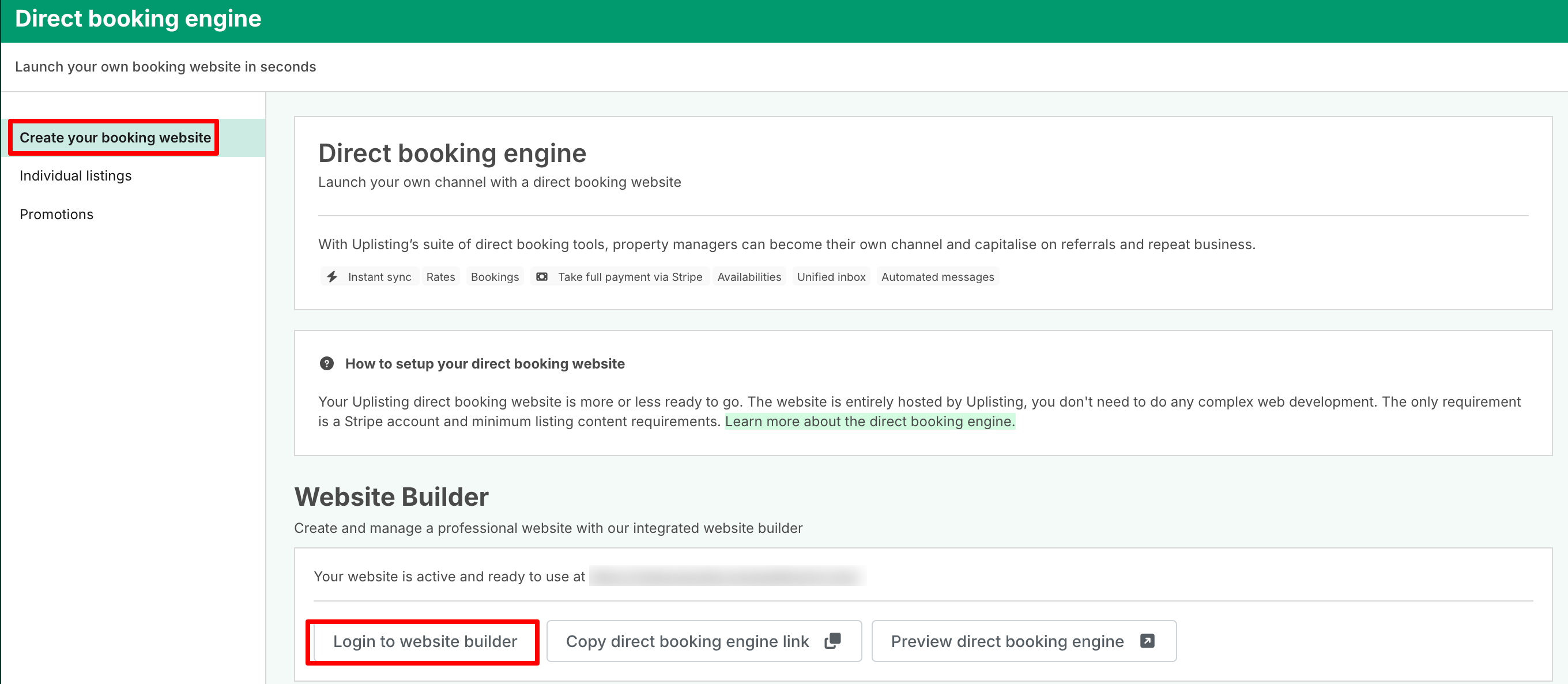
Access the Website Builder
- Go to: https://app.uplisting.io/direct/link
- Click Log in to website builder
- From your dashboard, navigate to:
Site Overview → Overview → Edit Site
Install a Chat App
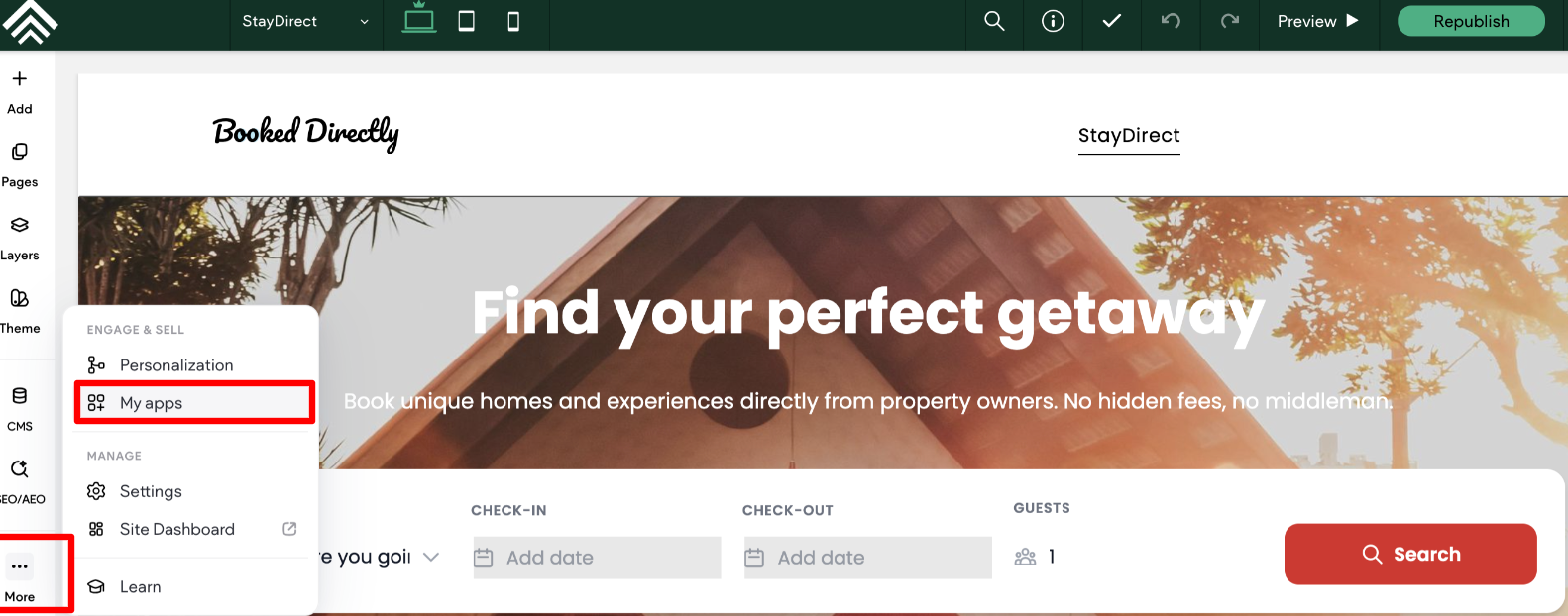
- In the site editor's left panel, click More → My Apps . This will open the app marketplace.
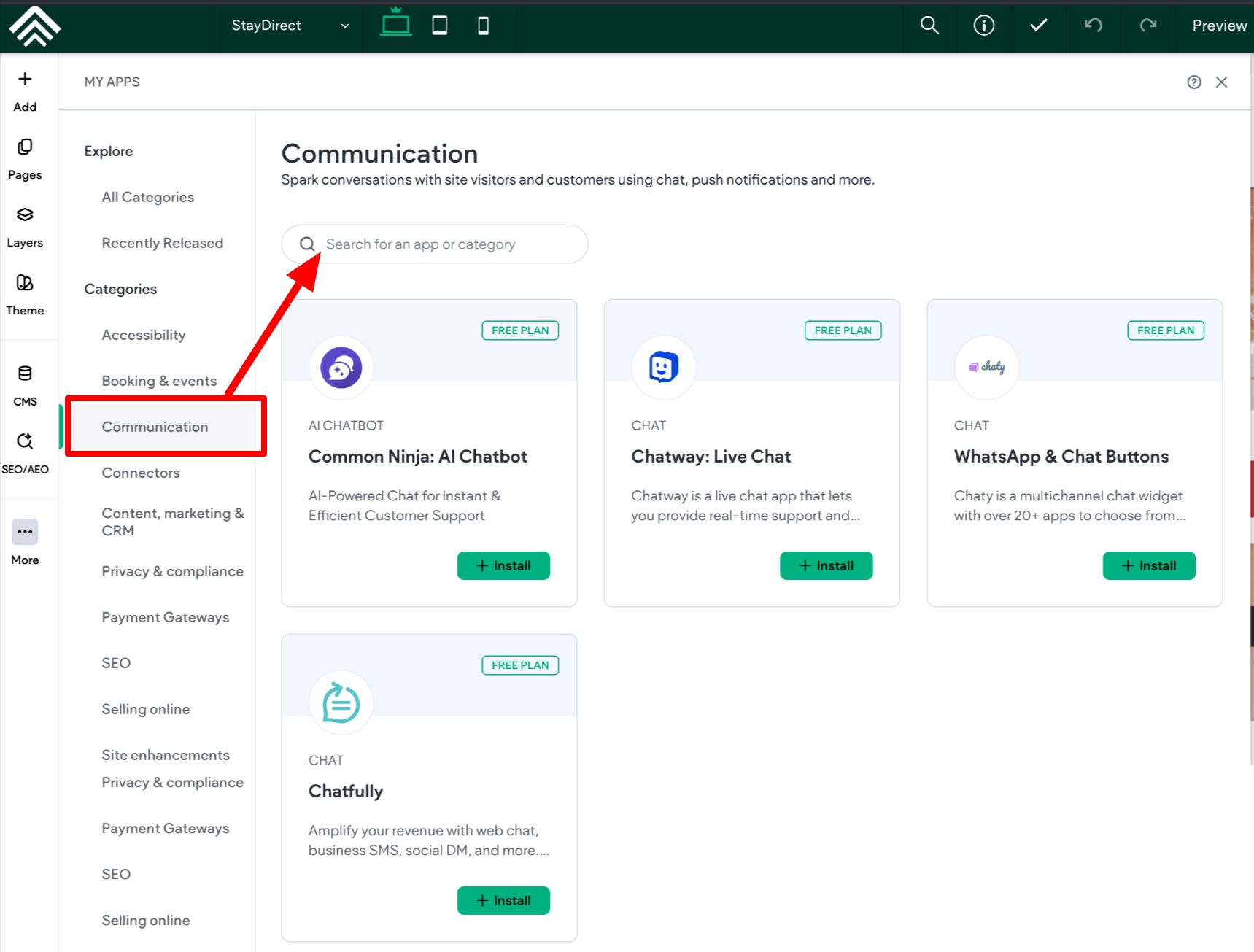
- From here, you can:
- Select the Communication category to browse the list of chat apps
- You can also search a specific chat app by entering its name in the Search for an app or category bar
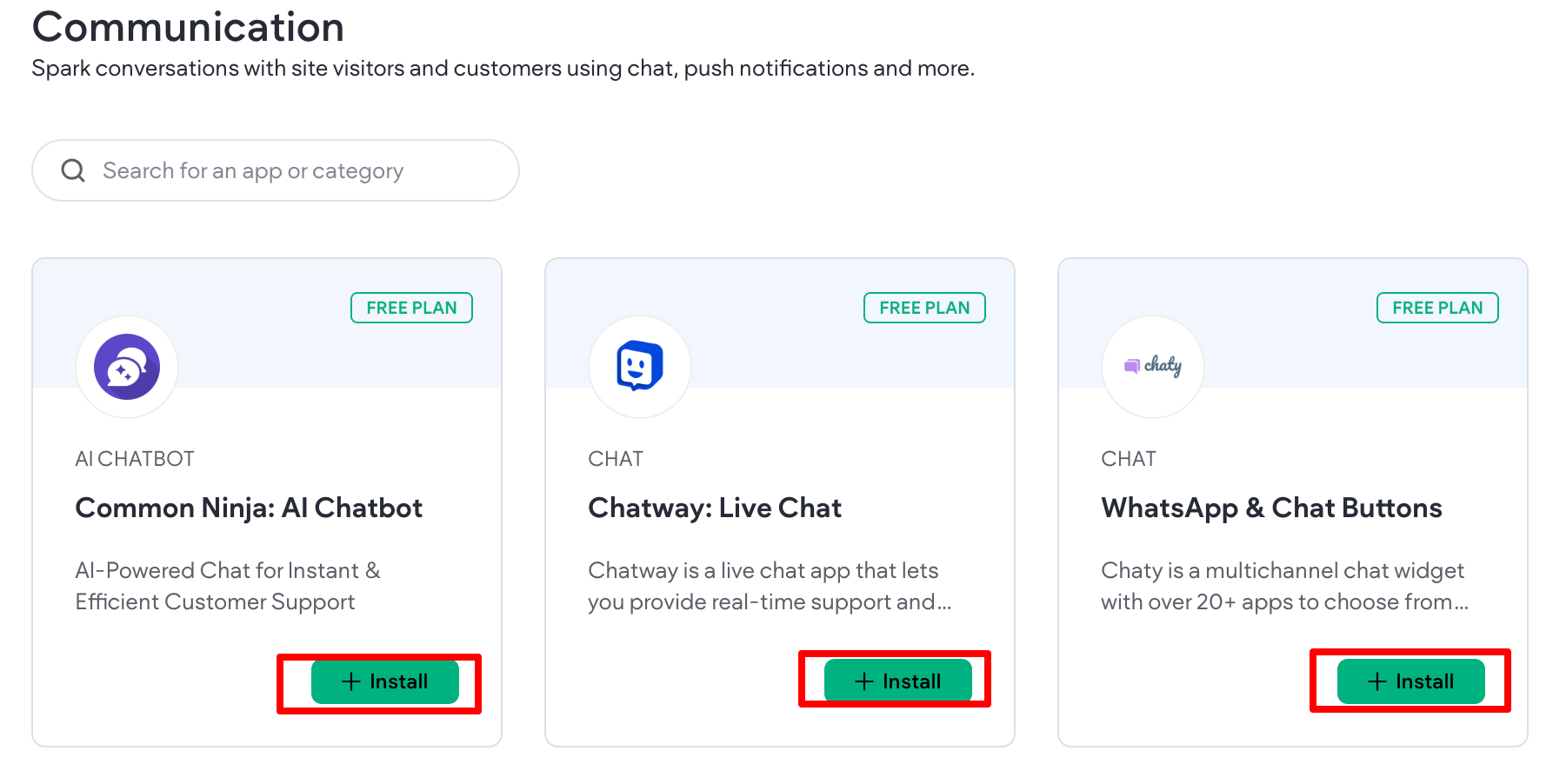
- Select your preferred app
- Click the + Install button and follow the on-screen steps to complete installation. Once installed, the chat widget will typically appear on your website.
Adding Intercom Messenger (Workaround)
Intercom is not currently available in the website builder app marketplace, but it can be added using a custom code snippet.
Prerequisites
- Ensure you have an active Intercom account (trial or subscription)
- Retrieve your Intercom Messenger code snippet:
https://www.intercom.com/help/en/articles/168-install-intercom-for-users-on-web
Installing Intercom Messenger
- Copy the Intercom code snippet from Intercom
- In the website editor within your Uplisting account, go to:
More → Settings → Head HTML → Body End HTML
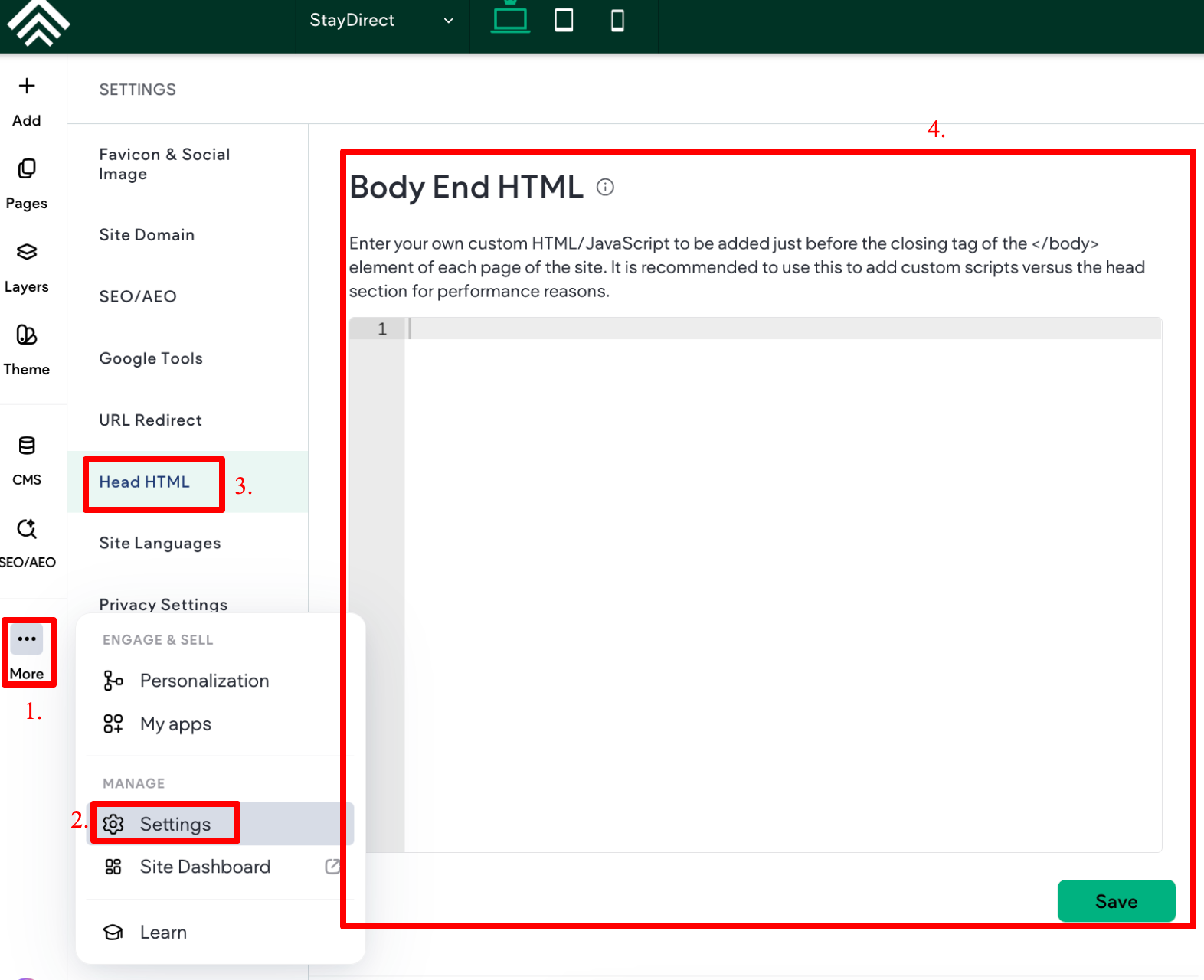
- Paste the code snippet into the Body End HTML section
- Click Save
Once added, the Intercom Messenger will appear on your website.
Updated 2 months ago
What’s Next