
Editing Design and Content
When using the Website Builder, some parts of your site can be edited directly, while others are locked by default, to ensure everything works correctly. This guide explains how to manage the editable content displayed on your Website Builder using the 'CMS Business' settings.
You can customize:
- The hero background image
- The search page heading
- The search page subheading
Some sections of the website builder are intentionally locked and cannot currently be edited.
Overview
The website builder contains:
- Editable sections — content you can customize
- Locked sections — fixed sections that cannot currently be modified
This guide covers the editable content shown in the CMS Business settings.
Hero Background Image
Accessing the Hero Background Image
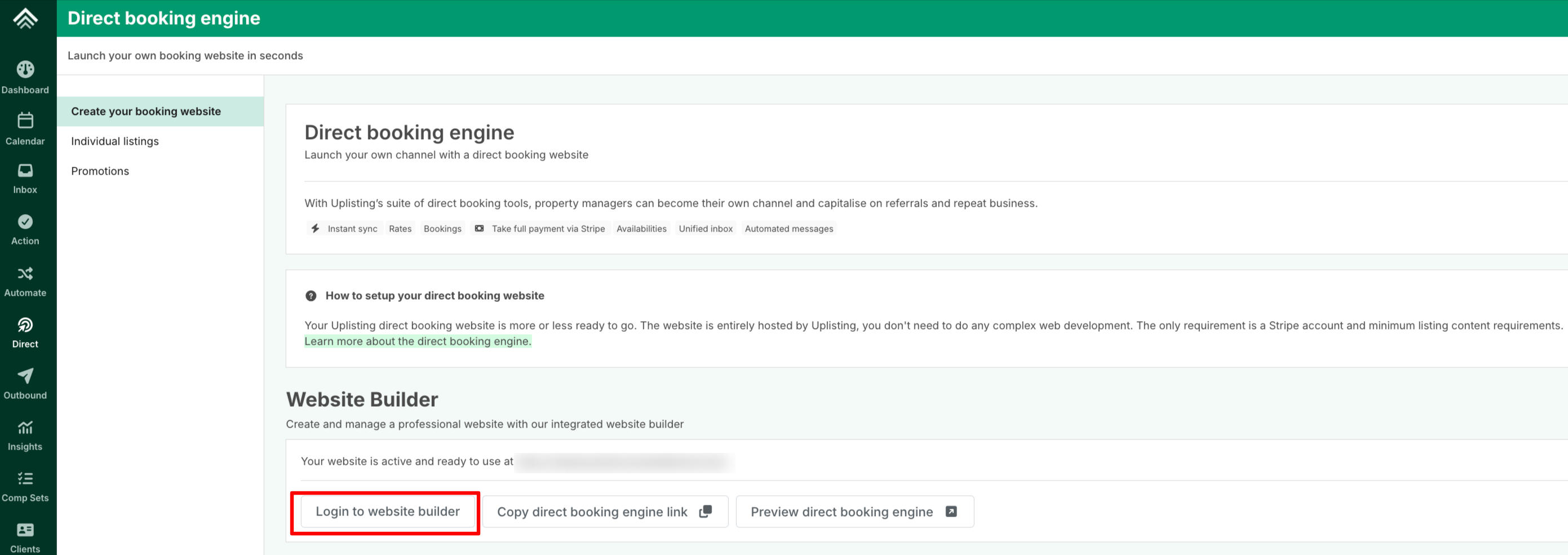
To update the hero background image shown on the search page, you first need to log in to your website builder
- Select Login to website builder on this page
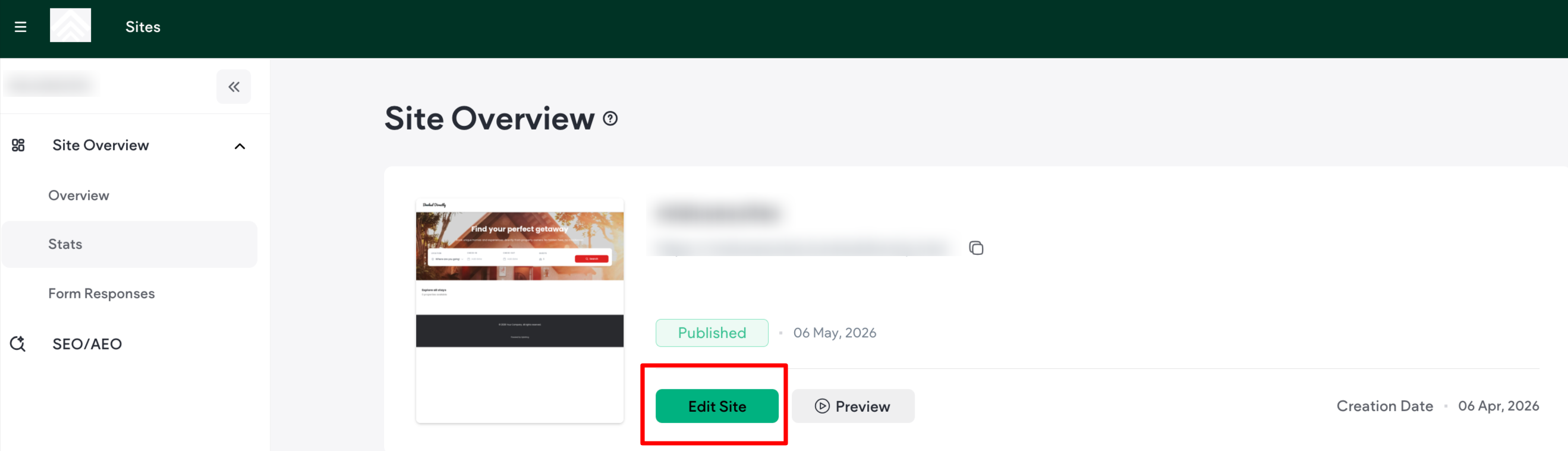
- Once logged in , click on 'Edit Site.'
To update the hero background image:
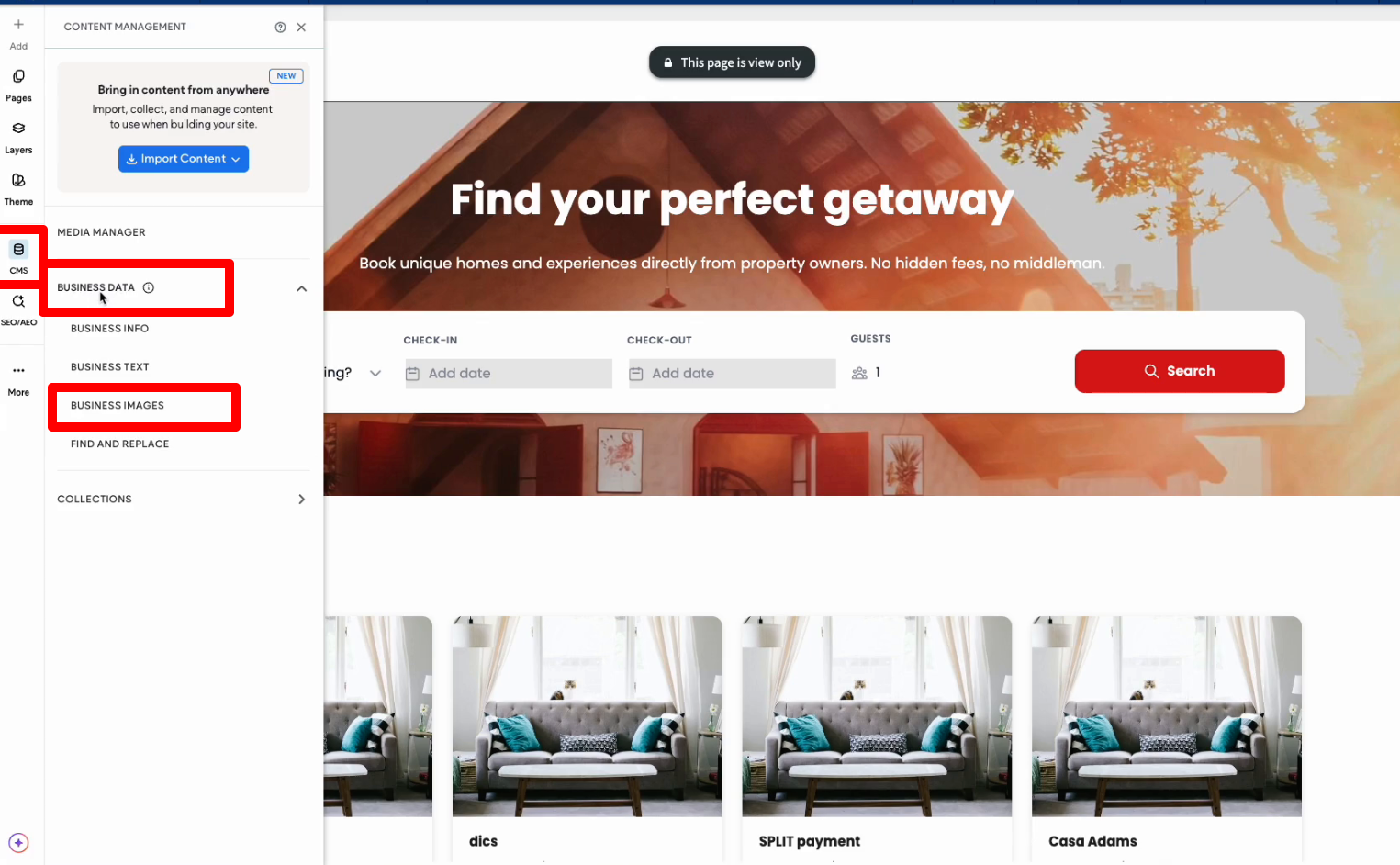
- From the left panel of the site editor, click on the CMS icon to open the settings
- Navigate to: CMS → Business → Data → Business Images
-
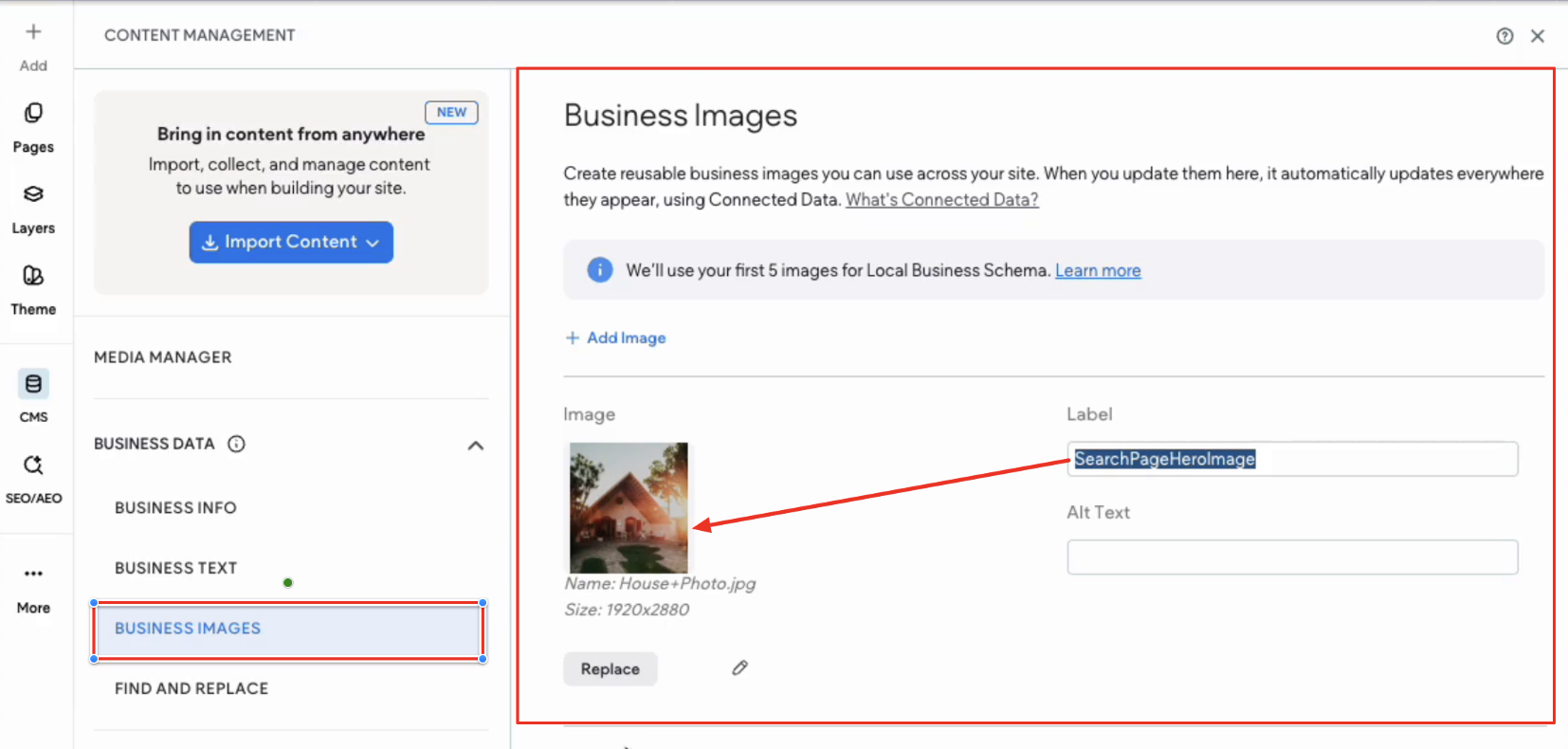
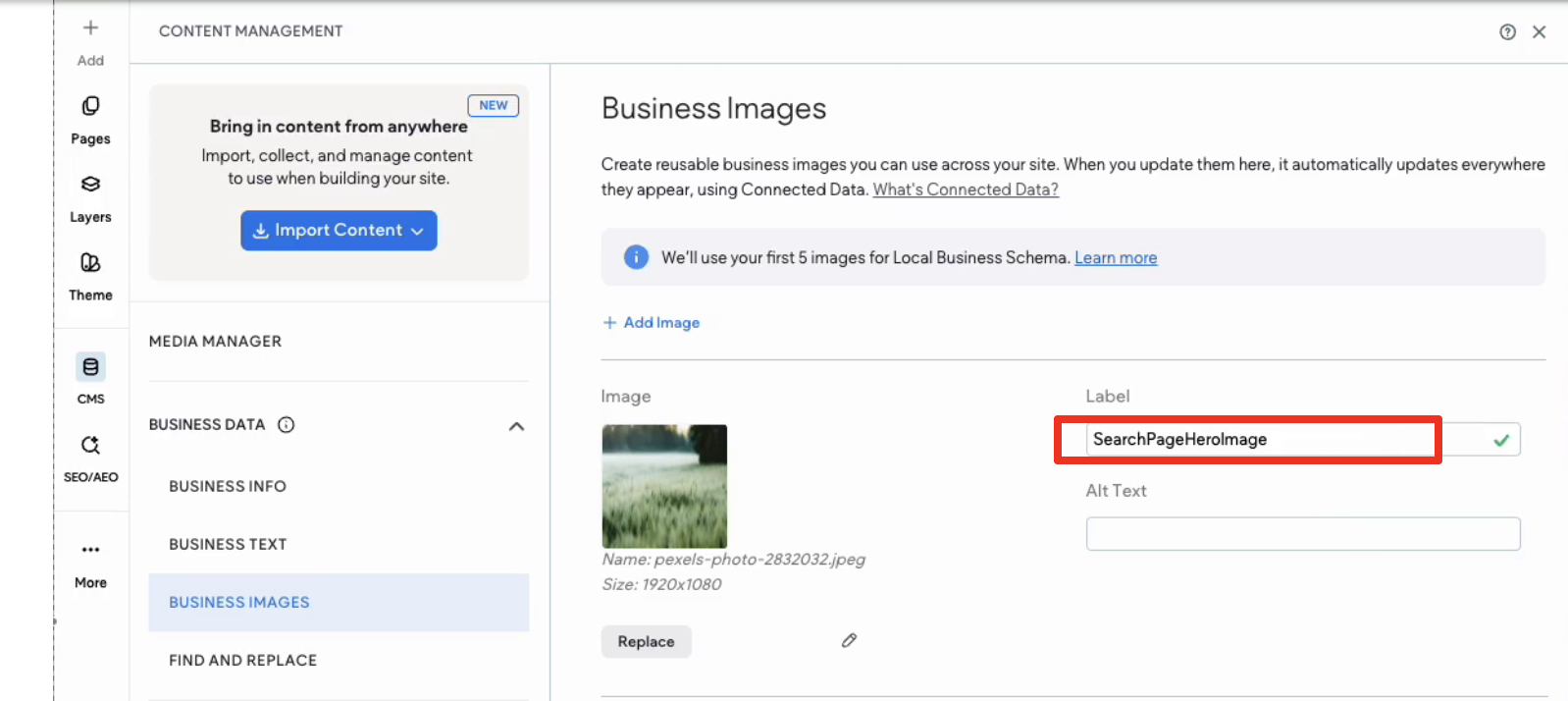
The Business Images window will open, showing the default hero background image - labelled “SearchHeroBackground” in the Label field.
Any updates made to this image will automatically become the new background displayed on the Direct Booking search page.
Replacing the Hero Image
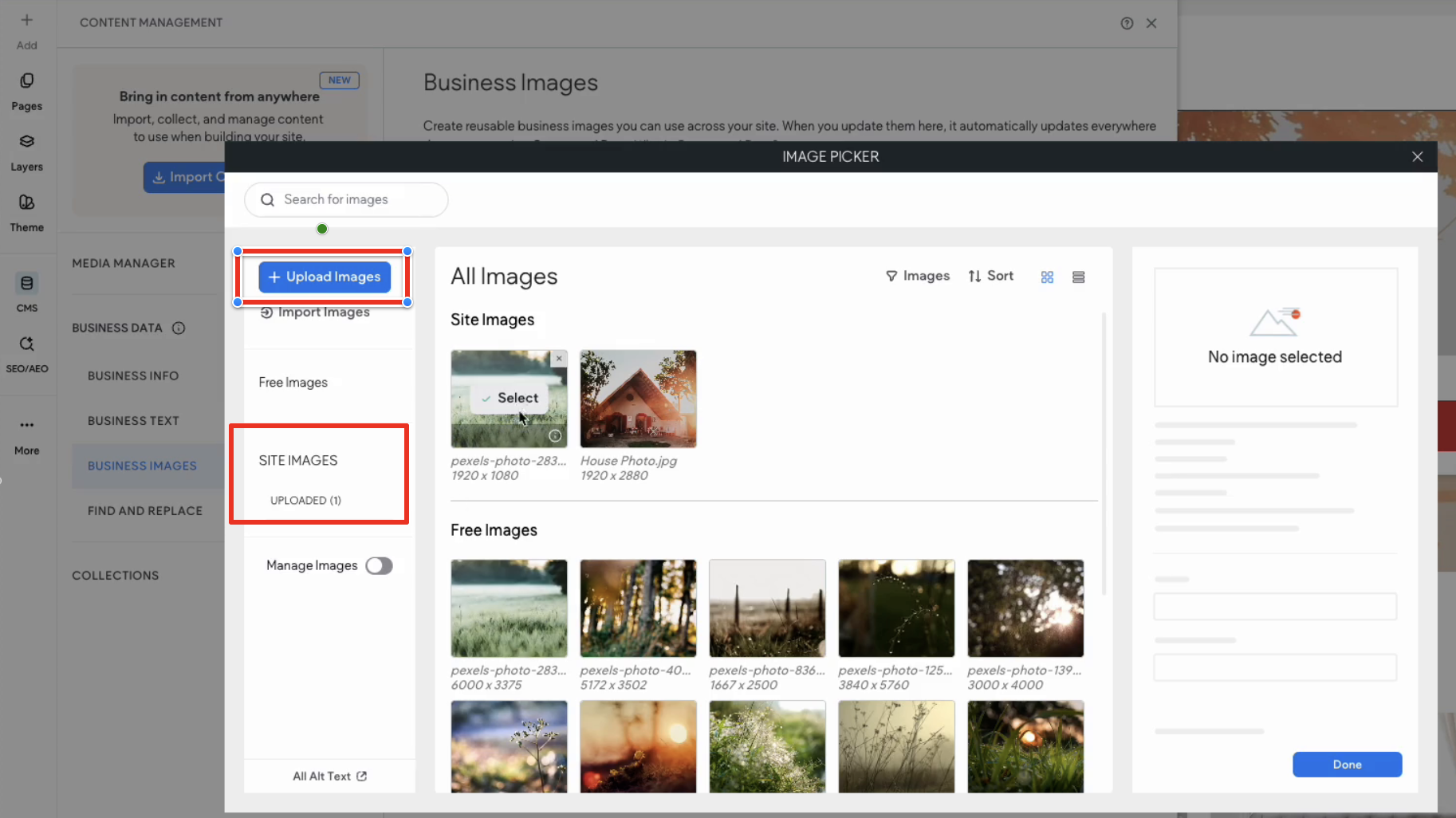
- In the Business Images window shown in the image above, click on the Replace button
- Select a new image
You can:
- Upload a new image
- Or select an existing uploaded image
- Close the editor once the image has been selected
- Republish your changes
The updated hero image will now appear on your live website.
Deleting the Custom Hero Image
To test or intentionally delete a custom hero image:
- Start by copying the label “Search Page Hero Image” so you can reuse it later
- Delete the custom image from: CMS → Business → Data → Business Images
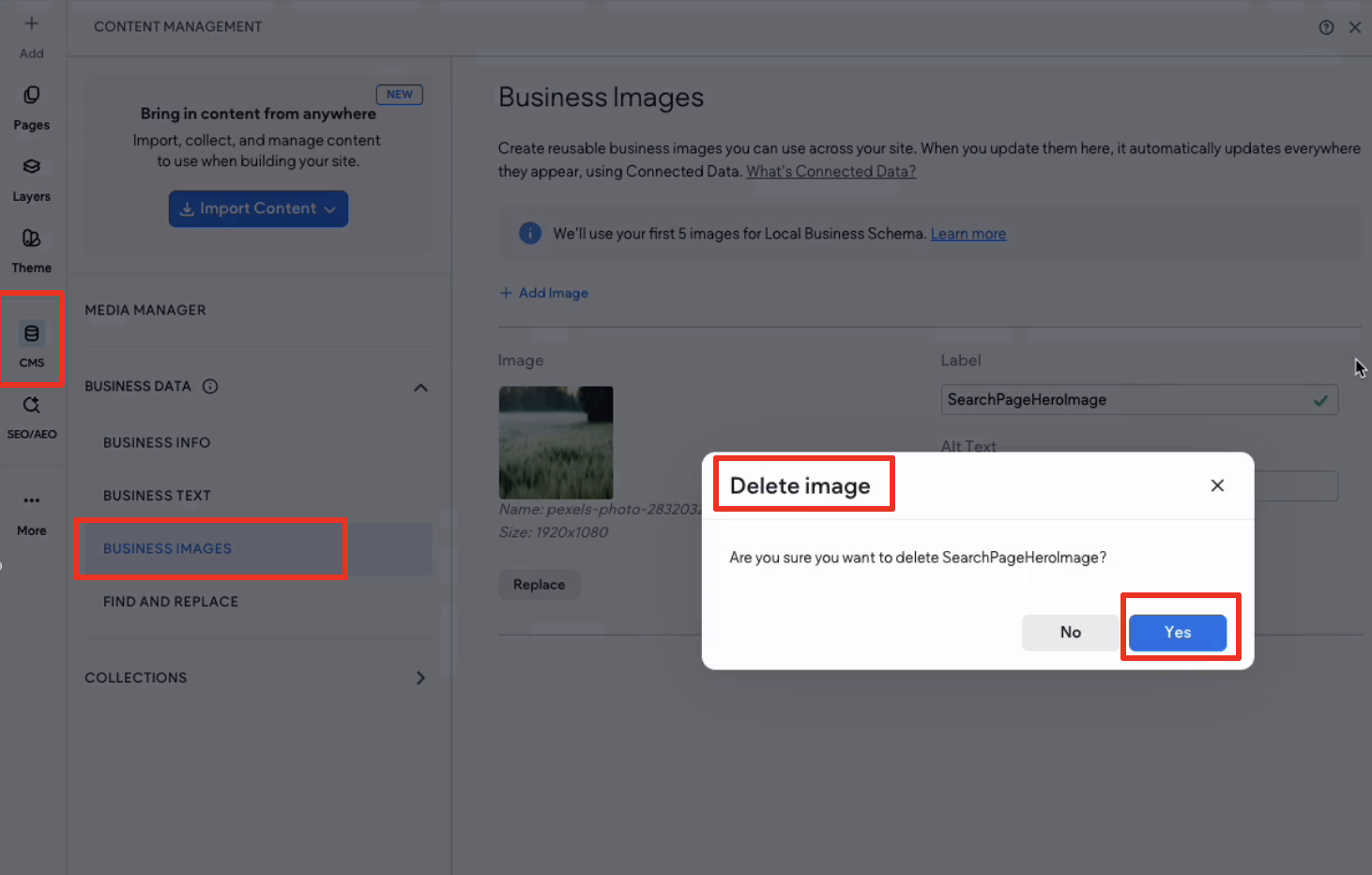
- Close the editor. The website will automatically display the default background image instead.
Restoring the Hero Image
To restore a custom hero image after deletion:
- Return to: CMS → Business → Data → Business Images
- Create a new image entry
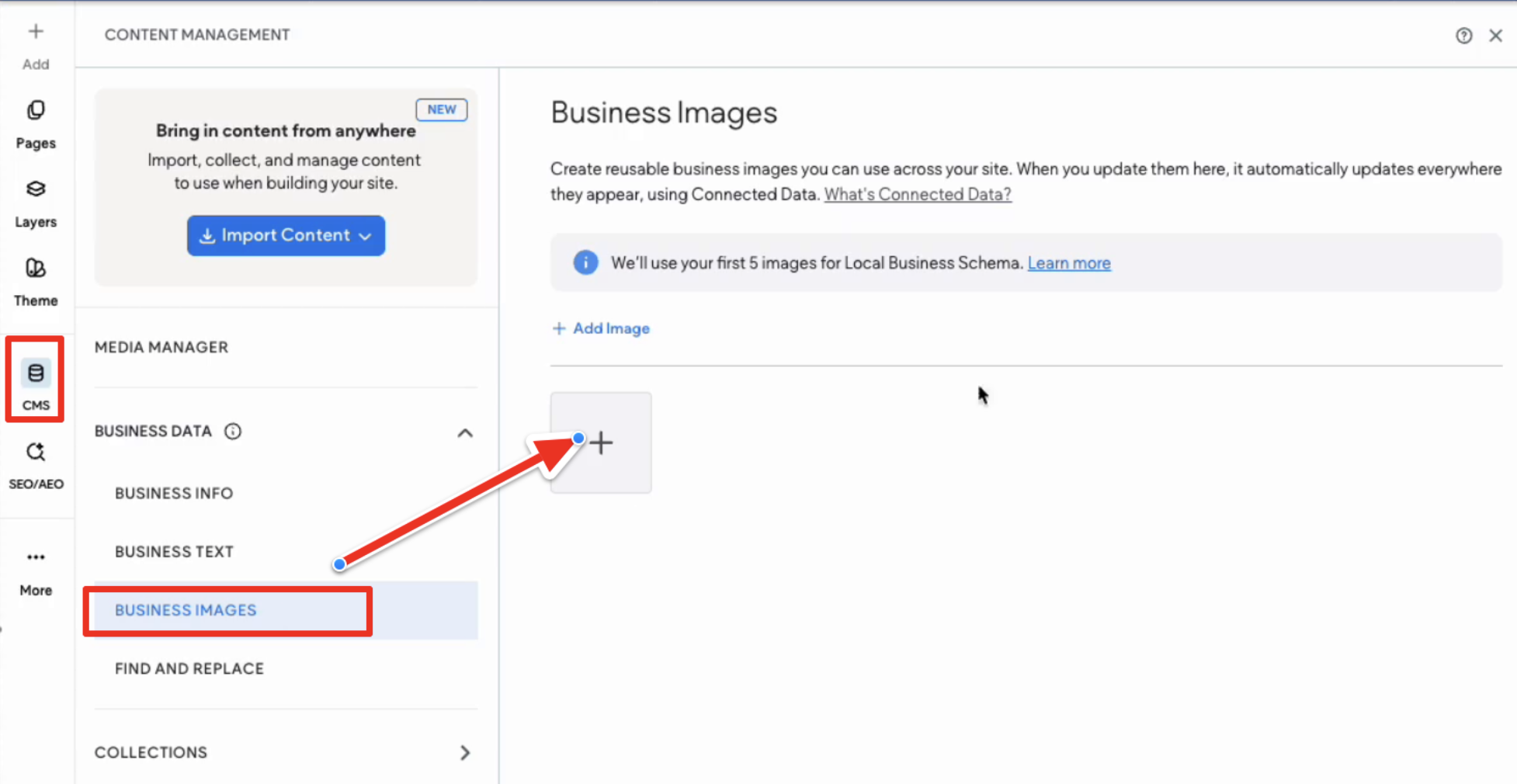
- Upload or select the desired image
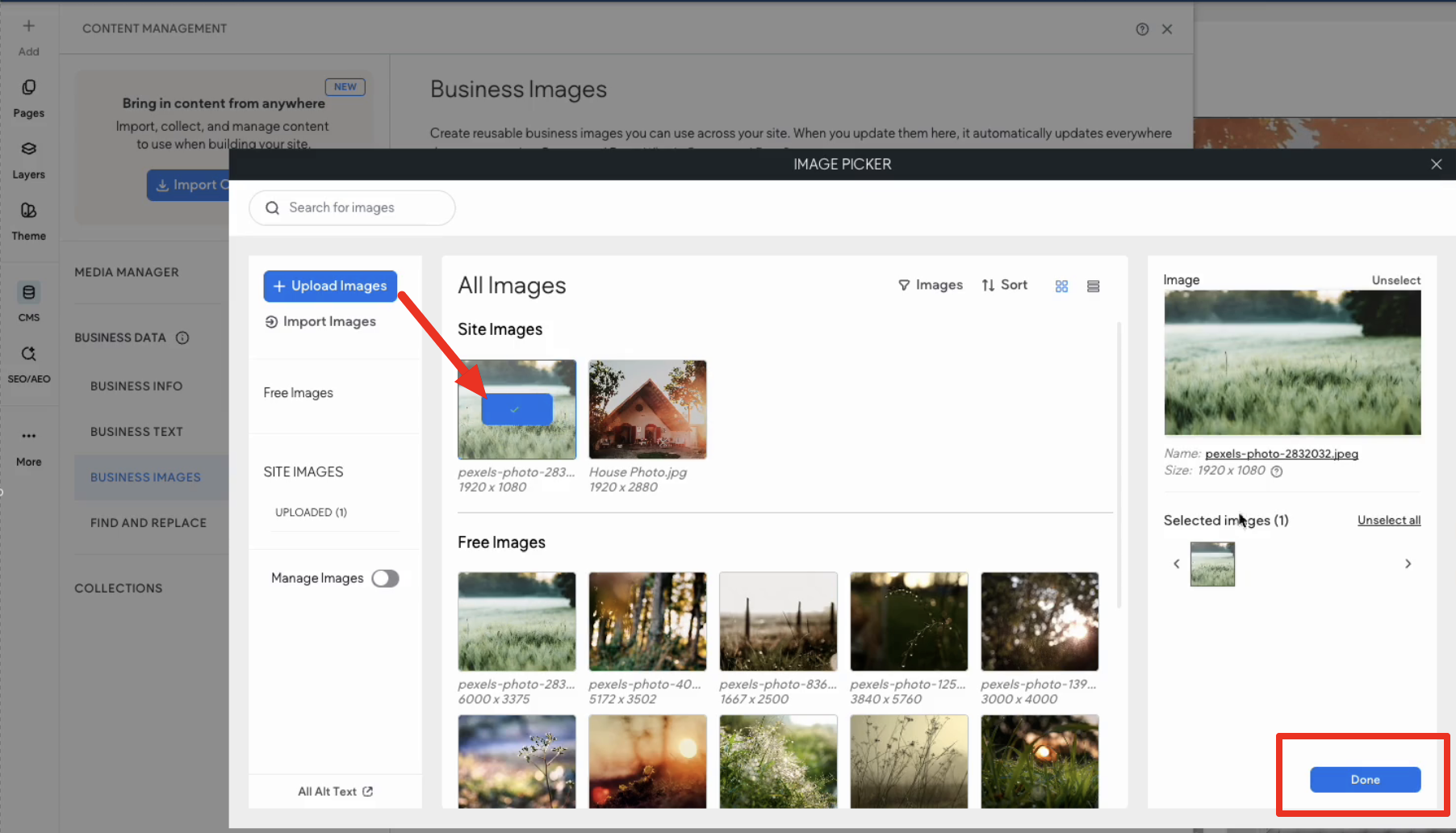
- Name the entry exactly: Search Page Hero Image so it reconnects to the search page.
- Close the editor
- Republish your changes
The custom hero image will now display again on the search page.
Search Page Heading and Sub-heading
Editing The Search Page Heading and Sub-heading
To update the heading and subheading text shown on the search page:
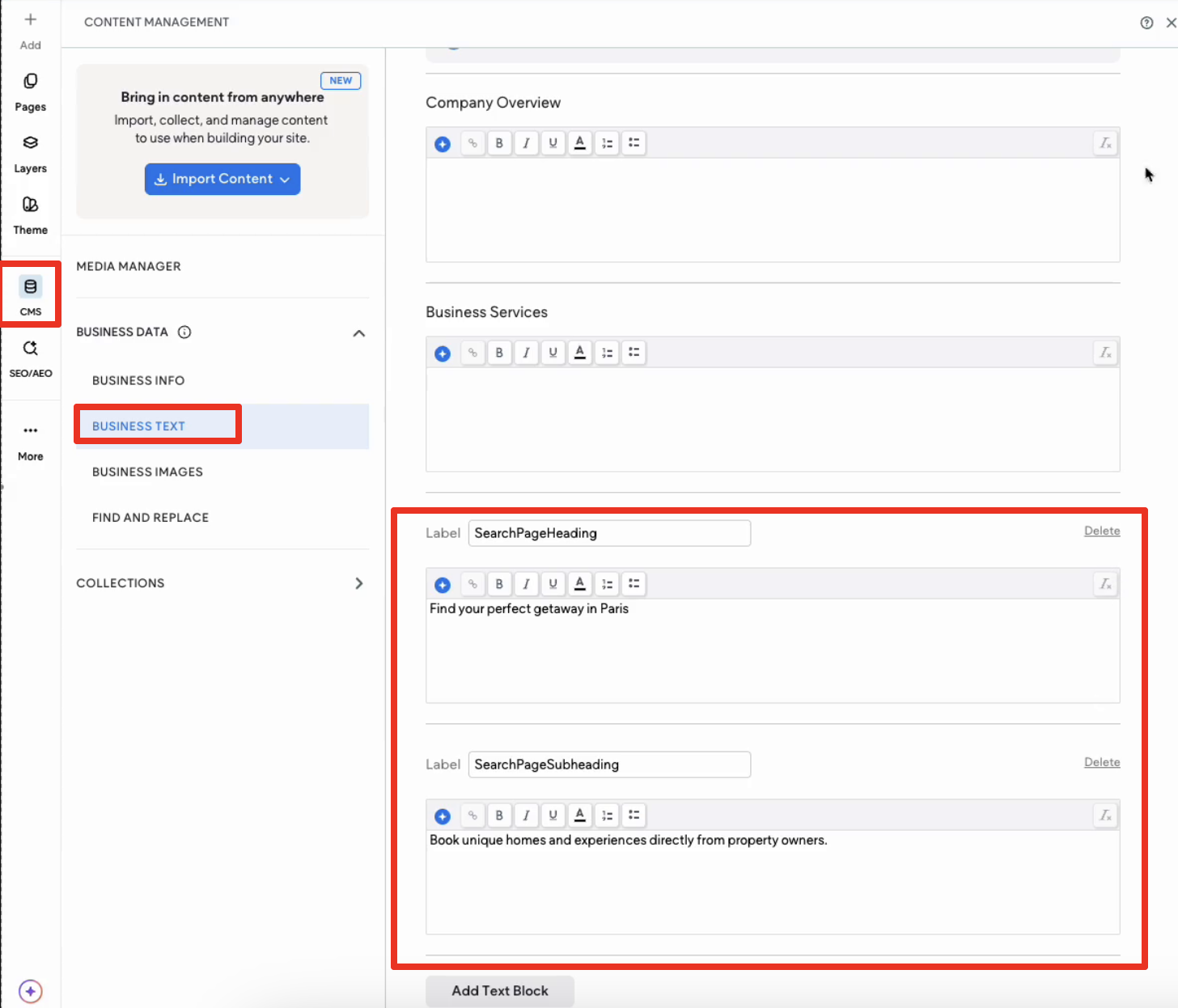
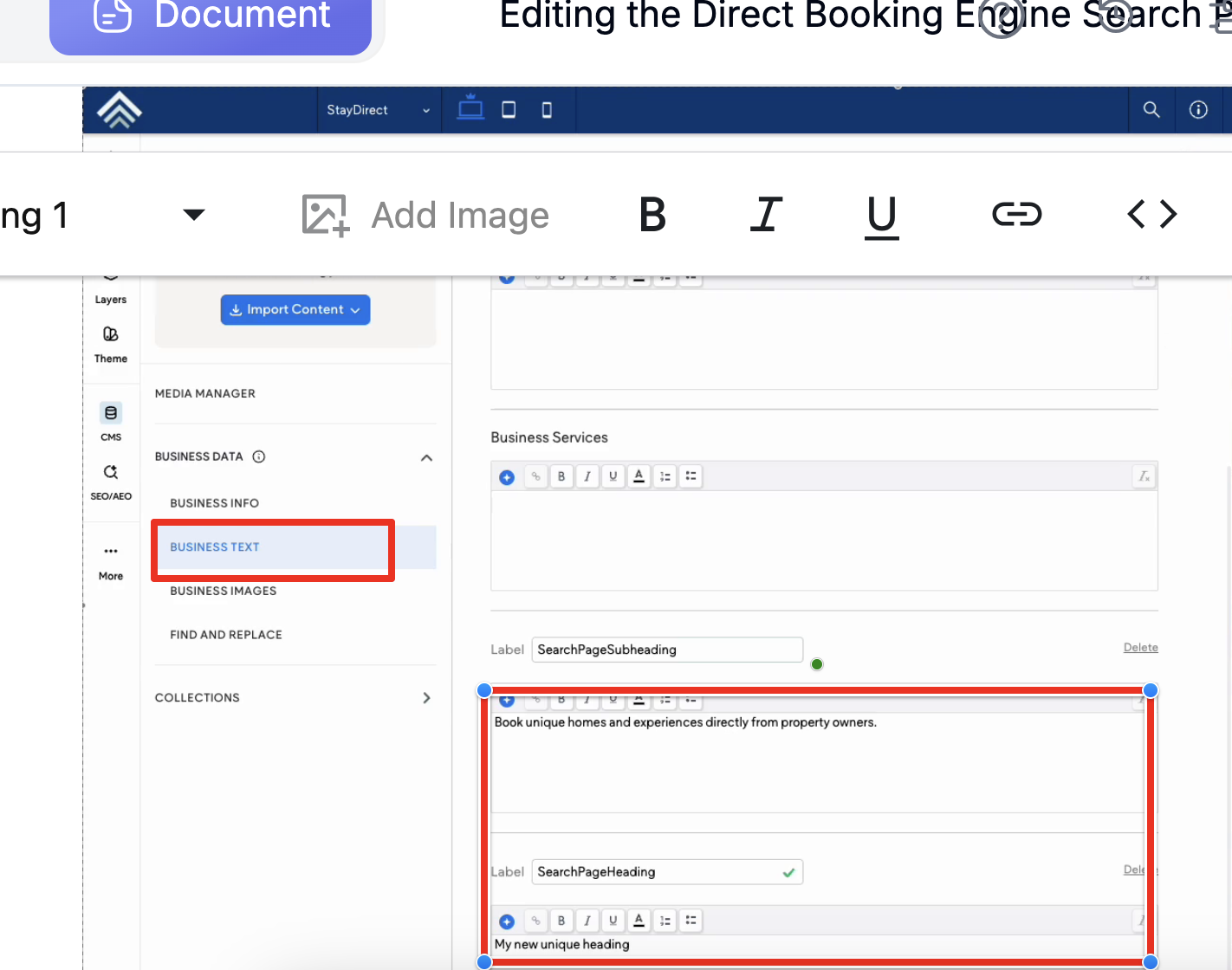
- Navigate to: CMS → Business → Data → Business Text
- Locate the relevant text entries controlling:
- The search page heading
- The search page subheading
Examples may include:
Search Page HeadingSearch Page Subheading
- Edit the text as required
- Close the editor
- Republish your changes
Your updated text will now appear publicly on the website.
Deleting and Restoring Heading or Subheading Text
The same fallback behavior applies to Business Text entries.
Deleting a Text Entry
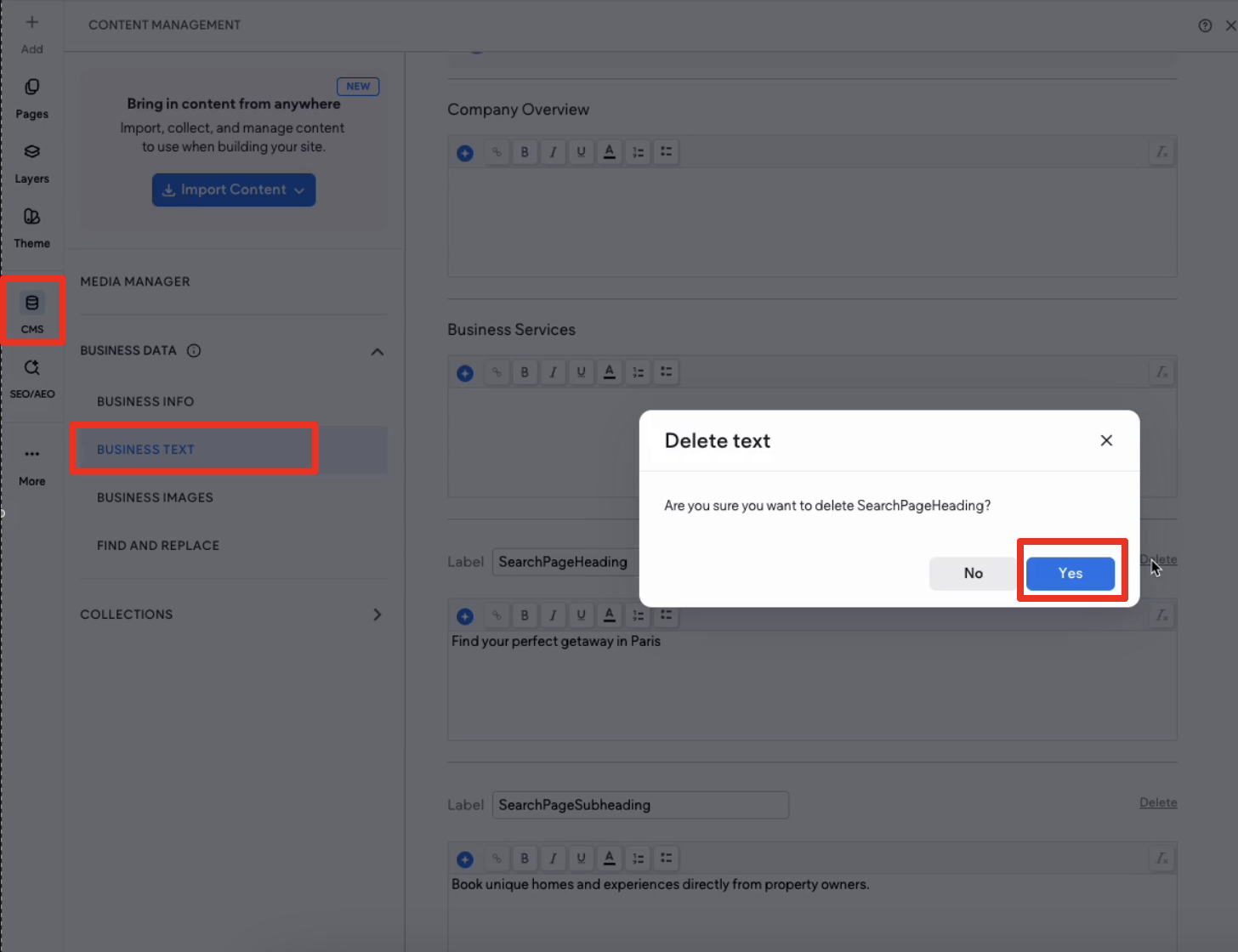
- Copy the current text label
- Delete the corresponding text block from: CMS → Business → Data → Business Text
- Close the editor
The website will revert to the default heading or subheading text.
Restoring a Text Entry
- Create a new text block
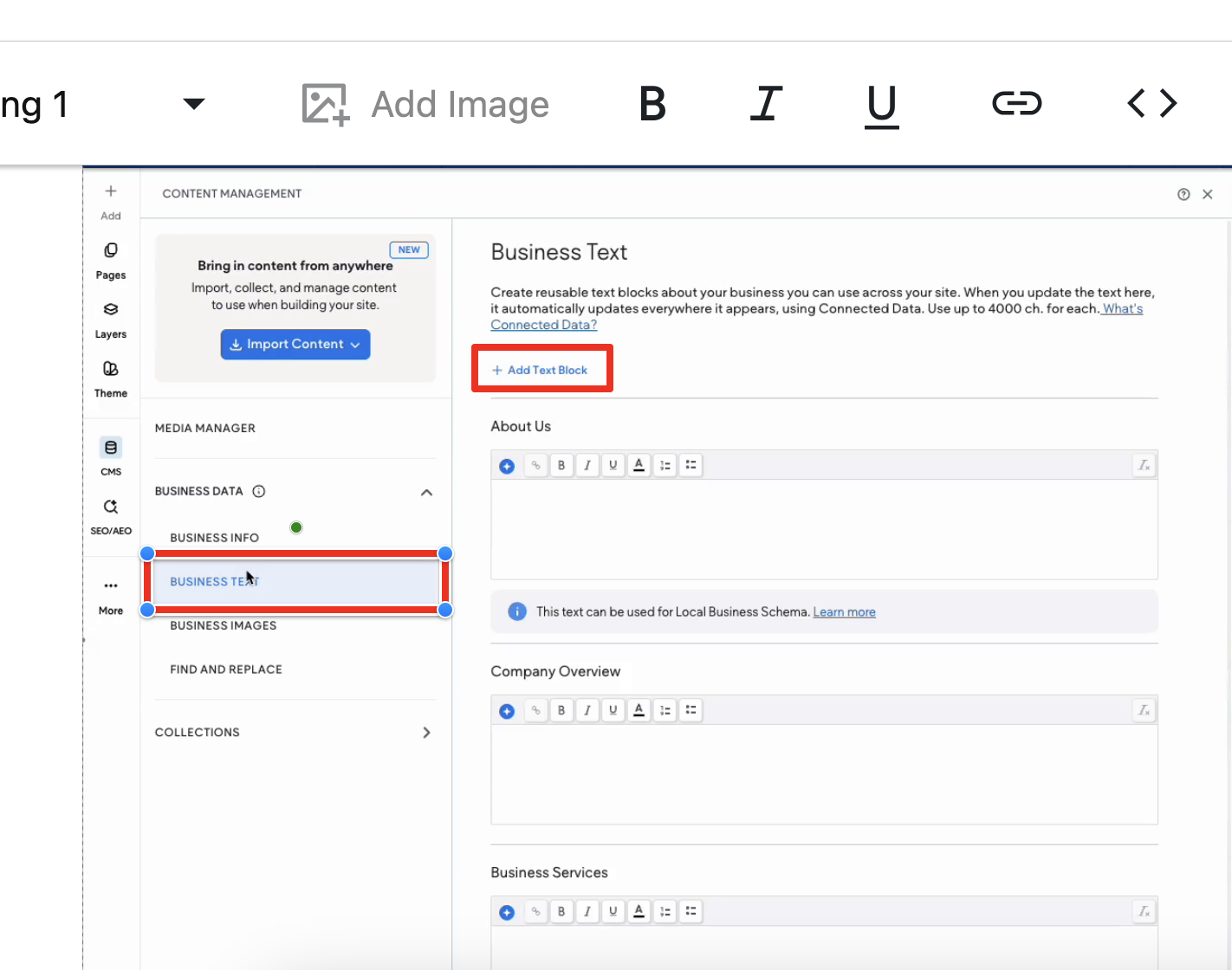
- Use the original label exactly as before. For example: 'Search Page Heading'
- Enter your custom text
- Close the editor
- Republish your changes
Your custom heading or subheading will appear again on the website.
Editable vs Locked Sections
Currently, only specific content areas can be customized.
Editable Content
You can currently edit:
- Hero background images
- Headings
- Subheadings
- Text styling options such as font size and formatting
Locked Content
Some sections are intentionally locked and cannot currently be:
- Edited
- Removed
- Repositioned
- Re-linked
Understanding Default Fallback Content
If a custom Business Image or Business Text entry is deleted, the website will automatically revert to default content.
This applies to:
- Hero images
- Headings
- Subheadings
This fallback behavior helps ensure the search page continues to display correctly even if custom content is removed.
Important Notes
- Changes must be republished before they appear on the live website
- Some sections of the website builder are intentionally locked
- Locked sections cannot currently be customized
- Incorrect labels may prevent content from displaying properly
- When recreating deleted entries, labels must match exactly
Updated about 16 hours ago