
Widgets: Countdown & Copyright
Widgets: Countdown
Widget Categories: Basic
Increase engagement and create a sense of excitement with the Countdown widget that enables you to add a real-time countdown to your site. Use it to keep visitors informed, build interest, and encourage them to take action by letting them know when a sale, event or promotion is going to end, or when a new product, collection or page is going to launch.
For information on adding widgets, see Add Widgets
TIP
For more information on widgets and the widgets library, see Widgets: Library and Overview
Content Editor
To access the content editor, the option to access the content editor is available in the floating menu. Click the element to open the floating menu, then click the option for the content editor.
- Set the date and time the countdown ends. Select a timezone. To set a specific time (for example 11:45pm), after clicking into the drop-down field, type in the desired time in the format hh:mm am/pm, for example 11:45pm).
- Type a Time's up message_ that appears after the countdown ends.
NOTE
The long text field provides various text formatting options, such as italicizing, bolding, or underlining text.
- Select to Show counter at 0000 and message beneath it, or to Remove counter and display message only.
- Type a Title for the countdown. To hide the title, click the eye icon.
Design Editor
To access the design editor, select Edit Design from the floating menu to open the design panel. Click the element to open the floating menu, then click the option to edit design.
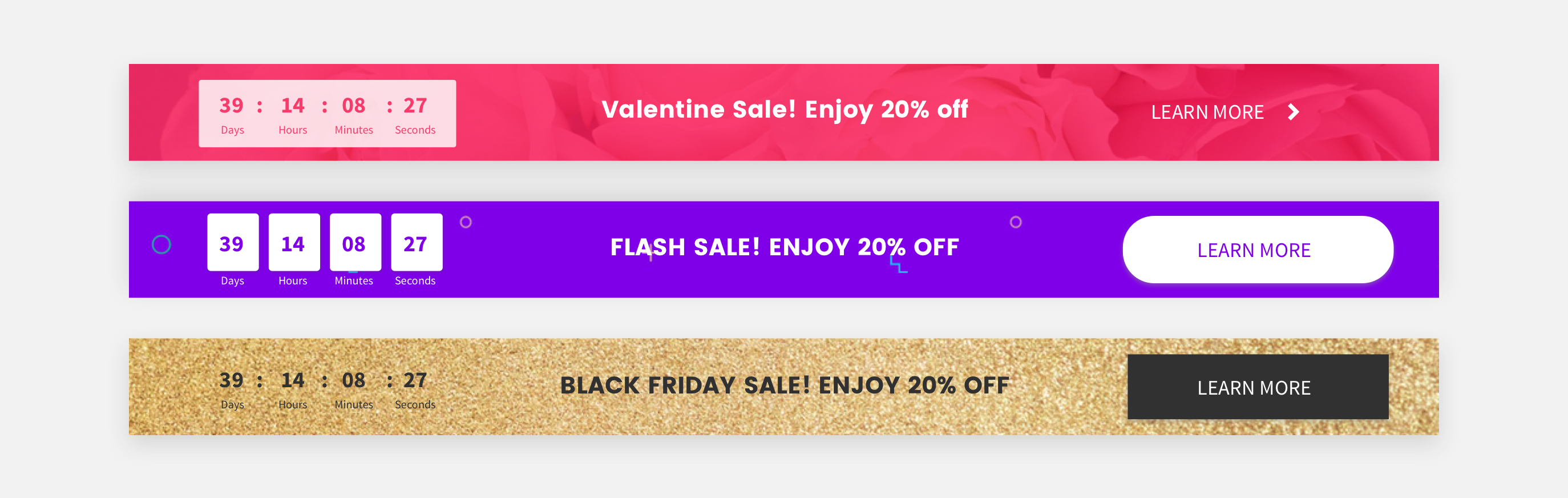
Click the layout to change the way the countdown displays on your site. Make sure the design settings you define are correct per device. Settings such as spacing, image size and more are defined per device.
For information about design options that are not specific to this widget (for example, layout, style, or spacing), see Widget Design
Example
Widgets: Copyright
Widget Categories: Basic
The copyright widget allows you to place a copyright disclaimer with the copyright icon and current year on your site. The year will automatically update to the current year, and by displaying the correct copyright year it shows your visitors that your site is up to date. Almost every site has a copyright notice which gives basic information about the site.
For information on adding widgets, see Add Widgets
TIP
For more information on widgets and the widgets library, see Widgets: Library and Overview
Content Editor
The option to access the content editor is available in the floating menu. Click the element to open the floating menu, then click the option for the content editor.
- Type the text you would like to have displayed in the description field provided.
- Click the Reverse icon/year position toggle to have the year and copyright icon appear to the left or the right of the text. The default is to the left.
Design Editor
To access the design editor, select Edit Design from the floating menu to open the design panel. Click the element to open the floating menu, then click the option to edit design.
- Select the font and color settings for the text
- Adjust alignment and text direction
- Edit the spacing of the widget
For information about design options that are not specific to this widget (for example, layout, style, or spacing), see Widget Design
Updated 3 months ago