
Accepting a Team invitation to Uplisting
When a primary account owner invites you to join their Uplisting account (for example as a team member, cleaner, property manager, or owner), you will receive an email invitation.
Accepting the invitation correctly ensures your account is linked to the primary account owner and that you can access the listings and permissions assigned to you.
How the invitation works
When you are invited:
- You will receive an email from Uplisting.
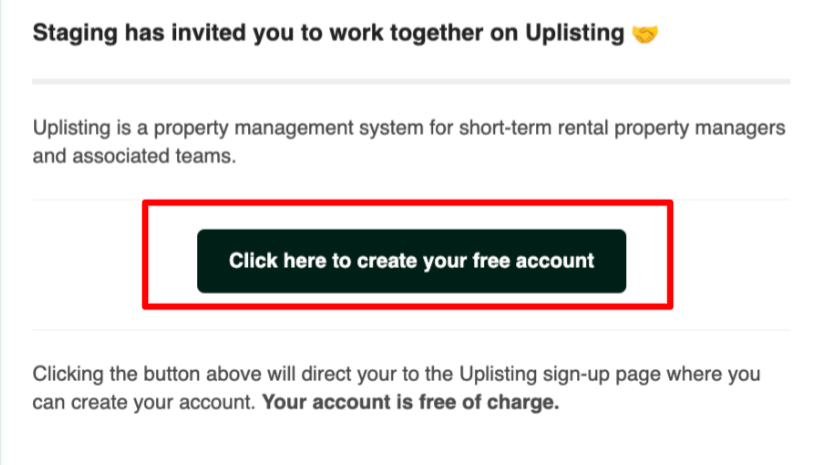
- The email includes a button labelled “Click here to create your free account.”
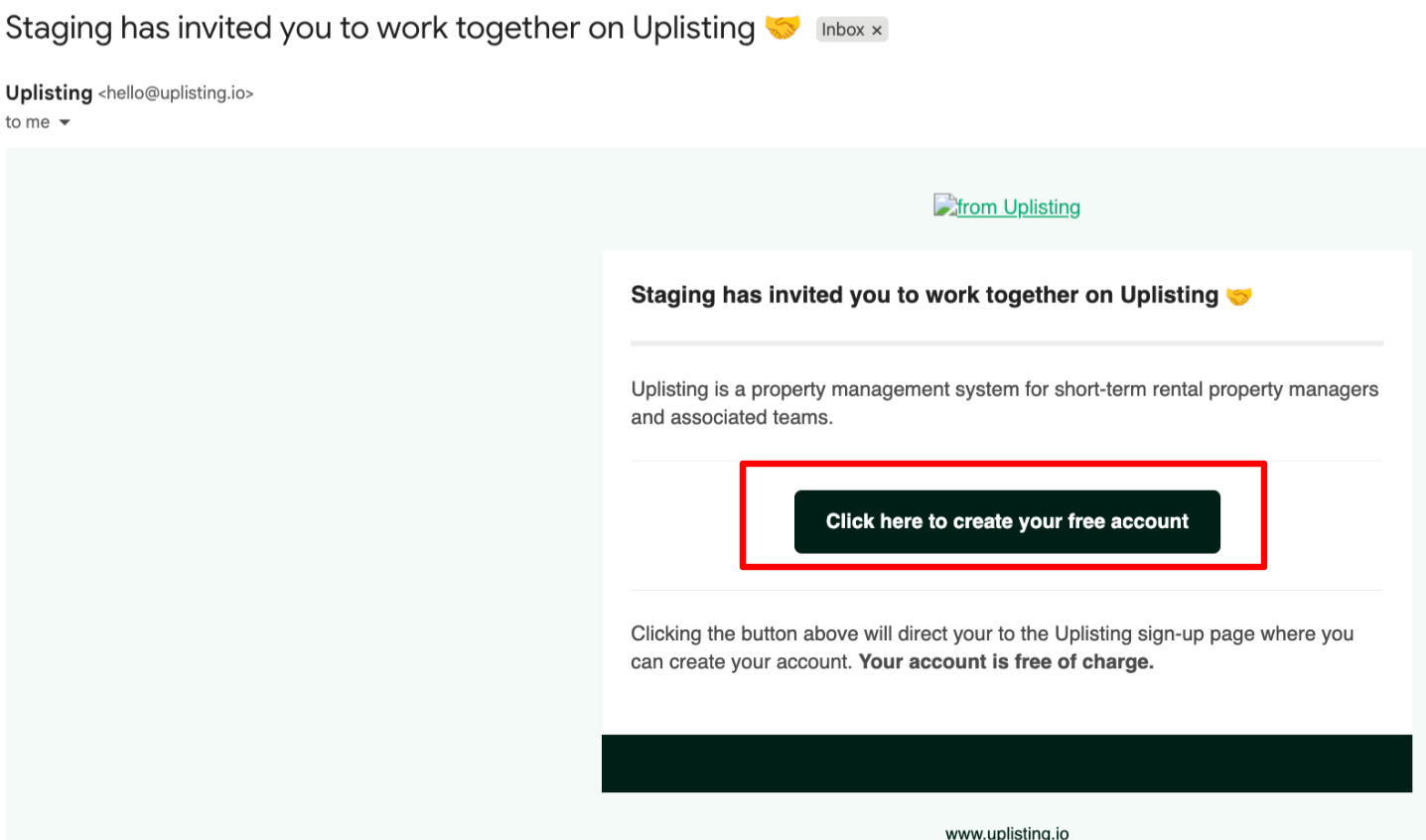
- Your account will be linked to the person who invited you.
- You will only see the listings and permissions assigned to you by the primary account owner.
Note:
Your account is free. You are not creating a separate subscription.
Important: Use the link in the invitation email
You must create your account using the button inside the invitation email.
Do not go directly to uplisting.io to create an account separately. If you create an account outside of the invitation email:
- A separate Uplisting account (subscription) will be created.
- It will not be linked to the primary account owner.
- You will not see any assigned listings.
- You will not have the correct permissions.
Always use the “Click here to create your free account” button in your invite email.
Before you accept the invitation
Before clicking the button in the invite email:
- Log out of any other Uplisting account you may currently be signed into.
- Make sure you are using the same email address that received the invitation.
This helps ensure your new account is linked correctly.
Steps to accept the invitation
- Open the invitation email from Uplisting.
- Click “Click here to create your free account.”
- You will be directed to the Uplisting sign-up page.
- Choose one of the following options: 'Sign up with Google' or 'Sign up using your email address'
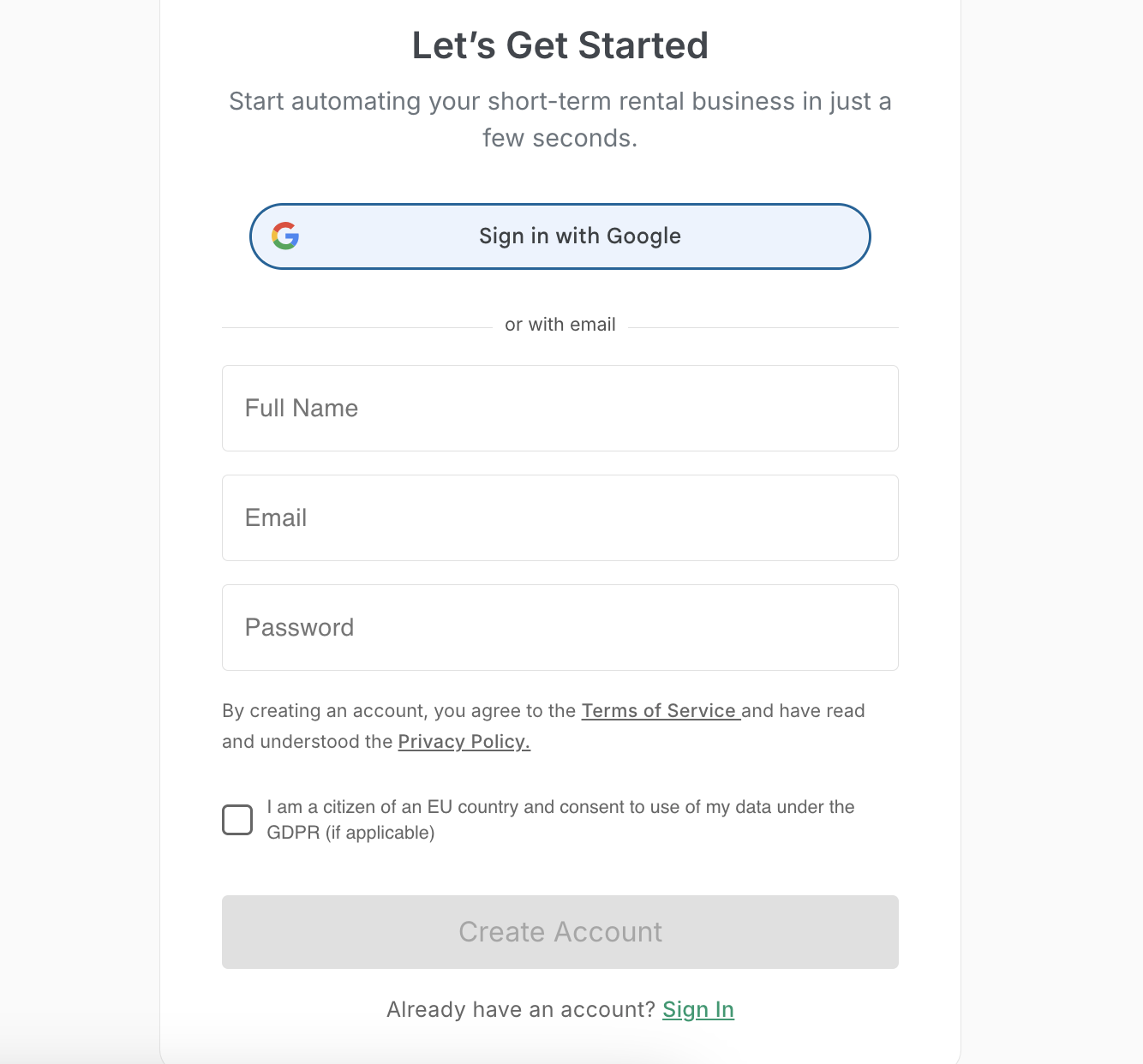
- Complete the sign-up process.
Once completed, your account will automatically be linked to the primary account owner who invited you.
You will then have access to the listings and permissions assigned to you.
If you cannot see your assigned listings
If you have signed up but cannot see any listings:
- Confirm you used the link inside the invitation email.
- Confirm you are logged into the correct email address.
- Contact the primary account owner to check if they've assigned you listings or to resend the invitation if needed.
Updated 3 months ago