
Widgets, Library, and Overview
Widgets are the key building blocks of a site, allowing you to add and manage content effectively. They serve as essential elements that enhance both the functionality and design of your website. By incorporating various types of widgets, you can create a dynamic and engaging user experience.
Widget Library
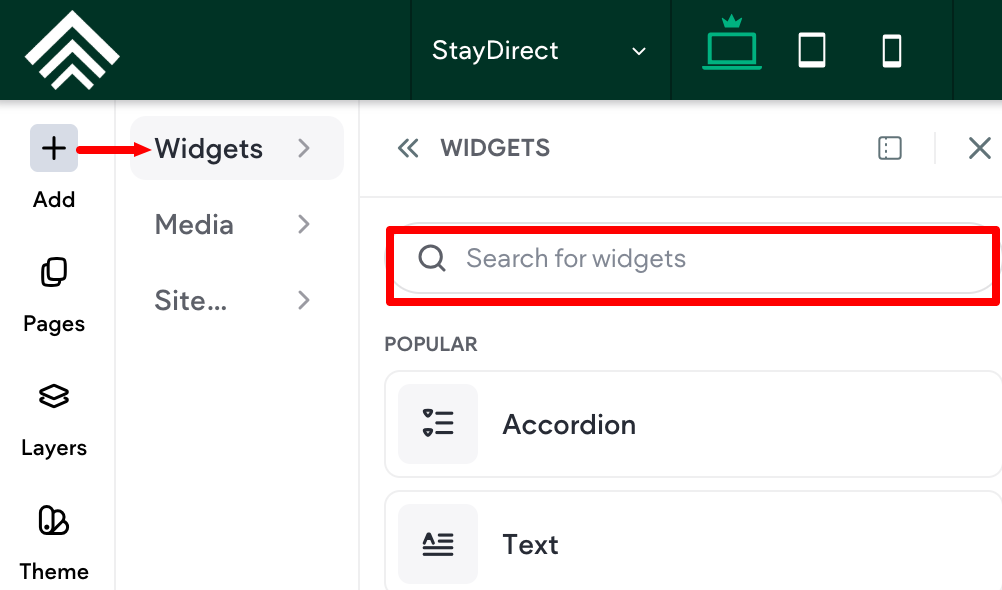
The widget library is where all the widgets can be found. They are broken down into categories. There is also a search function at the top.
Add Widgets from the Widget Library
To add widgets from the widget library:
- In the side panel, click Add, then click Widgets.
- Widgets can be searched for using the search bar at the top or by scrolling through the different sections in the library.
- Click and drag the widget to the location you want in the site. A blue placement indicator appears.
- The widget appears in the location shown by the blue placement indicator.
- Insert here - The widget will be added to an existing row or column.
- Insert in new row - A new row will be added and the widget will be placed inside of it.
- Insert in new column - A new column will be added and the widget will be placed inside of it.
NOTE
Widgets can only be added to existing columns, new ones are not able to be created with the placement of a widget.
Add Widgets from the Canvas
To add widgets from the canvas:
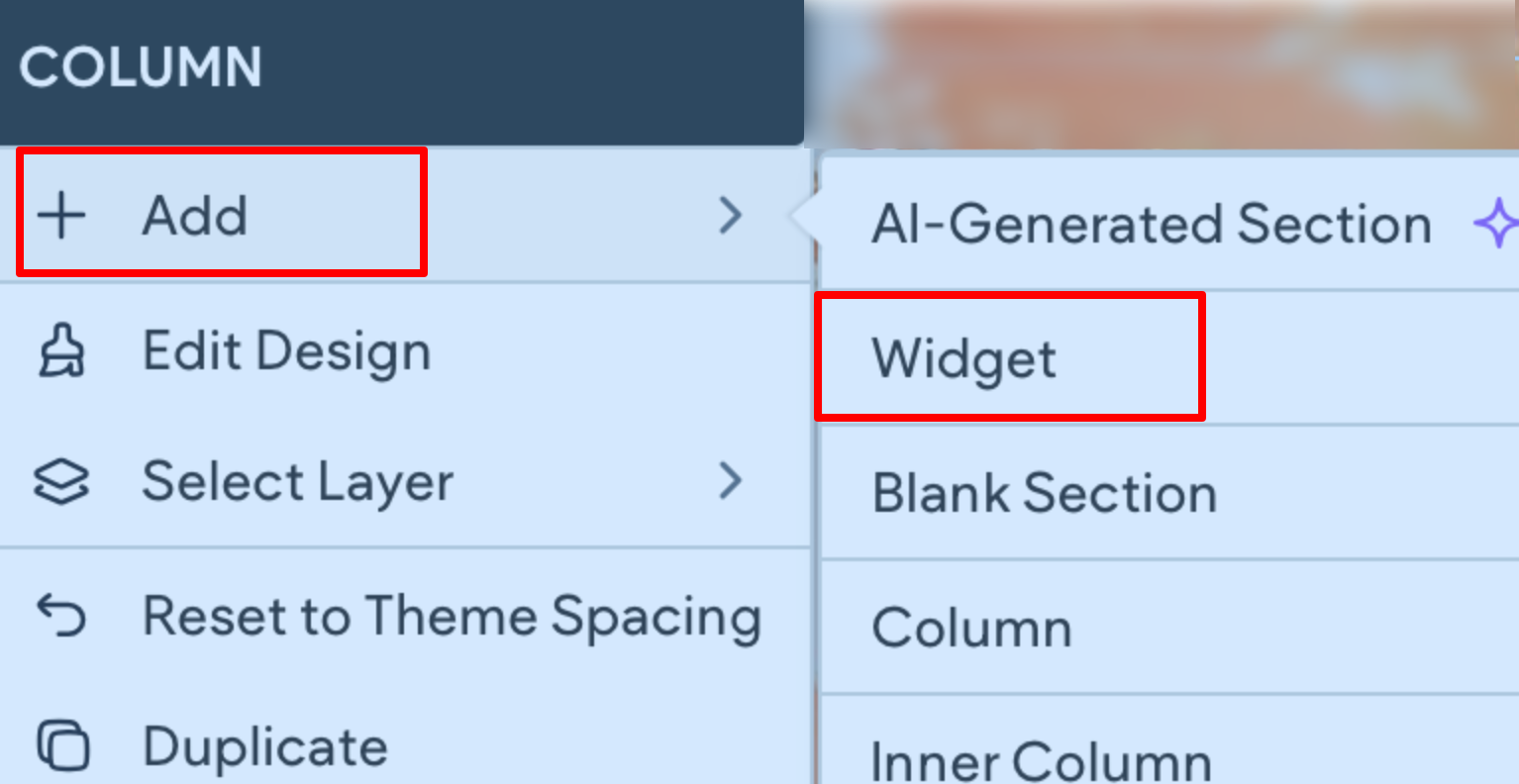
- Right-click on a column within the canvas, and click the plus (+) icon in the floating menu.
- Click Add
- Select from the four most popular widgets or click More widgets to open the full menu. After adding the widget, you can edit it as usual.
Add Widgets from Media Panel
The Media Panel allows you to easily drag and drop media (images, videos, and icons) onto the canvas and add a widget all at the same time. For example, if you add an image from the Media Panel to the canvas, an image widget is automatically added. To learn more, see Media Panel.
To add an image, icon, or video widget from the Medial Panel:
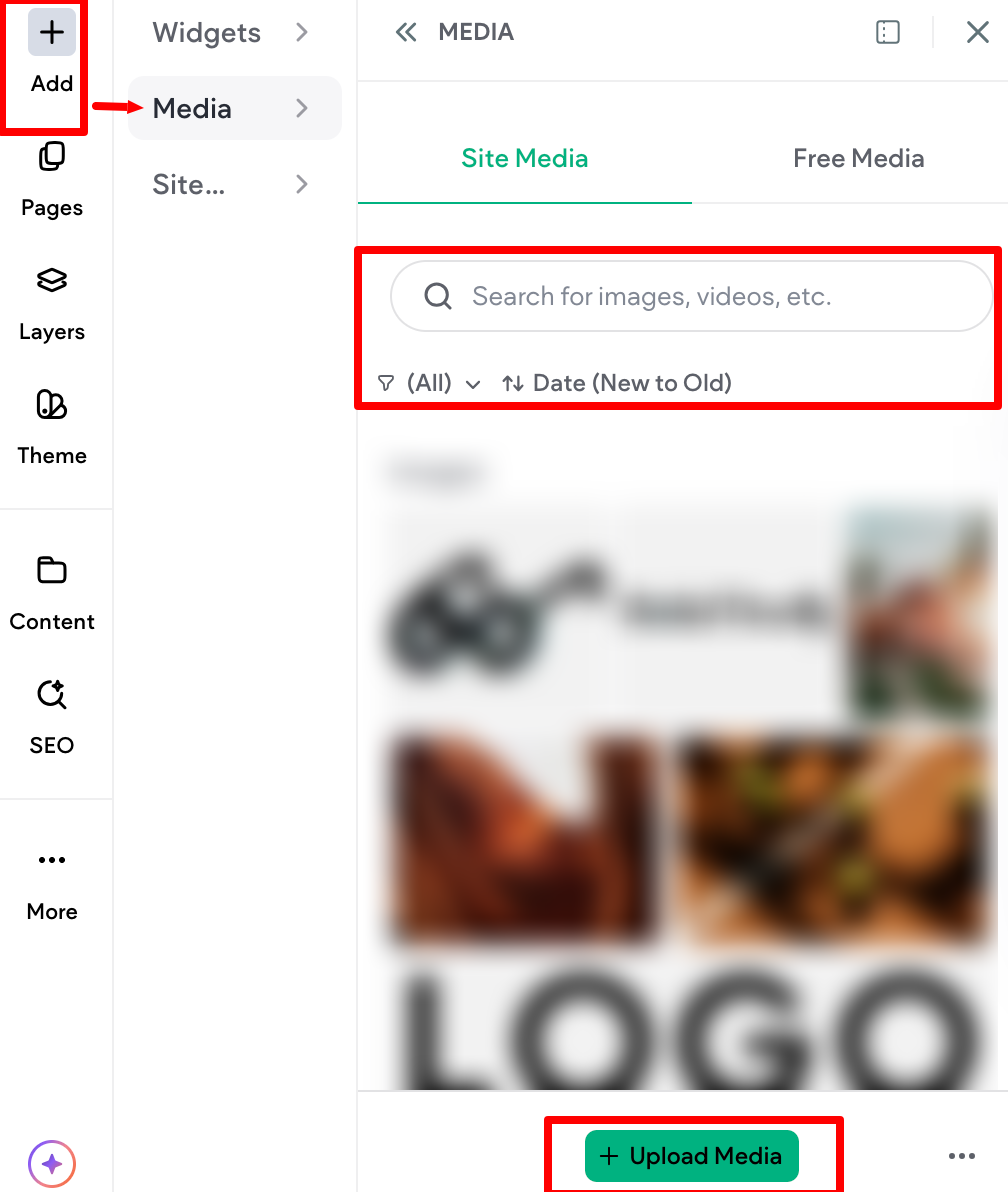
- In the side panel, click Add, then click Media.
- (Optional) Use the filters to help locate the desired media. Or, click Upload Media to add new media.
- Click and drag the desired media onto the canvas. Note that images cannot be placed in the Product Gallery widgets nor in widgets connected to dynamic pages.
Updated 3 months ago