
Link Picker for Flex Containers
Add or modify links across various elements or widgets. You can link to internal resources like pages or anchor points, external URLs, or create click-to-action links. Links can be added to most elements, including text, images, buttons, flex containers, and more, with similar options available for each. These options may vary depending on your site’s add-ons, such as eCommerce or Membership.
How to access the link picker will be dependent on the widget and the editor version.
For text widgets, if text is able to be linked, click on the icon that looks like a link, may look different depending on the widget).
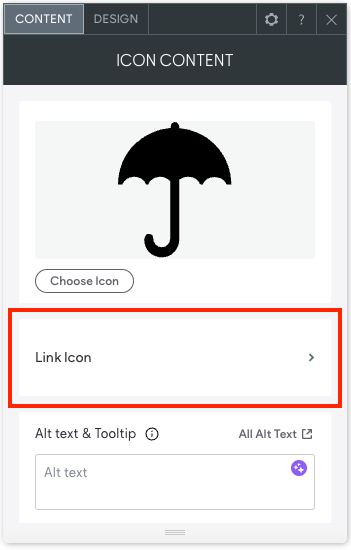
For most widgets, the link option can be found in the content tab or management area. Some widgets, like the Image widget, will have the management area labeled as "Replace." For example, to access the management area for an image, click "Replace Image."
The option to access the content editor is available in the floating menu. Click the element to open the floating menu, then click the option for the content editor.
Example link section in the Content tab or management area:
Link Picker for Flex Containers
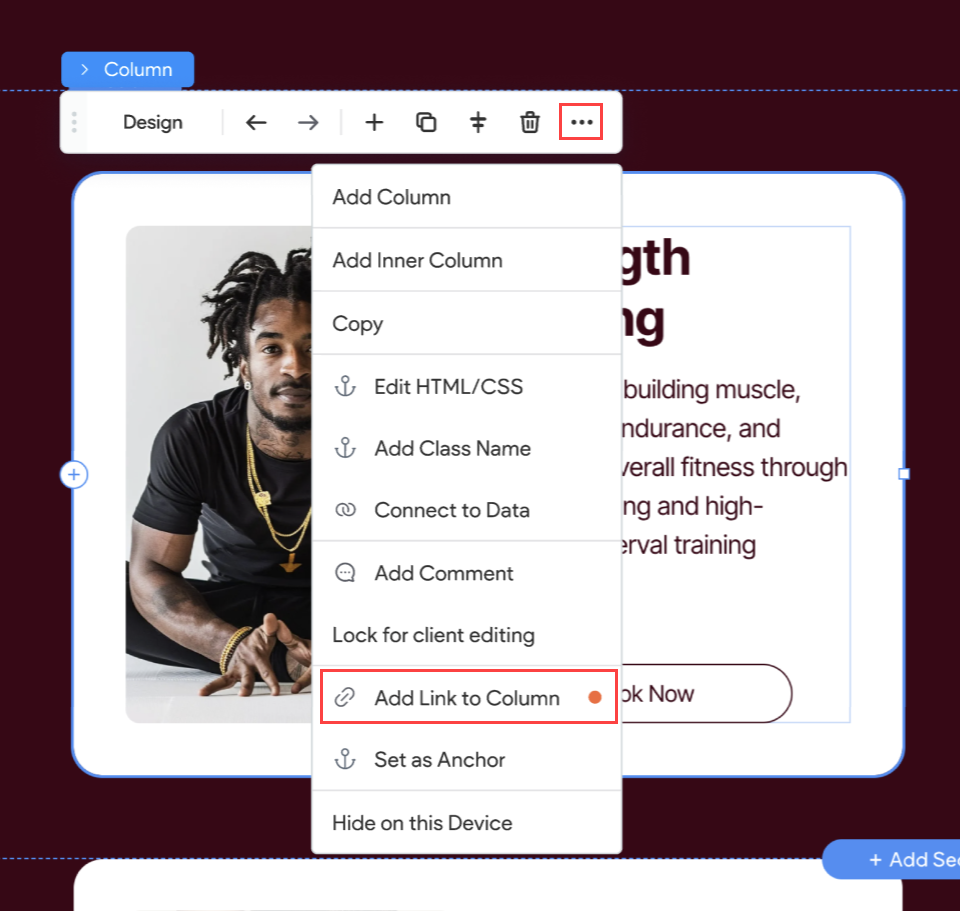
For flex containers (column, inner column, advanced grid), you can access the Link Picker from the floating bar. To add a link to a container, click the container and click the three horizontal dots on the floating bar, then select Add Link. Note that nested elements inside the container can still have their own links. For example, the container can be linked to a Contact Us page while the button inside the container can be linked to an email address.
NOTE
Currently, linking to a flex container does not contribute to SEO rankings. However, we are actively working on enhancing its SEO significance in the future. In the meantime, we recommend including a CTA button within the container that links to the same destination. This ensures better SEO visibility while maintaining the intended user experience.
Updated 3 months ago