
Filters & Filter Behaviour
Filters
1. Top Sticky Filters
The filters you select apply to the entire dashboard and remain visible as you scroll, so you can always see which view you’re working in.
NOTE:
- Multi-select filters allow you to narrow down results based on specific criteria in your account, making it easy to find and apply multiple values at once. When multiple filters are selected, the results will update to match all selected criteria.
- Single-select filters- allow you to choose only one option at a time.
To access the filter options:
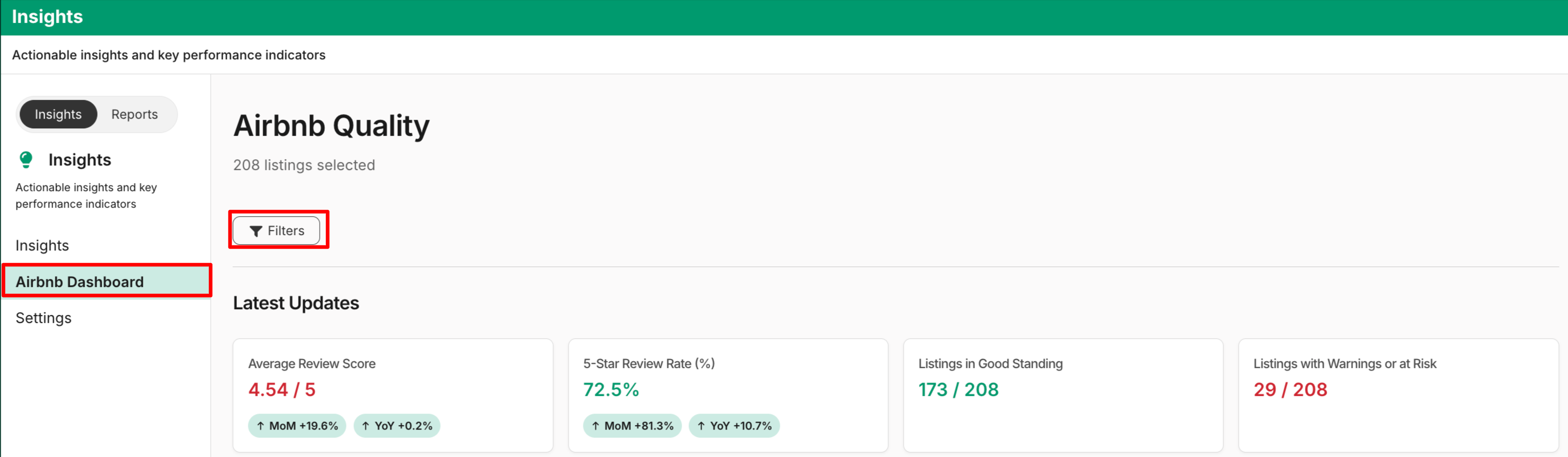
- Navigate to the Insights page and select Airbnb Dashboard from the left-hand panel.
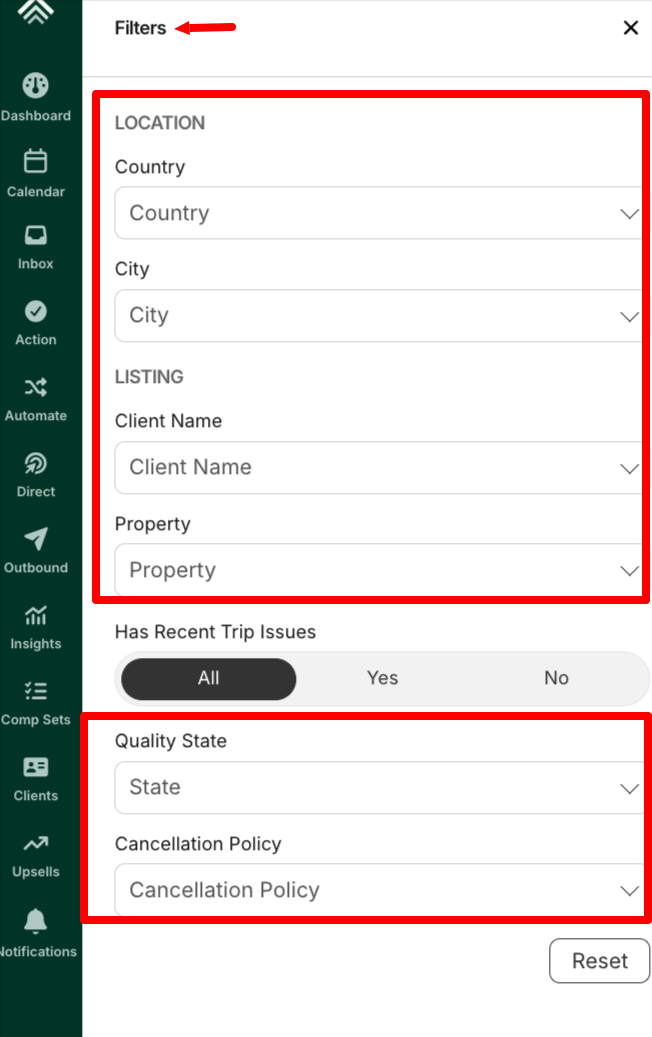
- Click the Filters button at the top of the dashboard. From there, you can apply filters based on Country, City, Client Name, Property, Recent Trip Issues, Quality State, and Cancellation Policy to narrow down your listings as needed. Use the Reset button to clear all selections and start over.
The available multi-select filters include:
-
Country - Use the Country filter to narrow results by one or more countries linked to your account. You can find this option under the Location section of the filter panel.
-
City - Use the City filter to refine results by specific cities. You can select multiple cities at the same time.
-
Client Name - You can select one or multiple hosts/clients. Only hosts/clients that exist within your account will be shown.
-
Property - Use this filter to narrow results to specific properties associated with your account. You can select multiple properties at once.
-
Quality State - Allows you to filter results based on the listing quality status assigned ( e.g. Good, Educate, Warn, Probation, Additional Warn, Pending Removal, Suspended, Removed etc). You can select one or multiple quality statuses. Each listing has exactly one Latest Quality Status.
-
Cancellation Policy- Allows you to filter results by cancellation policy type. You can select one or multiple cancellation policies (Flexible, Moderate, Firm, Strict, Super Strict 30 Days, Super Strict 60 Days, Non-refundable and Limited). Each listing has exactly one Latest Quality Status.
The available single-select filters include:
-
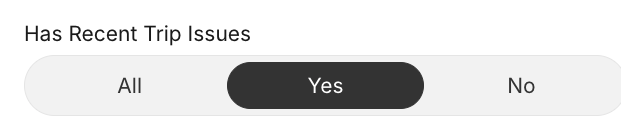
Has Recent Trip Issues - Allows you to filter based on whether a listing or booking has recent trip issues. This is a single-select filter, meaning you can only choose one of the below options at a time:
All – Shows all listings/bookings, regardless of trip issue status.
Yes – Shows only listings/bookings with recent trip issues (based on Listing Issues / Trip Issues data).
No – Shows only listings/bookings with no recent trip issues.
2. Granularity Filter
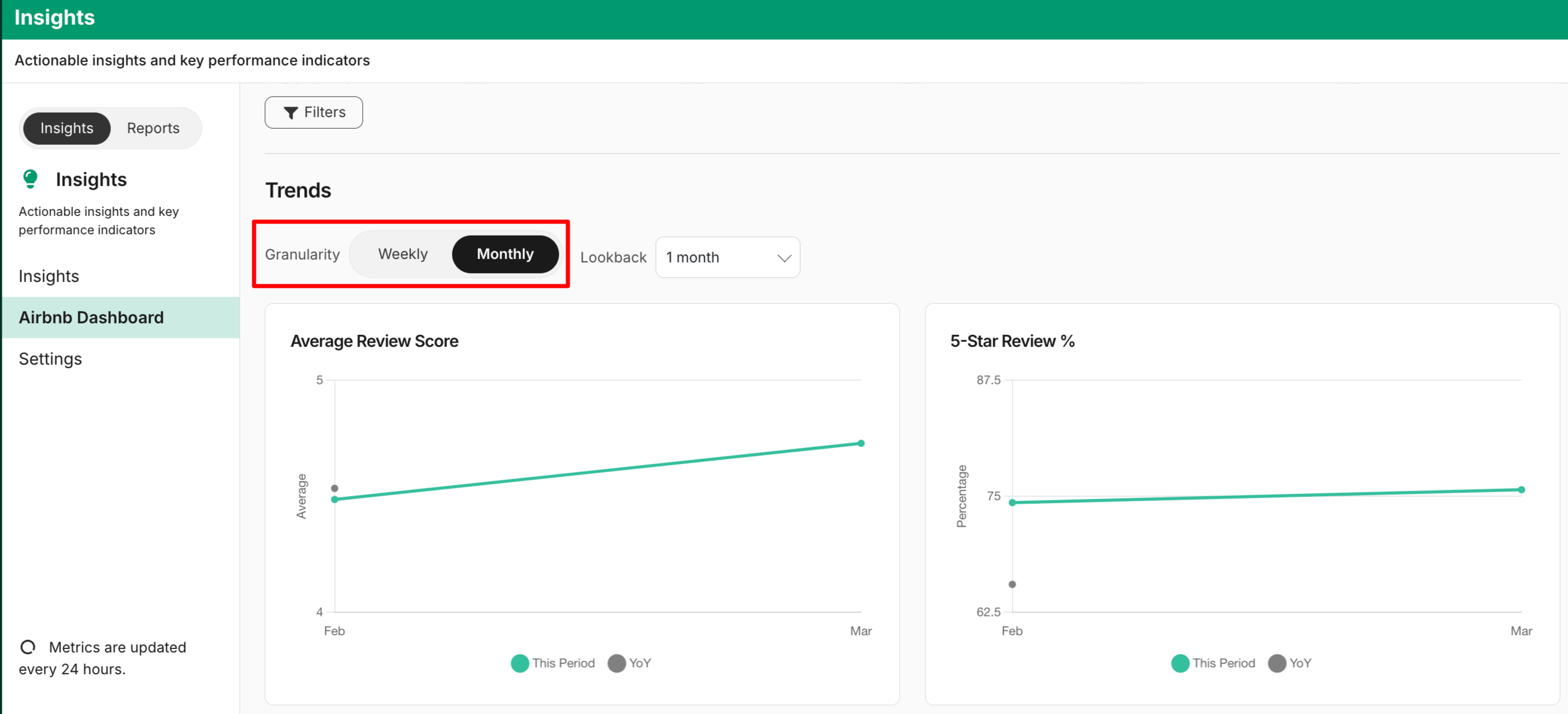
This filter controls the level of detail for trend visualization. It is categorised into:
- Weekly – Displays scores summarized by week. Choose Weekly to see short-term trends or sudden changes.
- Monthly – Displays scores summarized by month. Choose Monthly to observe longer-term trends and smoother data patterns.
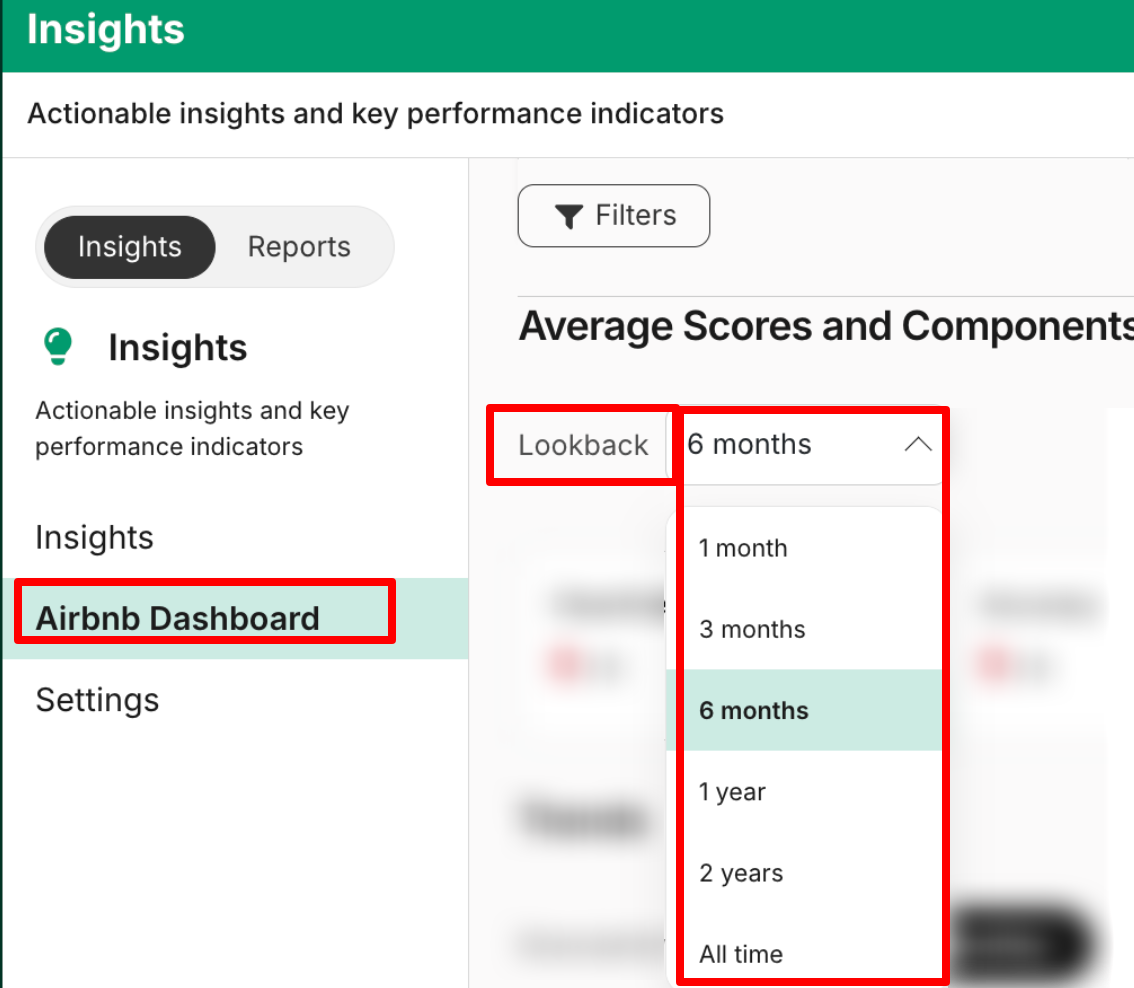
3. Lookback Filter
The Lookback filter allows you to select how far back your report pulls data. This makes it easy to focus on recent performance or evaluate long-term trends.
You can choose shorter lookbacks for recent performance trends or longer lookbacks to compare/identify trends over extended periods.
Filter behaviour:
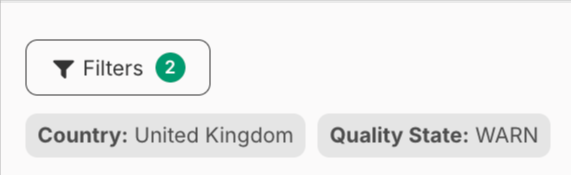
- Filters combine using the 'AND' logic (example: Country = UK AND Quality State = Warn)
- If no value is selected, it is treated as All
- Multi-select filters include: Select All and Clear All
- Each listing has exactly one Latest Quality Status
- Each listing has exactly one Cancellation Policy
Updated 2 months ago