
SEO / AEO
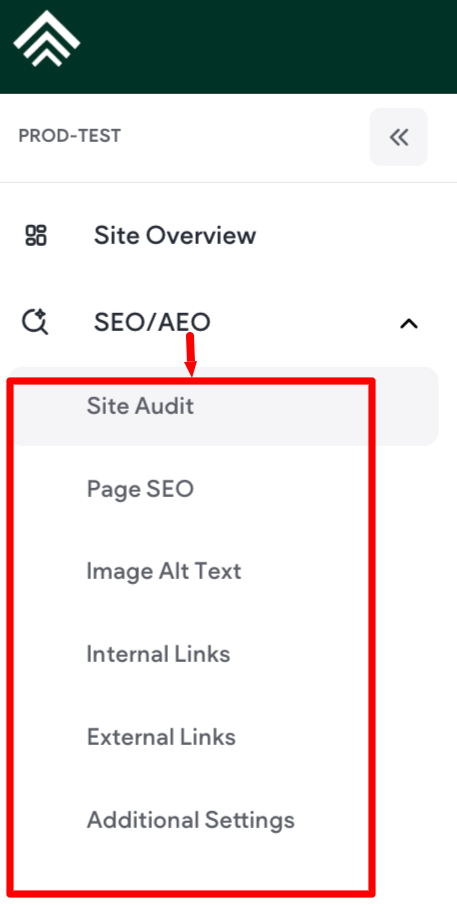
The SEO/AEO tab contains Site Audit, Page SEO, Image ALT Text, and Additional Settings
Site Audit
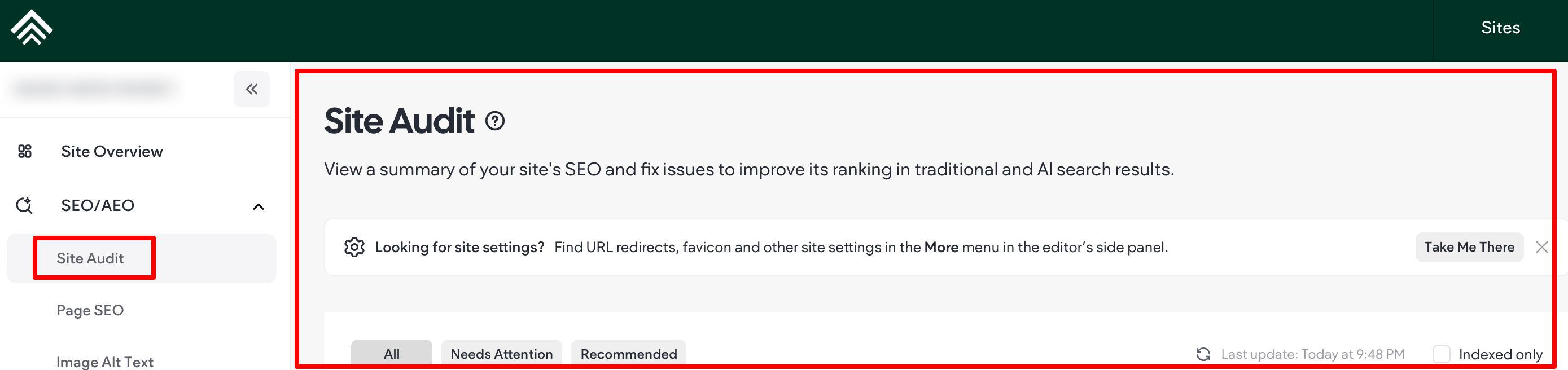
View a summary of your site's SEO and fix issues to improve its ranking in traditional and AI search results.
Page SEO
Add and manage the meta title and description tags of all your site pages in one place. To make your changes live, republish your site when you're ready. To edit a tag for a page, click into the desired field.
NOTE
• Fields that are connected to data will be disabled.
• Not all pages will be available here; for example, dynamic pages.
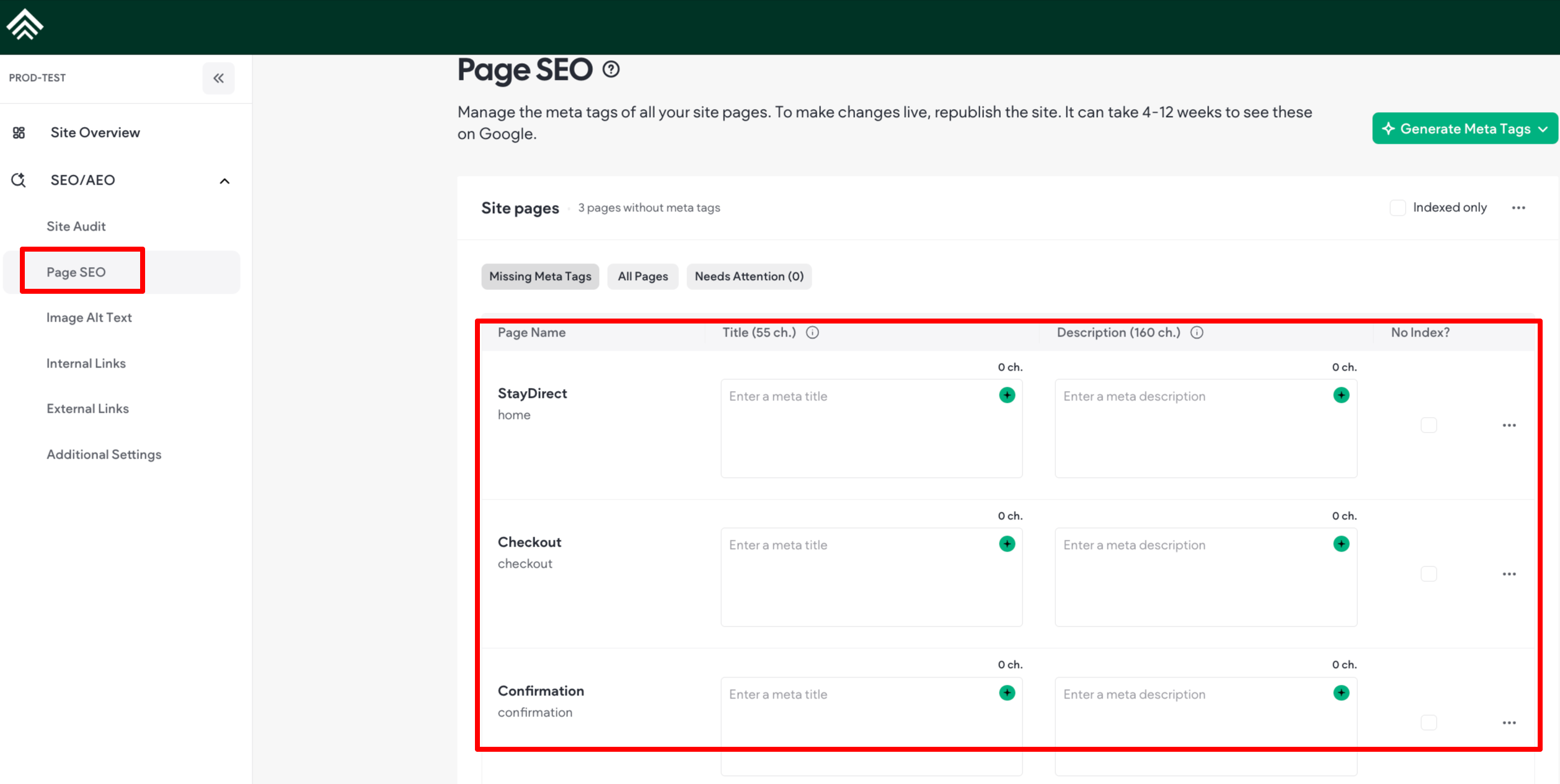
Image Alt text
- Image Alt Text in your Site Dashboard allows you to manage alt text for all site images in one consolidated area (for information on how to access it, see How to Access the Alt Text Overview section in this article.
- To view how many images have missing alt text, access the alt text overview to view the sum near the
“Site images” title. When all images are set up, “All images are set up” is written and your ‘Missing Alt
Text’ view is empty
- To view how many images have missing alt text, access the alt text overview to view the sum near the
- Image Alt Text includes two views: ‘Missing Alt Text’ and ‘All Images’:
- In ‘Missing Alt Text’, also the default view, the table displays your images without alt text.
- In ‘All Images’, the table displays all your images with and without alt text. Both views contain a table, and the name and location of an image is available below each image card
- Both views contain a table, and the name and location of an image is available below each image card.
NOTE
If your site is multi-language, use the dropdown menu to select a language. If the language has bold body text and a dot next to its name, there are site images in that language without alt text.
How to Access the Alt Text Overview
To access the alt text overview:
- In the side panel of the Site Dashboard, click SEO and then click Image Alt Text.
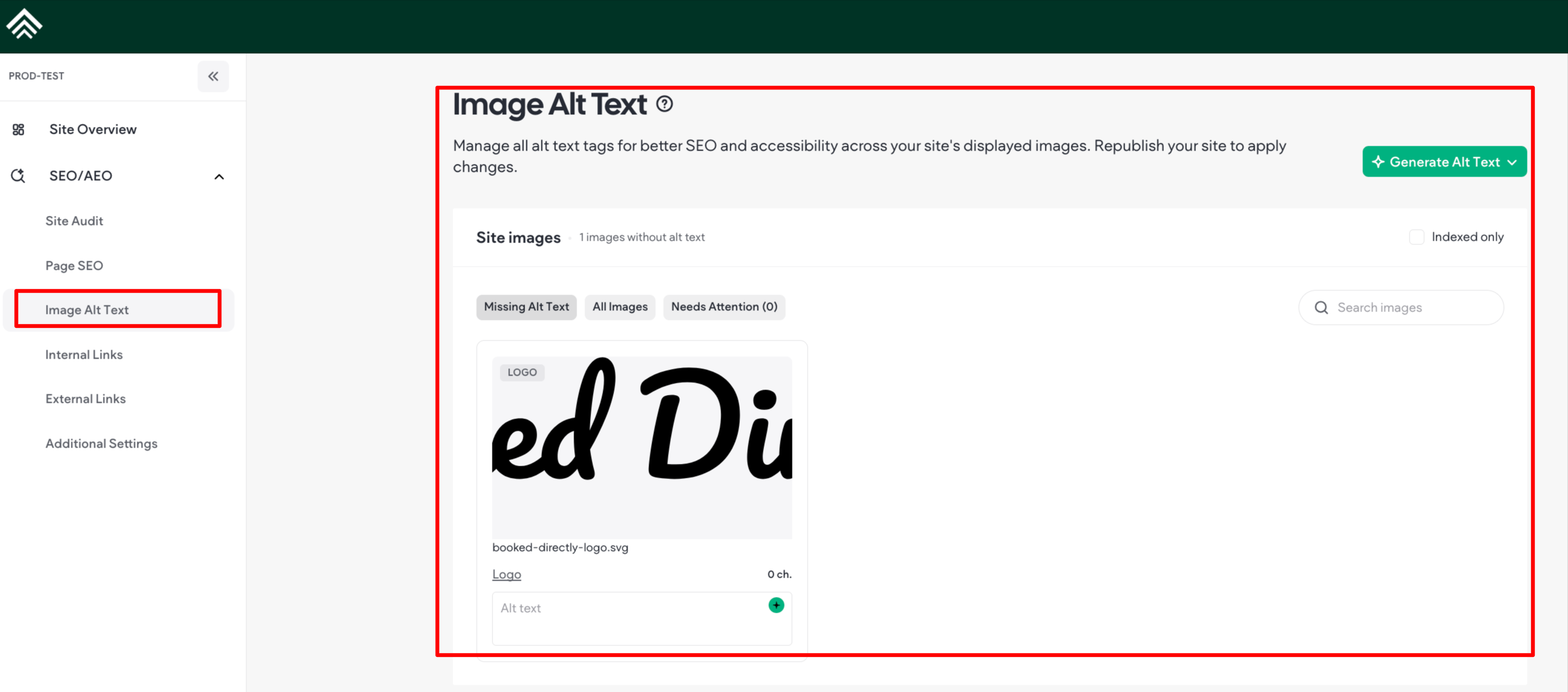
- The sum of images missing the alt text, is near the “Site images” title, as shown below:

- (Optional) If your site has multi-languages, click the dropdown menu and select a language.
Add or Edit Alt Text for Images
To add or edit alt text for your site images:
- In the side panel of the Site Dashboard, click SEO and then click Image Alt Text..
- (Optional) If your site has multi-languages, click the dropdown menu and select a language.
-
Choose between adding alt text in bulk to multiple site images or to individual images.
-
If you are adding alt text in bulk, click Generate Alt Text and select one of two alt text generation options: generate alt text for all site images or generate alt text for site images missing alt text.

-
If you want to add alt text for individual images, you can either manually add alt text or click the AI Sparkle button for automatic generation in the current site language.
- Click outside the alt textfield to confirm changes. The image and alt text will be removed from the ‘Missing Alt Text’ view and can be found in the ‘All Images’ view.
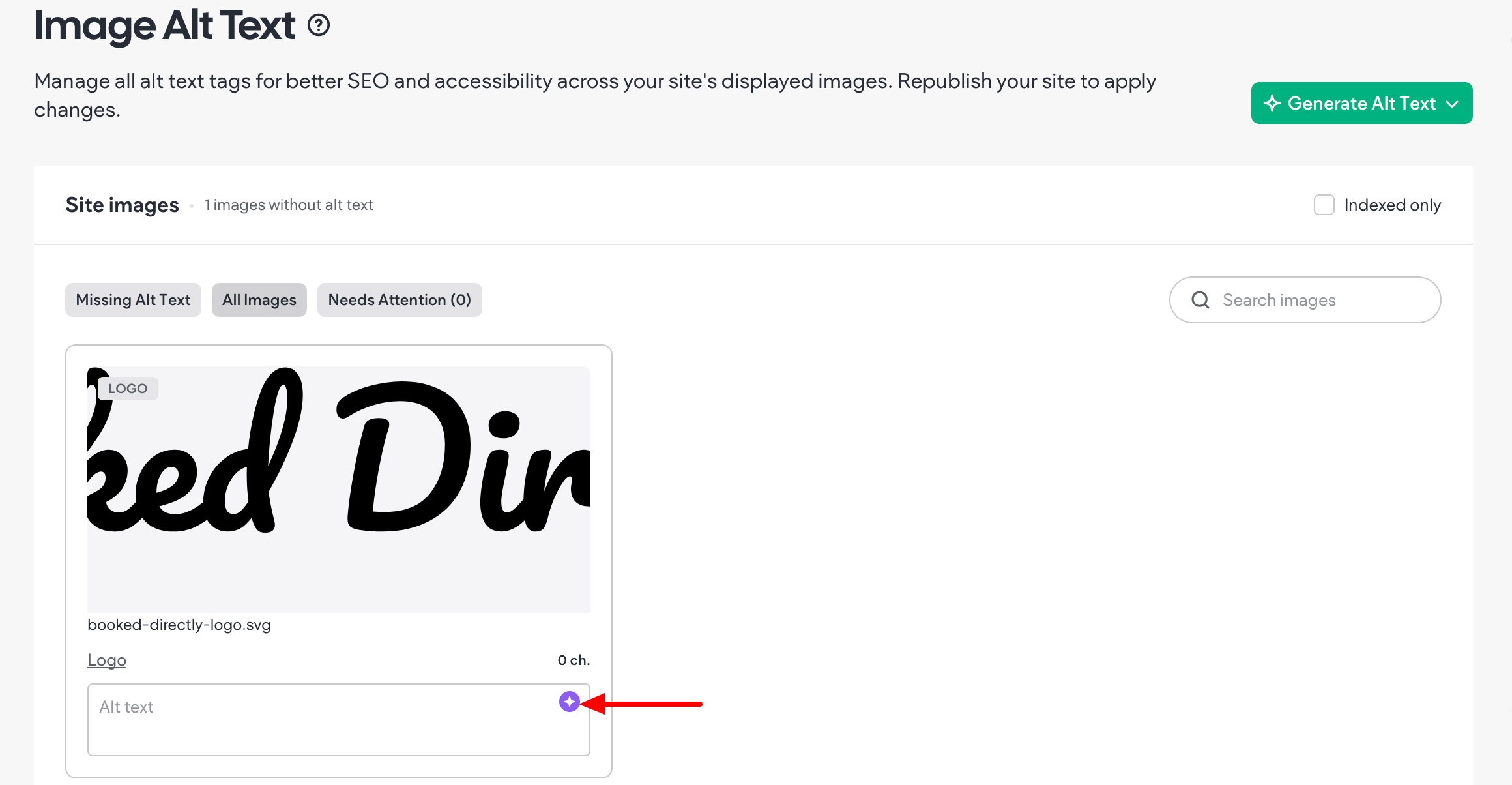
- Create alt text for all of your site images and receive a success message in the Missing Alt Text view.
Updated 3 months ago