
Automated Messages with Safeguest
To send your SafeGuest verification link automatically to guests, you can use Automated Messages together with SafeGuest custom tags and 'SafeGuest Status' filters. This guide explains how to set this up.
When Safeguest is enabled, the Safeguest verification link is not sent automatically. To send the verification link to guests, you’ll need to include it in your preferred Uplisting automated messages.
To do this, add the following custom booking attribute tag to your automated message for the Safeguest enabled listing:
safeguest_verification_link
This tag can be found under Custom booking attribute tags on the Outbound page here. Once added to an automated message, the link will be sent to guests when that message is triggered.
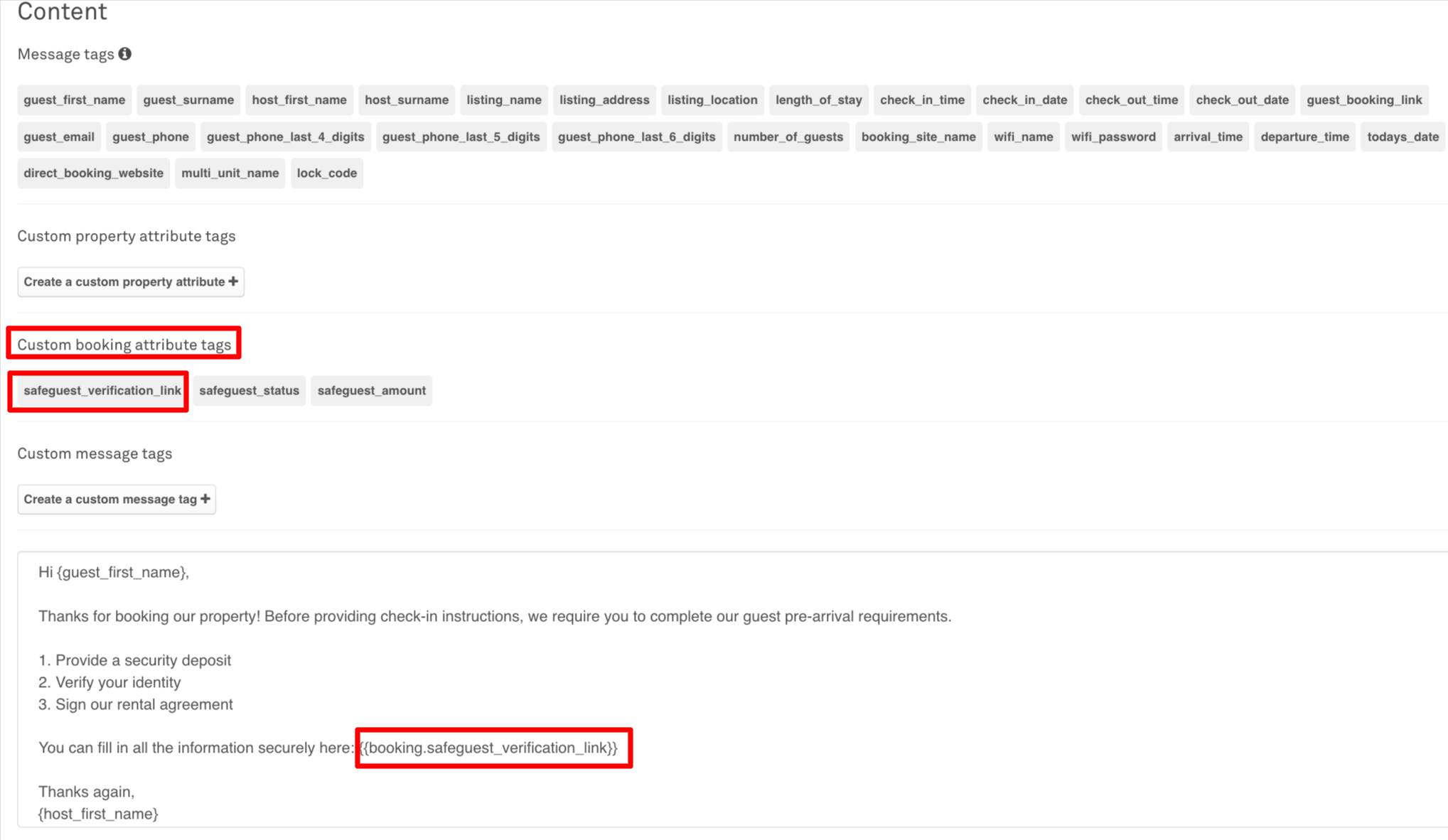
You can include this in:
- New Booking messages
- Pre-arrival messages
- Reminder messages
This ensures guests automatically receive the SafeGuest verification link.
The **safeguest_verification_link **directs guests to the Safeguest verification page where they can complete their identity verification and deposit or waiver selection. (See the Guest Verification Flow guide)
NOTE:
This custom booking attribute tag cannot be edited
'Safeguest Status' Filter
Automated messages can also be triggered based on SafeGuest Status filter
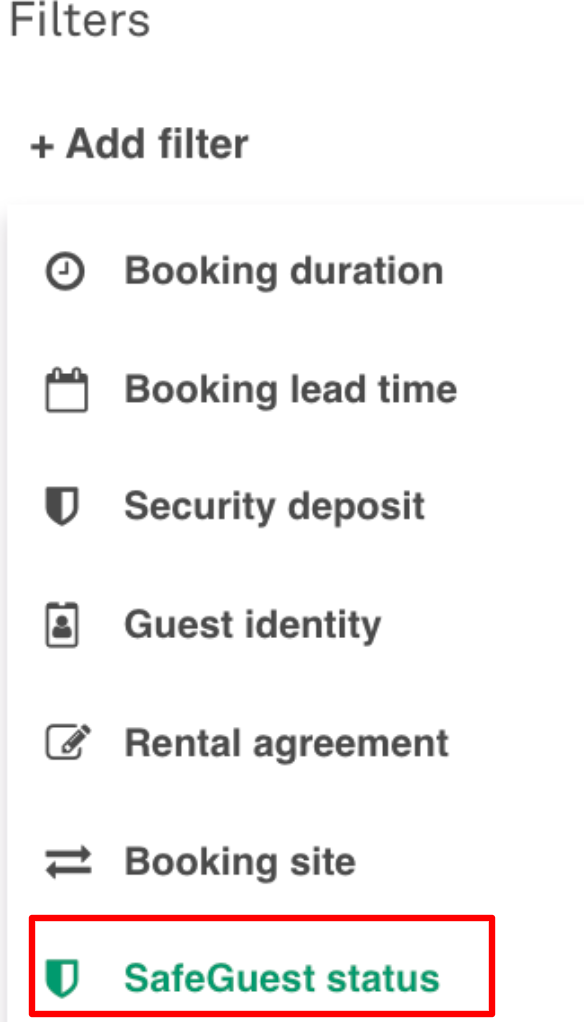
Available filters:
- Low risk
- Medium risk
- High risk
- Pending
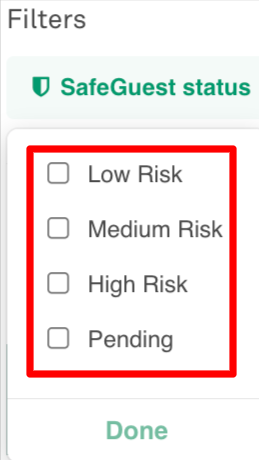
Messages will only be sent when the configured conditions are met. If one of the conditions is not met, the message will not be sent
⚠️ Important: Updating Automated Message Filters When Using SafeGuest
When using SafeGuest, guest verification and security deposit collection are handled entirely on the SafeGuest platform.
Because of this:
Uplisting's Guest Identity and Security Deposit features are disabled
These features cannot run at the same time as SafeGuest
What This Means
If you previously configured automated messages using the following Uplisting filters, they will no longer work after enabling SafeGuest:
Guest Identity Filters:
- Guest identity is verified
- Guest identity is not verified
Security Deposit Filters:
- Security deposit has been collected or is not required
- Security deposit needs payment information
- Security deposit payment method has been provided
- Security deposit collection attempt failed
These filters only work with Uplisting’s native Guest Identity and Security Deposit features, not SafeGuest.
What You Should Use Instead
When using SafeGuest, you may need to update your automated messages to use the 'SafeGuest Status' filters
These filters are designed specifically for SafeGuest verification and deposit workflows.
Example:
- SafeGuest Status = Low
- SafeGuest Status = Medium
- SafeGuest Status = High
- SafeGuest Status = Pending
For Existing Bookings (Pre-Safeguest)
If you enabled SafeGuest after bookings were already created, your existing automated messages that rely on Uplistings security deposit and guest identity features, may stop sending.
This happens because:
The automated messages rely on Uplisting's native Guest Identity or Security Deposit filters, but these native features are disabled when SafeGuest is active, as they cannot run simultaneously.
How to Fix
Update your automated messages:
- Remove native Guest Identity filters
- Remove native Security Deposit filters
- Add SafeGuest Status filter and select the appropriate risk scores (see the Risk Scores guide )
- Save your message
Once updated, messages will be sent correctly to future bookings.
Updated 25 days ago