
How to Activate the Website Builder
Follow the steps below to activate your new Website Builder from your Uplisting account.
Before activating the Website Builder, you'll need to connect your Uplisting listings to an active Stripe account in order to accept direct booking payments.
If you haven't connected Stripe yet, please complete this step first: [How to connect Stripe]
Without Stripe:
- Guests will not be able to complete bookings
- Payments cannot be processed
- Your website checkout will not function properly
Once Stripe is connected, you can proceed with activating the Website Builder.
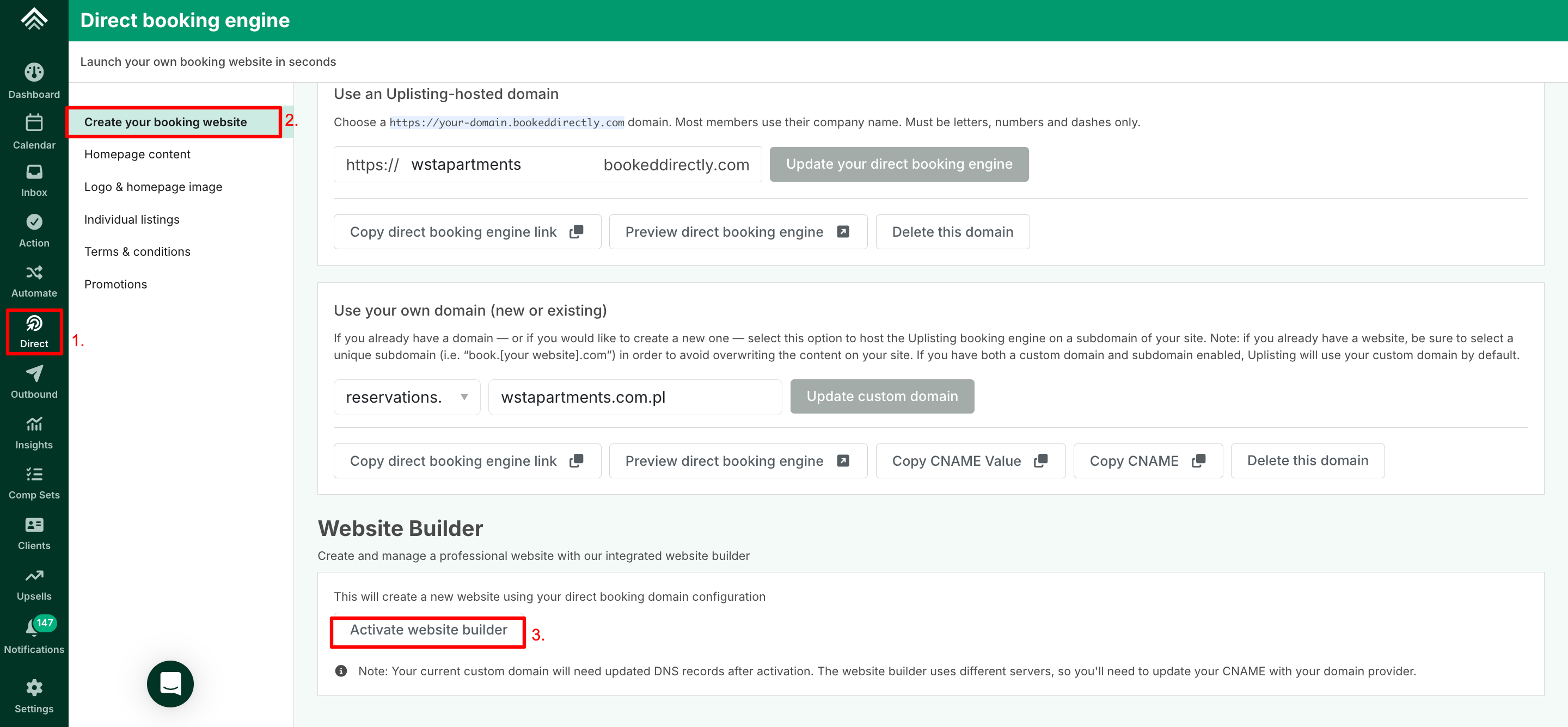
Navigate to the Direct tab
- From your Uplisting account, select the Direct tab from the left-hand navigation menu
- Click on Create your booking website
- Scroll down to the Website Builder section and click Activate website builder button
Custom Domain Users (Action Required)
If you are using a custom domain, you'll need to update your DNS settings after activation.
The Website Builder uses different servers, so you’ll need to update your CNAME record with your domain provider:
The CNAME Value should be:
s.eu.partnerwebsitedns.com
Once updated, allow 24 hours for the domain to propagate. Your custom domain will now point to your new Website Builder.
If you're unsure how to update your DNS records, please contact your domain provider for assistance.
Uplisting Hosted Domain Users
If you're using an Uplisting-hosted domain (e.g. yourbrand.bookeddirectly.com), no DNS changes are required.
Your website will be ready to use immediately after activation.
Accessing Your Website Builder
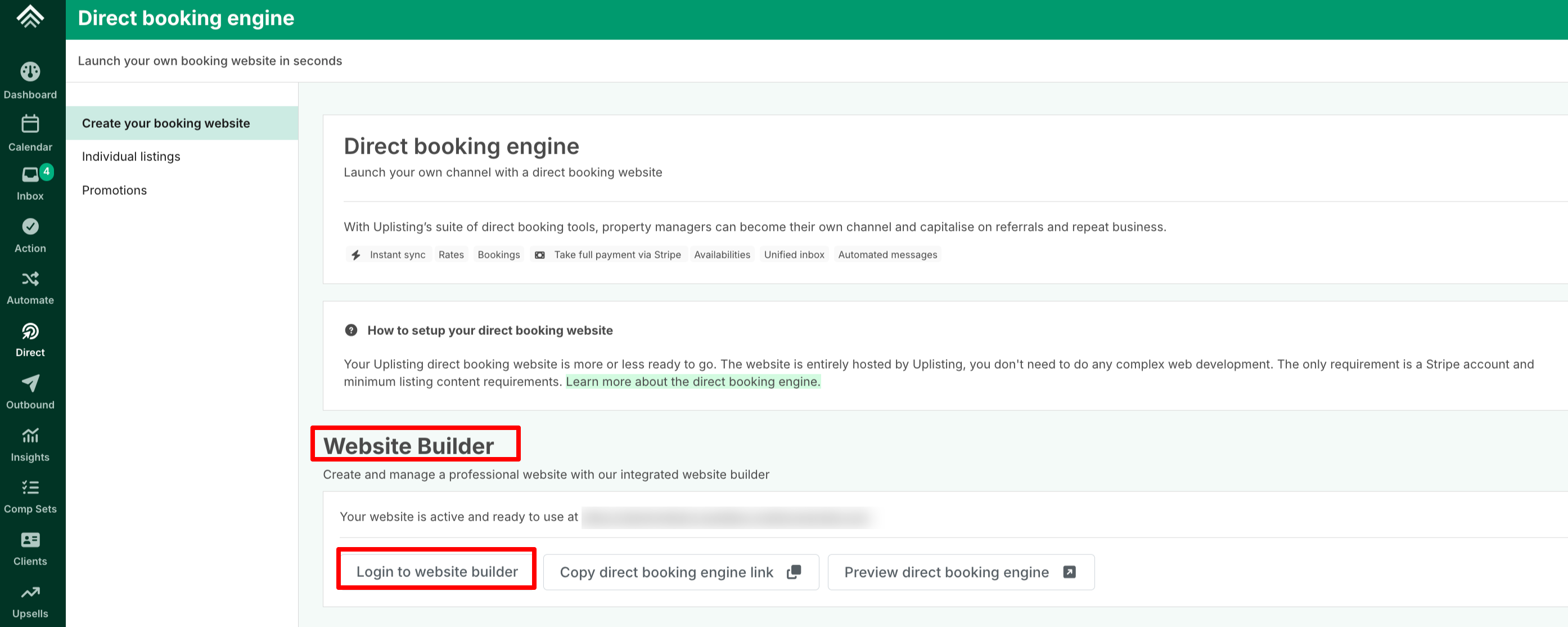
Once activated:
- Select the Login to website builder button. This will take you to your Website Builder Account Dashboard. For more information about the dashboard, see: https://support.uplisting.io/docs/2-account-dashboard-tabs-overview-1
What Happens Next
After activation, you can:
- Customise your website design
- Update content and branding
- Manage pages and listings
- Publish your direct booking website
Your new Website Builder is now ready to use .
Updated about 2 months ago