
Side Panel Improvements in the Editor
Side Panel Improvements in the Editor
To help improve productivity and efficiency, we’ve redesigned the side panel in the Website Builder editor. The new layout offers a cleaner, more streamlined experience that lets you focus on what matters
most. Now, only the tools you use most often will appear in your side panel, keeping it organized and
clutter-free.
What is changing?
While functionality remains the same, we renamed and reorganized the standard side panel items.
Continue to the following sections to learn where side panel items are now located.
Widgets, Media, and Site Text
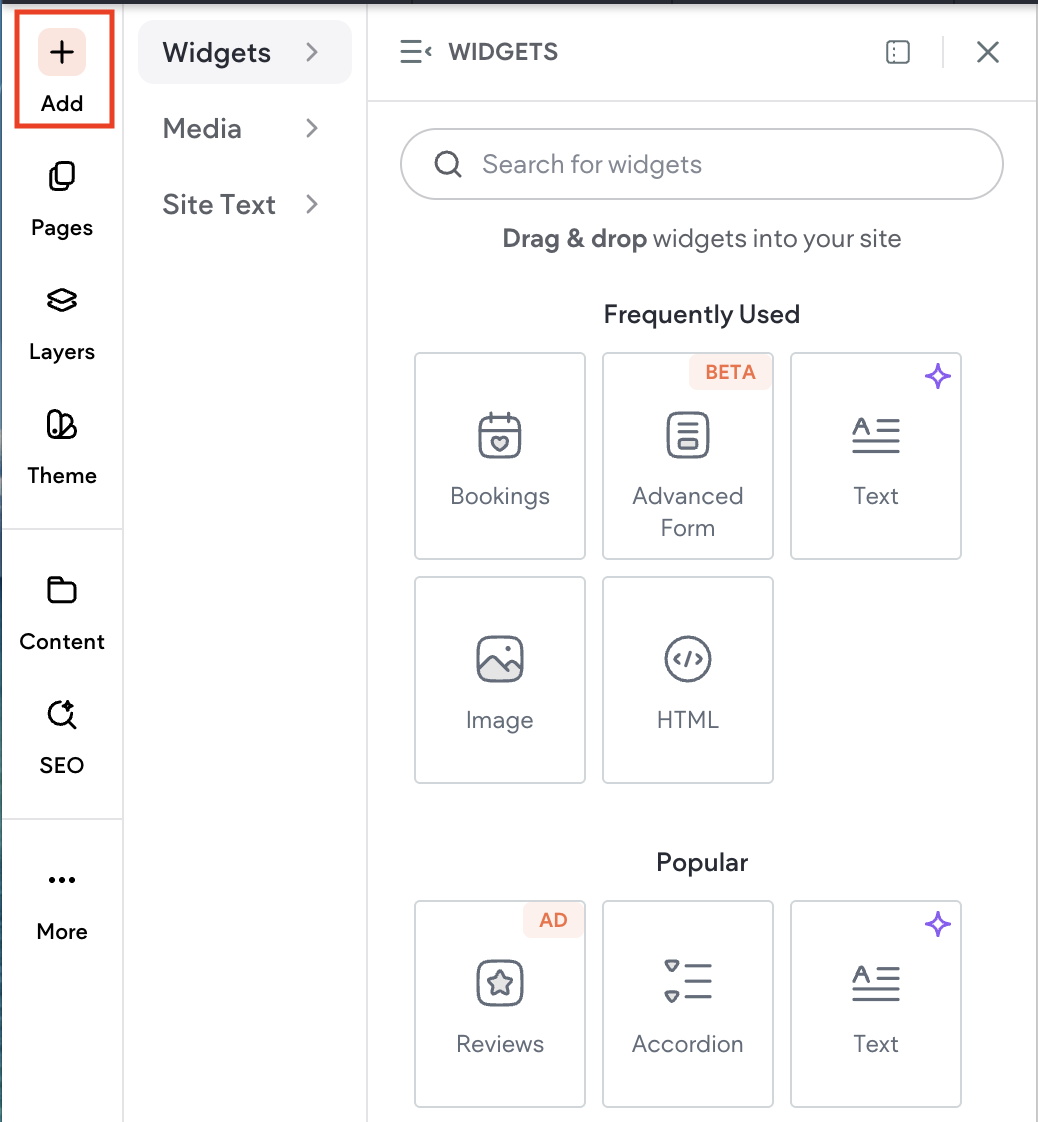
We've brought widgets, media, and site text together under one streamlined button in the editor, offering
a single, intuitive place to add content to your site.
Click + Add to access widgets, media, or site text and easily drag and drop them onto the canvas
Pages, Layers, Theme, and Content
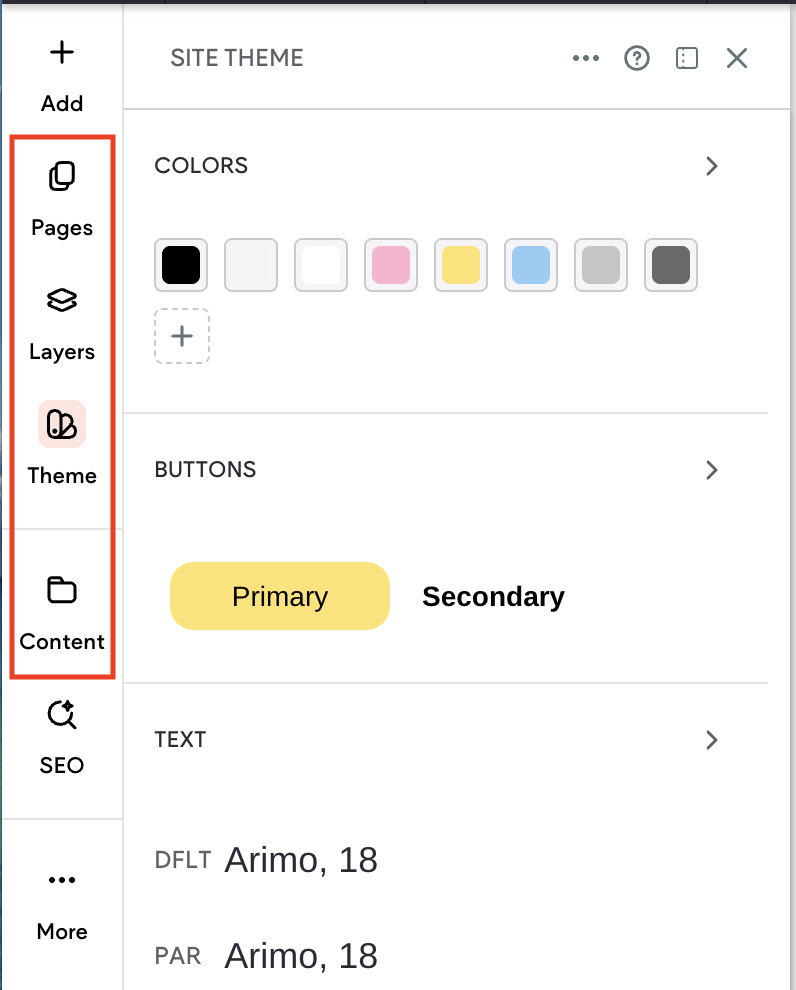
The order in which Pages, Layers, Theme, and Content are displayed in the side panel changed, but
the contents of each item and their functionality has not. For example, Popups are still accessed from
Pages and Collections are still accessed from Content.
SEO
For easier access, we’ve moved SEO to a more prominent location and separated it from Settings,
making room for exciting new SEO features we have planned. Don’t worry, all of your other settings
are still easily accessible from the left side panel. You can find more details on that in the Settings
section of this article.
When you click SEO, you’ll go to the Site Dashboard, landing on the SEO Overview tab. From here,
you can manage all aspects of your site’s SEO in one place
Blog, Store, Bookings, Personalization, and App Store
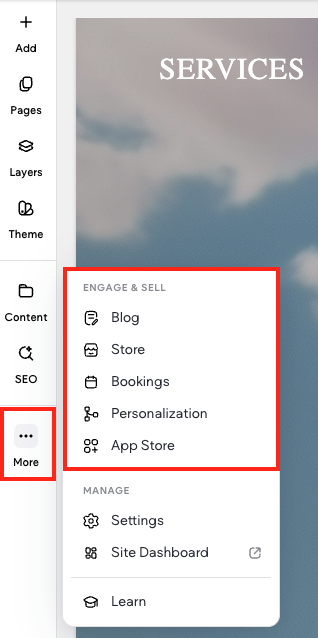
To keep your side panel clean and uncluttered, add-on items appear in the side panel only after you
install them. For example, if you don’t use a store, it won’t be added to the side panel, which leaves
more space for tools you do use, like the blog.
NOTE
App Store apps and Personalization are not added to the sidebar.
To access installed apps, click More > App Store > click to open the desired app
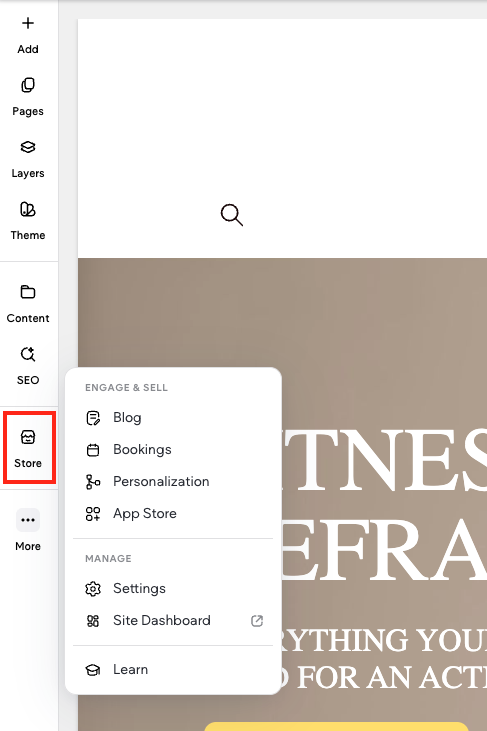
Following is an example of what your side panel would look like if you installed a store. You’ll notice that
store moved from the More menu to the side panel
Settings and Site Dashboard
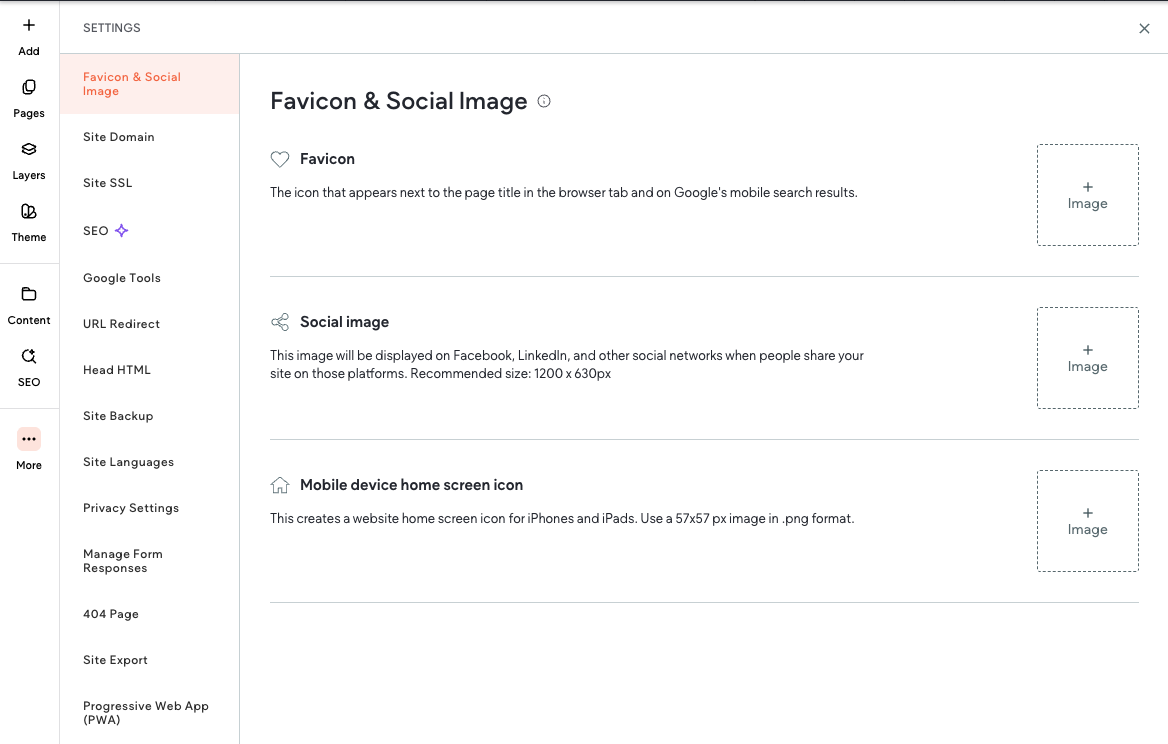
To consolidate site management tools, Settings and Site Dashboard are now located in the More
menu.
Click Settings to access your site’s settings.
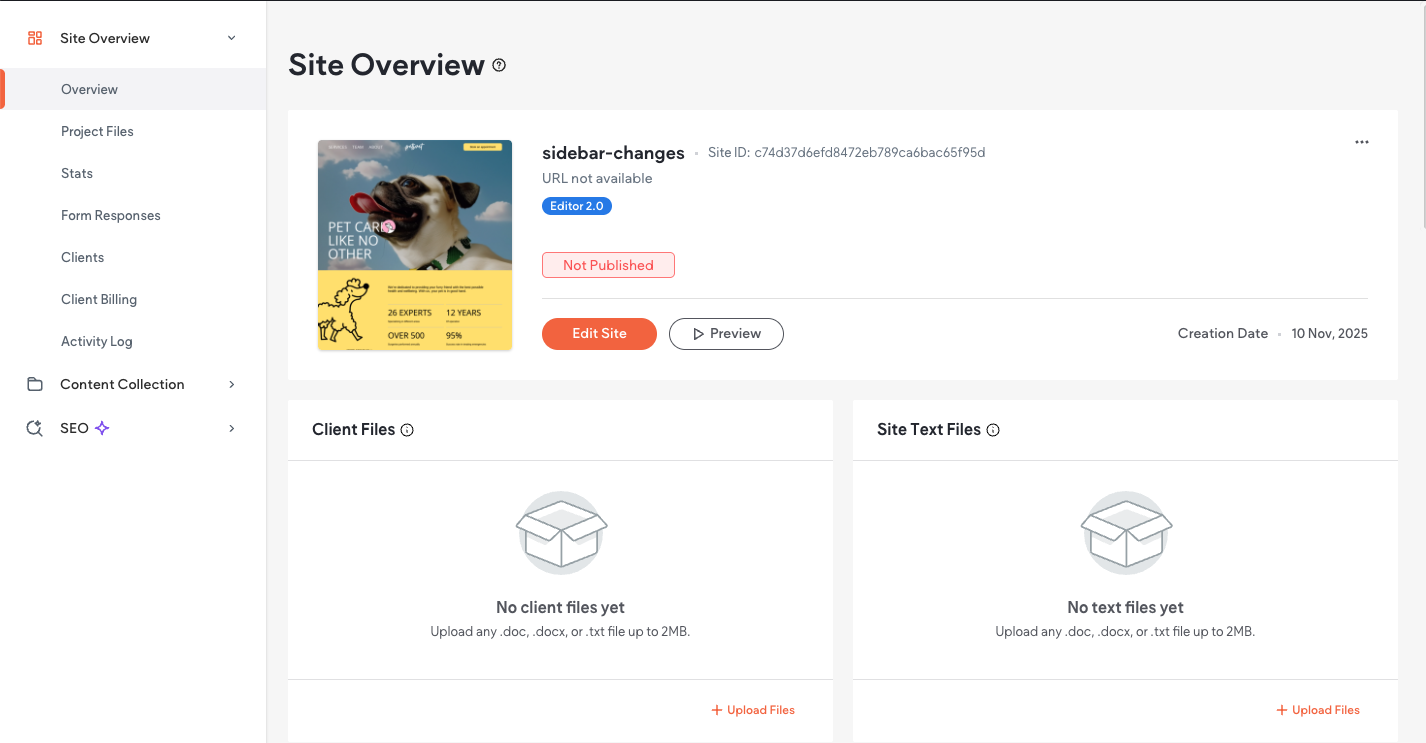
Clicking Site Dashboard opens the Site Overview tab, where you can manage your site. This makes
accessing the site dashboard faster and easier, without having to search for the site in your site list.
Learn
To learn more about Website Builder and how to use our features, click Learn. This opens the Learn
panel where you can browse video tutorials, access support guides, and take a product tour.
Video Walkthrough
Watch the following video to see the changes in action: https://player.vimeo.com/video/1129946345
Updated 3 months ago