
Knowledge Center
📚 Knowledge Center
The Knowledge Center is where you manage the Q&A pairs that power your AI assistant. These are question-and-answer pairs — written from the guest's perspective — that the AI references when drafting replies.
Accessing the Knowledge Center
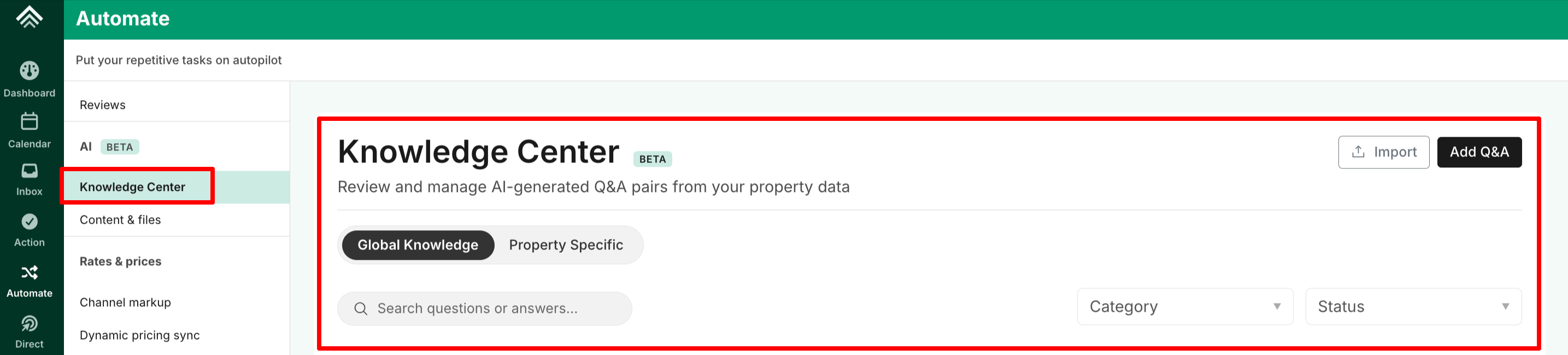
Navigate to Automate → AI Messaging → Knowledge Center in the left sidebar.
Browsing Q&A Pairs
The Knowledge Center displays all your Q&A pairs in a card-based list. Each card shows:
- The question (e.g., "What is the WiFi password?")
- A preview of the answer
- Status badge — Approved, Pending, or Not Used
- Category — Check-in, Check-out, WiFi, Parking, House Rules, Appliances, Local Recommendations, Emergency, Amenities, Transportation, or Other
- Usage count — How many times this Q&A has been used in AI drafts
Filtering and Searching
Use the controls at the top of the page to find specific Q&A pairs:
- Scope tabs: Switch between Global Knowledge (applies to all properties) and Property Specific
- Search: Type keywords to filter by question or answer text
- Category filter: Filter by topic (WiFi, Parking, Check-in, etc.)
- Status filter: Filter by Approved, Pending, or Not Used
Understanding Statuses
| Status | Meaning |
|---|---|
| Approved | Active and used by the AI when generating drafts |
| Pending | Extracted with lower confidence (below 70%) — review and approve to activate |
| Not Used | Excluded from AI drafts — useful for Q&A pairs you want to keep but not use |
💡 Tip: After uploading a document, check for any Pending Q&A pairs and review them. Approving accurate pairs improves your AI draft quality.
Adding a Q&A Pair Manually
- Click the Add Q&A button in the top right
- Fill in the fields in the side panel:
- Question — Write it from the guest's perspective (e.g., "How do I check in?")
- Answer — Provide the factual answer (max 2,000 characters)
- Category — Select the most relevant topic
- Property — Optionally assign to a specific property, or leave as Global
- Click Save Changes
Editing a Q&A Pair
- Click on any Q&A card to open the edit panel, or use the ⋮ menu → Edit Answer
- Update the question, answer, category, or status
- Click Save Changes
The edit panel also shows:
- Source — The document the Q&A was extracted from (with a link to view it)
- Confidence — The AI's confidence in the extracted information (0-100%)
- Usage Count — How many times it's been referenced in drafts
- Last updated — When the Q&A was last modified
Deleting a Q&A Pair
Use the ⋮ menu → Delete on any card. This action cannot be undone.
Updated about 1 month ago