
Content & Files
📁 Content & Files
The Content & Files tab is where you manage documents uploaded for AI processing. When you upload a document, Uplisting extracts relevant information and automatically generates Q&A pairs for the Knowledge Center.
Accessing Content & Files
Navigate to Automate → AI Messaging → Content & Files.
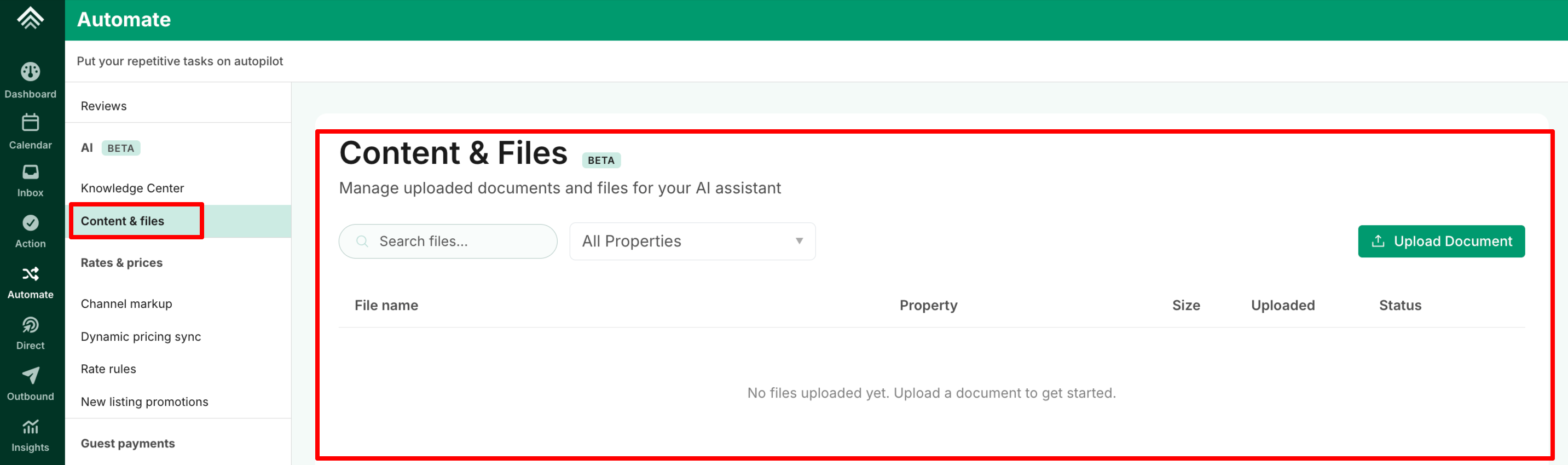
Uploading a Document
- Click Upload Document (or use the Import button on the Knowledge Center page)
- Select a property to associate the document with
- Choose your file — supported formats:
| Format | Types |
|---|---|
| Documents | PDF, DOCX, DOC, TXT |
| Images | JPG, PNG |
📘 Note: Maximum file size is 25 MB. Up to 10 files can be uploaded per property.
- The file will be uploaded and processing will begin automatically
How Document Processing Works
Once uploaded, your document goes through these stages:
- Pending — File uploaded, waiting to be processed
- Processing — Text is being extracted and Q&A pairs are being generated
- Processed — Complete. Q&A pairs are now available in the Knowledge Center
- Failed — Something went wrong. Try re-uploading the file
Text is extracted using OCR technology (for images and PDFs) or direct parsing (for text documents). The AI then reads the extracted text and generates relevant Q&A pairs categorized by topic.
Q&A pairs generated with 70% or higher confidence are automatically set to Approved. Those below 70% are set to Pending for your review.
Managing Files
The file list shows:
- File name — Click to view/download the original file
- Property — Which property the file belongs to
- Size — File size
- Uploaded — Upload date
- Status — Processing status (Pending, Processing, Processed, Failed)
To delete a file, use the ⋮ menu → Delete. You'll have the option to also delete all Q&A pairs that were generated from that file.
Updated about 1 month ago