
Privacy & SEO Settings
Privacy Settings
With the help of the Privacy Settings page, you can ensure that your users are well-informed about the type of data and cookies information collected when they visit your page. The main tools you can enable in Privacy Settings are the privacy page and cookie notification.
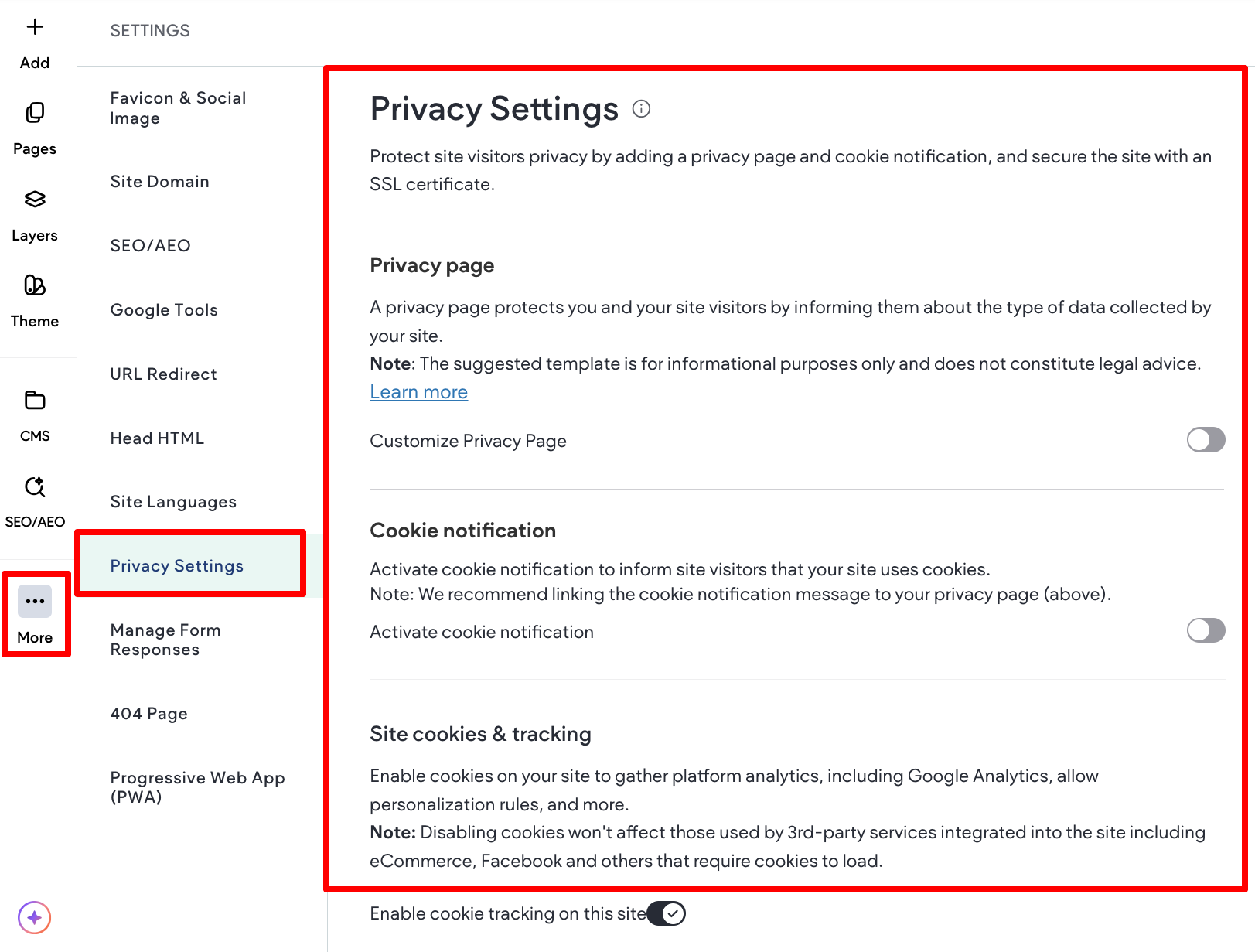
Privacy Page
A privacy page helps to make sure that site visitors understand what kind of information is being collected, how it is done, safeguarded, what the rights of the user and site owner are, and more. The privacy page is not added to your sitemap.
To add or update the privacy page on your site:
- In the side panel, click More, then click Settings.
- Click Privacy Settings.
- Click the Customize Privacy Page toggle.
- This will prompt you to customize the text of the Privacy page. If your site did not have a privacy page until now, one will be automatically created. If you are ready to change the default text of the page, click Customize.
- For your convenience, all elements that need customization are highlighted in red.
- Make the necessary changes and when you republish the site, the privacy page will be added or updated.
- Any additional changes can be made at any time by clicking Customize.
- The default link for the privacy page is
[yourdomain]/privacy, but can be changed to any custom link in Privacy page URL field.
NOTE
To add this link to your site navigation: add a new page, set the new page to an external URL and paste the privacy page URL in the field provided. For more information, see Pages
If the site has not been published yet, add
/privacyto the end of the anticipated domain. For example:www.domain.com/privacy.
- To revert the changes you have made on the default privacy page, click Reset to original page.
Cookie Notifications
Some countries, particularly those in the EU, require websites to notify visitors that they use cookies. This ensures your site is compliant with local law and can be polite to security-minded visitors.
To enable Cookie Notifications on your site:
- In the side panel, click More, then click Settings.
- Click Privacy Settings.
- Click the Activate cookie notification toggle.
- Every visitor to your site will see a notification that the information about their site visit is collected in the form of cookies.
- Click Preview notification in order to preview the cookie notification on all devices. Where the cookie notification appears differs between editor versions:
- Editor 2.0: The cookie notification is sticky and displays at the top of the page without covering page content.
- Classic Editor: The cookie notification displays at the bottom of the page to assist in optimizing Core Web Vitals.
- Note: Do not use the Notification Bar personalization action after enabling the Cookie Notification. The Cookie Notification takes priority and covers the notification bar.
- You can choose to use default text for the cookie notification or customize it. The text field is free text and you may add any text or links to it.
Site cookies & tracking
Disable the use of cookies sent to site visitors by the site. This disables platform analytics, including Google Analytics and the default platform analytics, and also prevents personalization rules from adding cookies.
NOTE
Third-party services (or widgets that include them) such as Facebook and Twitter still set cookies, as they are required to load the widgets.
To disable the use of cookies, in the side panel click Settings, click Privacy Settings, and then click the Enable cookie tracking on this site toggle (by default, this setting is on).
Disabling tracking cookies will stop stats collection for your site, as well as any tracking code you have added (for example, Facebook tracking pixels).
Check the legal requirements in the country of your target audience regarding cookie notifications, the form of the notification, and relevant links to add to the text of the notification.
Site SEO/AEO Settings
Search engine optimization (SEO) is the process of improving the visibility of a website or a web page in a search engine's un-paid search results. Sometimes this is called "natural" or "organic" traffic. The better your site's SEO, the more likely it is to rank well in search results.
NOTE
Google now factors Core Web Vitals in their search engine ranking.
Improve your site’s visibility to search engines and boost organic traffic by filling in the site’s SEO fields. This makes it easier for search engines to know what your sites are about so they can be displayed higher on search result pages (SERPs).
To edit your overall site's SEO:
In the side panel, click SEO/AEO. You are redirected to the site dashboard SEO section where you have the following options:
- No index for the entire site. Tell search engines not to crawl your site so it won't appear in search results.
- Site meta title. This is displayed by search engines in their preview of your site. It is important for both SEO and social sharing. Try to limit this to 60 characters.
- Site meta description. Give an overview of the content and information the site provides. Search engines uses this to display as a description for the site. Try to limit to 160 characters.
NOTE
It is best practice for each page of your site to have a unique title and description. For this reason, we recommend entering your page title and description individually in the Page Settings menu.
- Site Keywords. These are terms related to your site (for example, pizza delivery, for a pizza shop). Separate keywords with a comma.
NOTE
Search engines no longer use keywords to impact website ratings. All keyword usage should be considered optional.
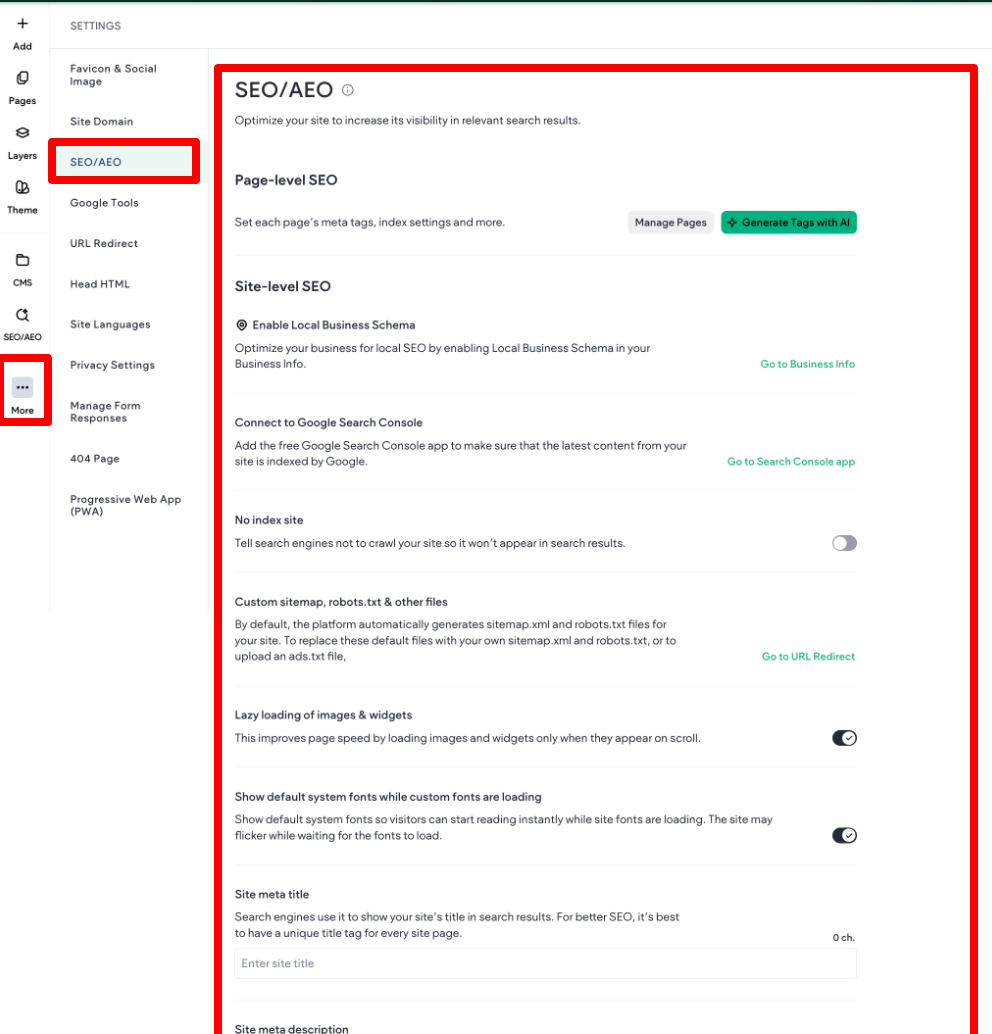
No Index for the Entire Site
If you do not want your site or any of the pages to show in search results, set your site to No Index. This will tell search engines to not crawl your site.
Site Meta Title
This is the most important tag for your site SEO. This tag tells people and search engines what your page is about. The site title appears in the title bar of the web browser and in search engine results. The title tag should contain important keywords to help search engines determine what your page is about. Also, real people will be reading the site title when deciding whether or not to click on a search result, so make sure it is people-friendly.
This field can be connected to the Content Library via Connected Data. If you have a multi-language site, the site title cannot be translated.
Site Meta Description
The site description may be used by search engines when they display the content of your site on their results page. So, while this field is not important for search engine rankings, it is very important for compelling users to click through to the site.
This description is your opportunity to advertise site content to people and let them know exactly whether your page contains the information they are looking for. Create a concise and compelling description that people will want to click on.
This field can be connected to the Content Library via Connected Data. If you have a multi-language site, the site description cannot be translated.
Site Keywords
Major search engines do not use keywords to determine your site's ranking. In fact, on Bing.com, your site can be penalized for having overly "spammy" keywords. However, some smaller free directories and search engines may still use them to help categorize sites. All keyword usage should be considered optional.
Site SEO Hierarchy
It is important to keep in mind that the homepage SEO settings and any specific page SEO settings take precedence over the global site SEO settings. Global site SEO settings are used for any pages that do not have page-specific content in the SEO settings.
It can take up to 4-12 weeks for Google to update with any changes. You may be able to shorten the time frame by asking Google to crawl your site for changes (you must have your site added to Google Search Console).
Lazy Loading and Fonts
Lazy loading of images and widgets improves page speed by loading images and widgets when they become visible on scroll. You can also enable an option to display default system fonts so visitors can start reading instantly while site fonts are loading.
NOTE
Sites may blink when fonts are loaded.
To enable lazy loading and fonts, click the Lazy loading of images & widgets and Show default system fonts while custom fonts are loading toggles.
Updated 3 months ago