
AI Messaging
AI Messaging (Beta)
Uplisting's AI Messaging helps you draft guest replies faster using AI that understands your properties, bookings, and uploaded documents. It's available directly in the Unified Inbox and comes with a Knowledge Center where you can manage the information your AI assistant uses.
What's New?
- AI Assist in the Inbox — Generate context-aware draft replies to guest messages in one click
- Quick Response options — Instantly draft confirmations, declines, or acknowledgements
- Knowledge Center — Review and manage AI-generated Q&A pairs extracted from your documents
- Document Upload — Upload house manuals, check-in guides, and property docs so the AI can reference them
- Confidence Scoring — See how confident the AI is in each draft so you know when to review more carefully
- Feedback & Regeneration — Rate drafts and regenerate with specific instructions
📘 Note: AI Messaging is currently in Beta. You can use it in the Inbox and find the Control Center under Automate → AI Messaging in the left navigation. Your feedback helps us improve — use the thumbs up/down buttons whenever you generate a draft.
✨ Using AI Assist in the Inbox
AI Assist generates draft replies based on the guest's message, your property details, booking information, and any Knowledge Center content you've set up.
Generating a Draft
- Open a message thread in the Unified Inbox
- Click the AI Assist button (✨) in the message composer area
- The AI will generate a draft reply and place it in the text box — it is not sent automatically
- Review the draft, make any edits you'd like, and click Send
📘 Note: Alternatively, you can type a draft in the text box and click on the AI Assist button (✨) to improve it.
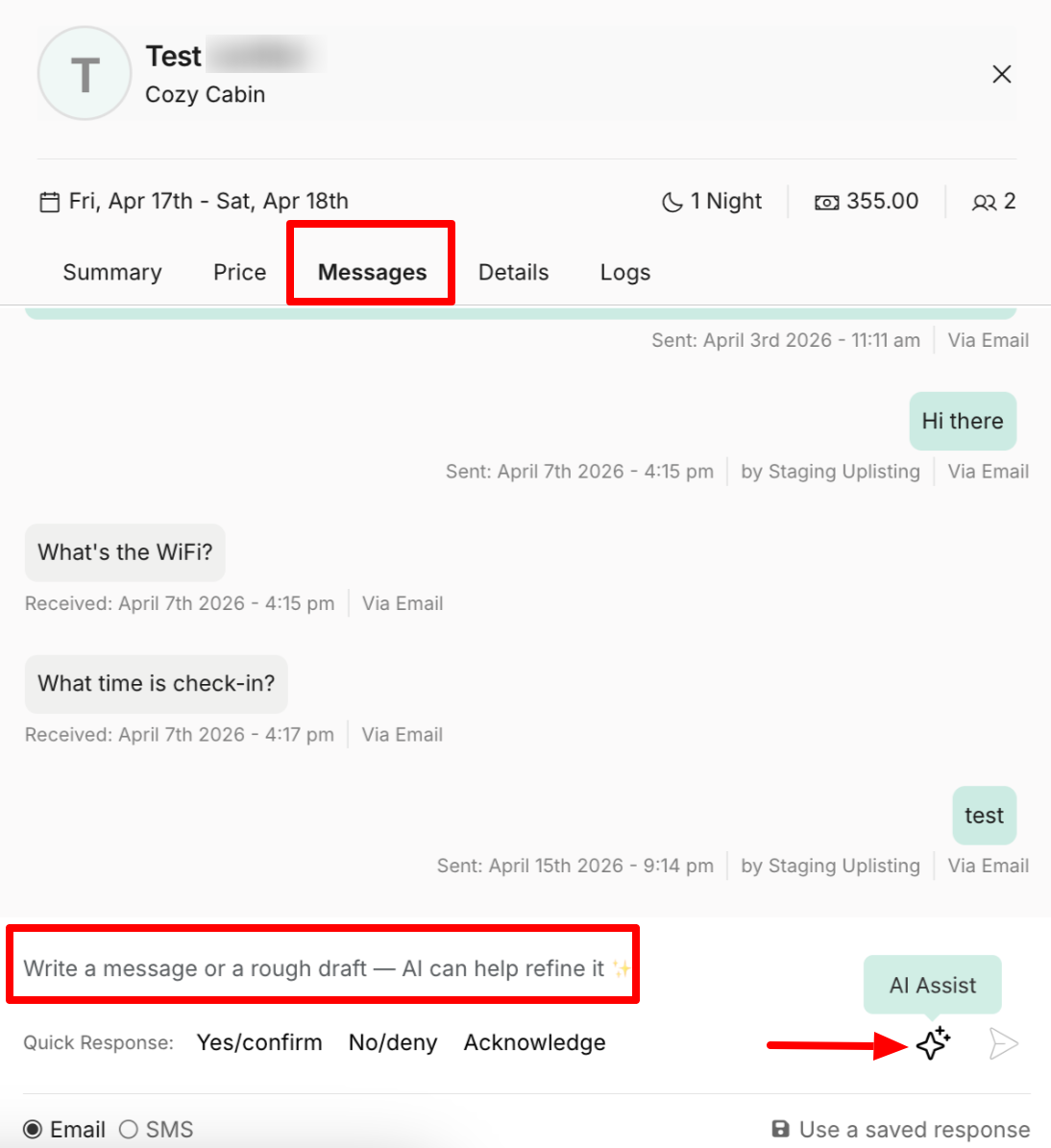
The AI uses the following data sources to generate your draft:
- Guest details — guest name, booking channel
- Property information — address, amenities, WiFi, check-in/out times, house rules
- Stay details — check-in/out dates, number of guests, booking status
- Previous messages — the conversation history in the current thread
- Knowledge Center Q&A — approved Q&A pairs from your uploaded documents
💡 Tip: The more information you have in your property details and Knowledge Center, the better your AI drafts will be. Upload your house manual or check-in guide to get started.
Quick Response Options
For common reply types, use the Quick Response badges that appear above the composer:
| Badge | What it does |
|---|---|
| Yes/confirm | Drafts a message approving/confirming the guest's request |
| No/deny | Drafts a polite decline |
| Acknowledge | Drafts a brief acknowledgement (e.g., "Looking into it") |
These are especially useful for responding to booking requests or simple guest questions.
Understanding Confidence
Each draft includes a Confidence indicator:
- High (green) — The AI found strong matches in your data. The draft is likely accurate.
- Medium (orange) — Some information may be inferred. Review before sending.
- Low (red) — The AI had limited context. You'll likely want to edit or provide more information.
📘 Note: If the AI doesn't have enough information to answer the guest's question, it will let you know and may ask you to provide additional details.
Regenerating a Draft
If the draft isn't quite right:
- Click the Regenerate (🔄) button next to the draft
- You'll be asked to select a reason (e.g., "Wrong info", "Tone", "Too long") or type custom instructions
- The AI will generate a new draft taking your feedback into account
Providing Feedback
Your feedback helps improve the AI over time:
- Thumbs up / Thumbs down — Rate whether the draft was helpful
- If you rate thumbs down, you'll see quick tag options: Wrong info, Tone, Too long, Missing details, Irrelevant, Inappropriate, or Other
- You can also add a custom description of what went wrong
Feedback is also prompted automatically when you edit a draft significantly before sending.
Discarding a Draft
Click the Discard (🗑️) button to clear the draft entirely and start fresh. You may be prompted to provide feedback on why you discarded it.
How the AI Prioritizes Information
When generating a draft, the AI follows a strict priority order if information from different sources conflicts:
- Your custom instructions (highest priority) — Any text you type as a prompt
- Knowledge Center Q&A pairs — Host-verified facts from uploaded documents
- Property information — Settings from your property details (check-in time, amenities, etc.)
- Stay details — Booking-specific information (dates, guest name, etc.)
This means if your Knowledge Center says check-in is 3:00 PM but your property settings say 4:00 PM, the AI will use 3:00 PM from the Knowledge Center. Keep your Knowledge Center up to date for the best results.
Safety & Privacy
AI Messaging is built with strict safety guardrails:
- No auto-sending — Every draft requires your review before sending. The AI never sends messages on your behalf.
- No invented information — If the AI can't find the answer, it will tell you rather than making something up.
- No financial commitments — The AI will never promise refunds, discounts, or compensation.
- No cross-booking data — Information from other guests or bookings is never included in a draft.
- Data isolation — Each property's Knowledge Center content is kept separate.
FAQs
Q: Which messaging channels work with AI Assist? AI Assist works across all channels available in the Unified Inbox, including Airbnb, Booking.com, email, and SMS.
Q: Is there a limit to how many drafts I can generate? There is a generous hourly limit to prevent abuse. For normal usage, you should not hit it.
Q: Can I use AI Assist for multiple properties? Yes. The AI automatically uses the correct property context based on the booking thread you're viewing. You can have property-specific Q&A pairs as well as global ones that apply across all properties.
Updated about 1 month ago