
Account Dashboard Tabs Overview
Account Dashboard
The Dashboard is your central location to view and manage your site. All of these can be accessed from the top navigation bar.
Account Dashboard Tabs Overview
The following are the tabs on the top navigation bar and a description of what they contain:

1. Uplisting Logo (far left)
Clicking the Uplisting logo returns you to the main dashboard.
2. Sites
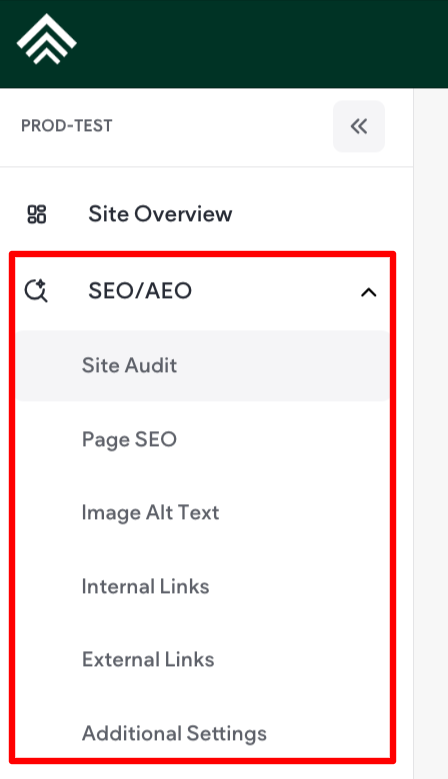
On the Sites screen, you have the site controls, which include: Site Overview and SEO/AEO icons. What you see in the side pane will depend on the features added to the site.

The Overview tab provides a snapshot of your site and quick access to key actions. Here you can:
•Edit Site – Open the site editor to make changes.
•Preview Site– View how your site appears to visitors.
•Site URL – Access and copy your live site link.
•Published Date– See the date the site was last published.
•Creation Date – View when the site was originally created.
The Stats section allows you to view the analytics of sites in your account. To learn more about stats, see Site Stats and Analytics
Lists all form responses from the site. To manage and delete form responses, click Manage Responses.
SEO/AEO
The SEO/AEO tab is the centralized hub for managing and reviewing SEO settings across your entire site. Here, you can view a summary of your site's SEO health and address issues to improve its ranking in search results. This includes:
•Site Audit - which enables you to view a summary of your site's SEO and fix issues to improve its ranking in traditional and AI search results.
•Page SEO - helps you manage the meta tags of all your site pages.
•Image ALT Text - allows you to manage all alt text tags for better SEO and accessibility across your site's displayed images. To learn more, see (SEO Overview
•More settings- lets you control your site’s global SEO preferences, including search engine indexing, meta title, meta description, and optional site keywords.
Updated 3 months ago