
All Posts , Content Editor & Widget Design
The post widgets (All Posts and Recent Posts; although these are listed separately in the widget library, once added to a page, they are both considered the All Posts widget) are the tools for displaying and accessing blog posts. These widgets allow visitors to navigate to posts.
For information on adding widgets, see Add Widgets
NOTE
This widget will only appear in the widget library if there the blog is installed.
Fore more information on widgets and the widgets library, see Widgets: Library and Overview
Content Editor
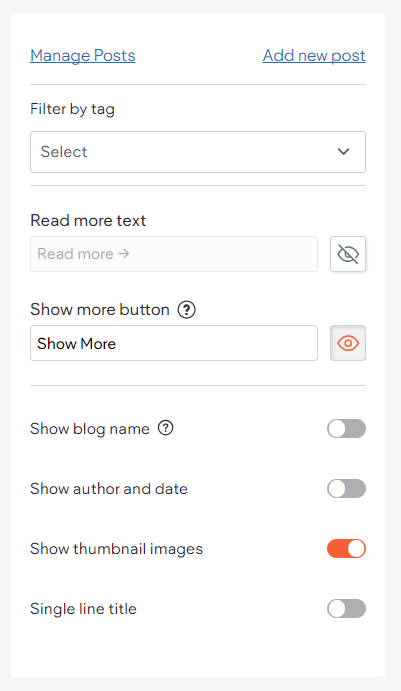
In the Content Editor, you can control what post information to show. You can also manage and add new posts from here.
To access the content editor, right click the widget and select Edit Content. Or, if you are in flex mode or Editor 2.0, the option to access the content editor is available in the floating menu. Click the element to open the floating menu, then click the option for the content editor.
The following settings are available in the content editor:
- Filter by tag.- You can select multiple tags. This setting will be added once there are tags (if there are not tags, this option will not be available).
- Read more text. -Type the text you want to appear or click the eye icon to hide the text.
- Show more button - Type the text you want to appear or click the eye icon to hide the text.
- Show blog name - Can enable or disable this option.
- Show author and date - Can enable or disable this option.
- Show thumbnail images - Can enable or disable this option.
- Single line title - Can enable or disable this option.
Widget Design
To access the design editor, right-click the element, and click Edit Design. Or if you are in flex mode or Editor 2.0, select Edit Design from the floating menu to open the design panel. Click the element to open the floating menu, then click the option to edit design.
Following are design options specific to the All Posts widget:
- Layout - Select the desired layout.
- Visible posts - Set how many posts are visible in the widget.
- Posts per row - Set how many posts display per row. This only applies to desktop and tablet screensizes.
- Visible teaser lines - Teasers are short post summaries, taken from the first paragraph of the blog or the blog settings.
- Padding between posts - Only available for layouts that contain multiple posts.
- Navigate by. If you have more blog posts than can be seen at once in your selected layout, you
can set how the user navigates to view more posts. The available options are: View more button,
Pagination, or None.
- If the View more button option is selected, the button can be styled in the design section and the text can be modified in the content section.
- If Pagination is selected, the theme button design settings are used by default. If necessary, you can override these theme settings in the design section for the widget.
For information about design options that are not specific to this widget (for example, layout, style, or spacing), see Widget Design
Updated 3 months ago