
Website Builder - Editing Design and Content
Website Builder - Editing Design and Content
When using the Website Builder, some parts of your site can be edited directly, while others are locked by default, to ensure everything works correctly. This applies the same way whether you're on the Basic or Plus plan
What can I customize on both Basic and Plus plans of the Website Builder?
On both Basic and Plus plans, you can customize:
1. Hero Background Image
Updating the Hero Background Image
To update the hero background image shown on the search page, you first need to log in to your website builder:
- Select Login to website builder on this page

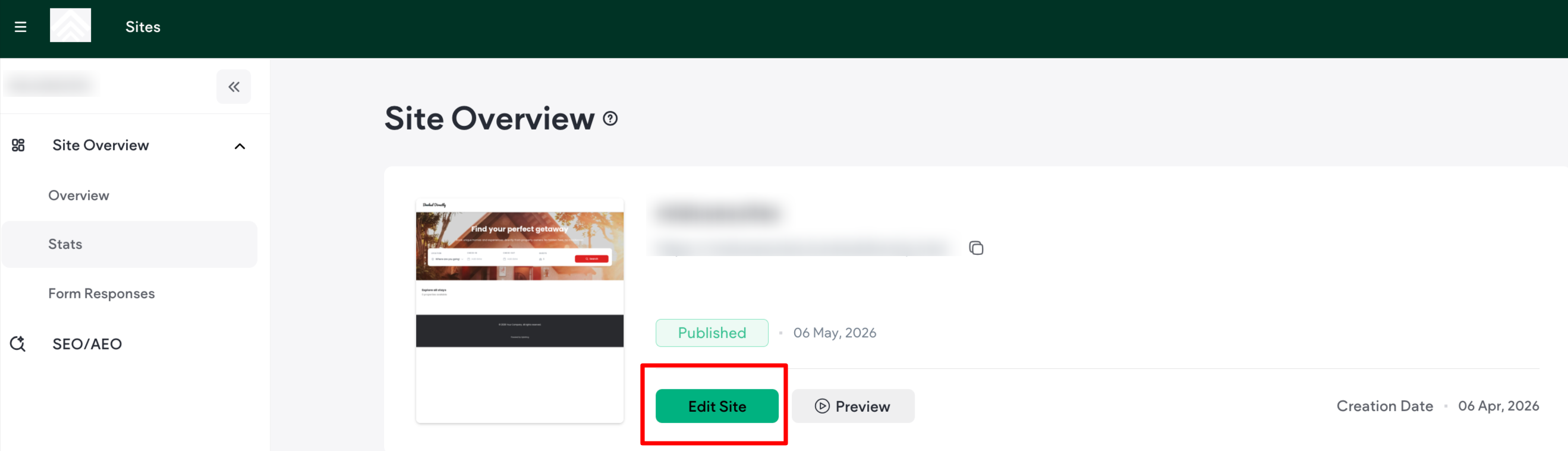
- Once logged in, click on 'Edit Site.'
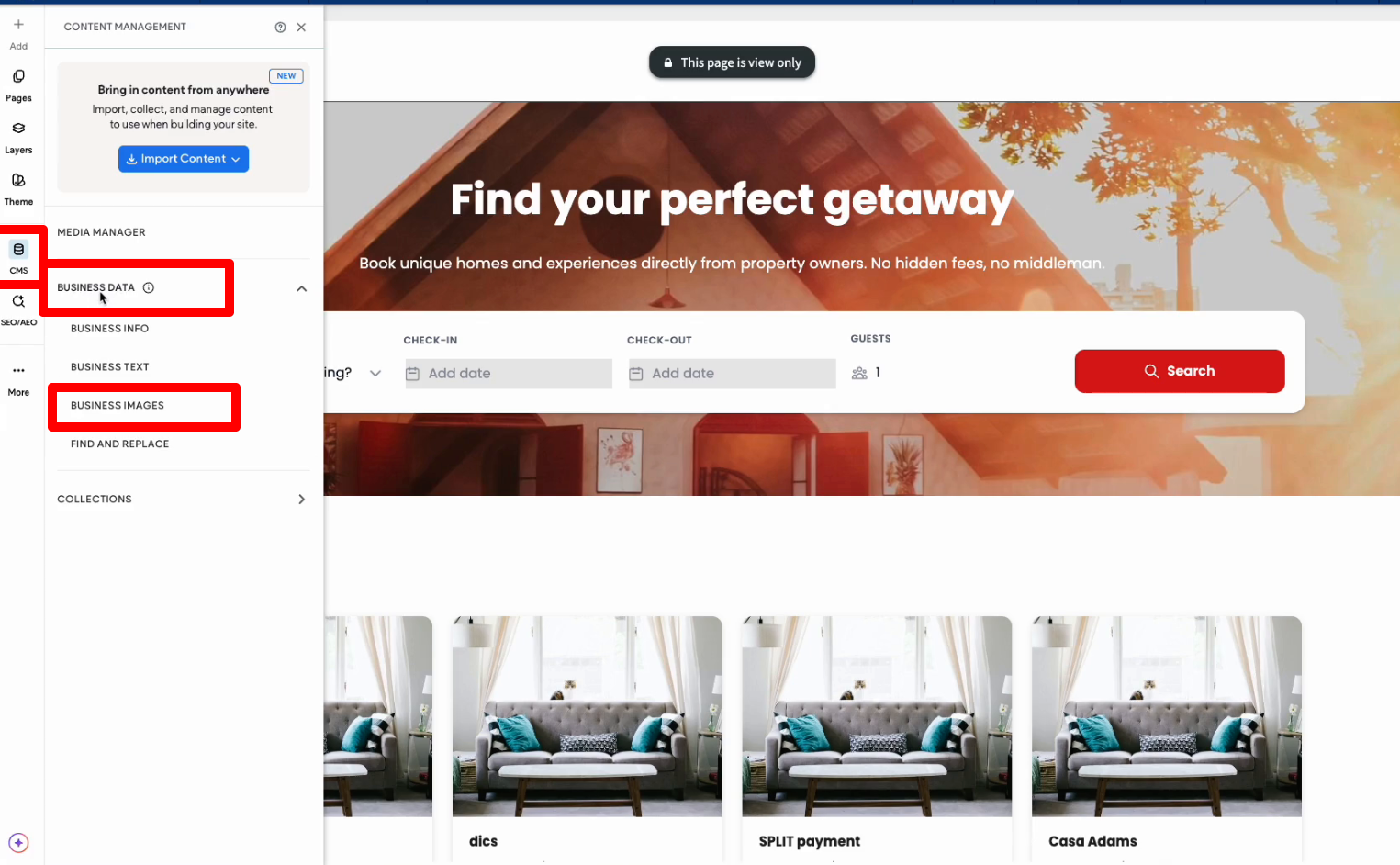
- From the left panel of the site editor, click on the CMS icon to open the settings
- Navigate to: CMS → Business → Data → Business Images
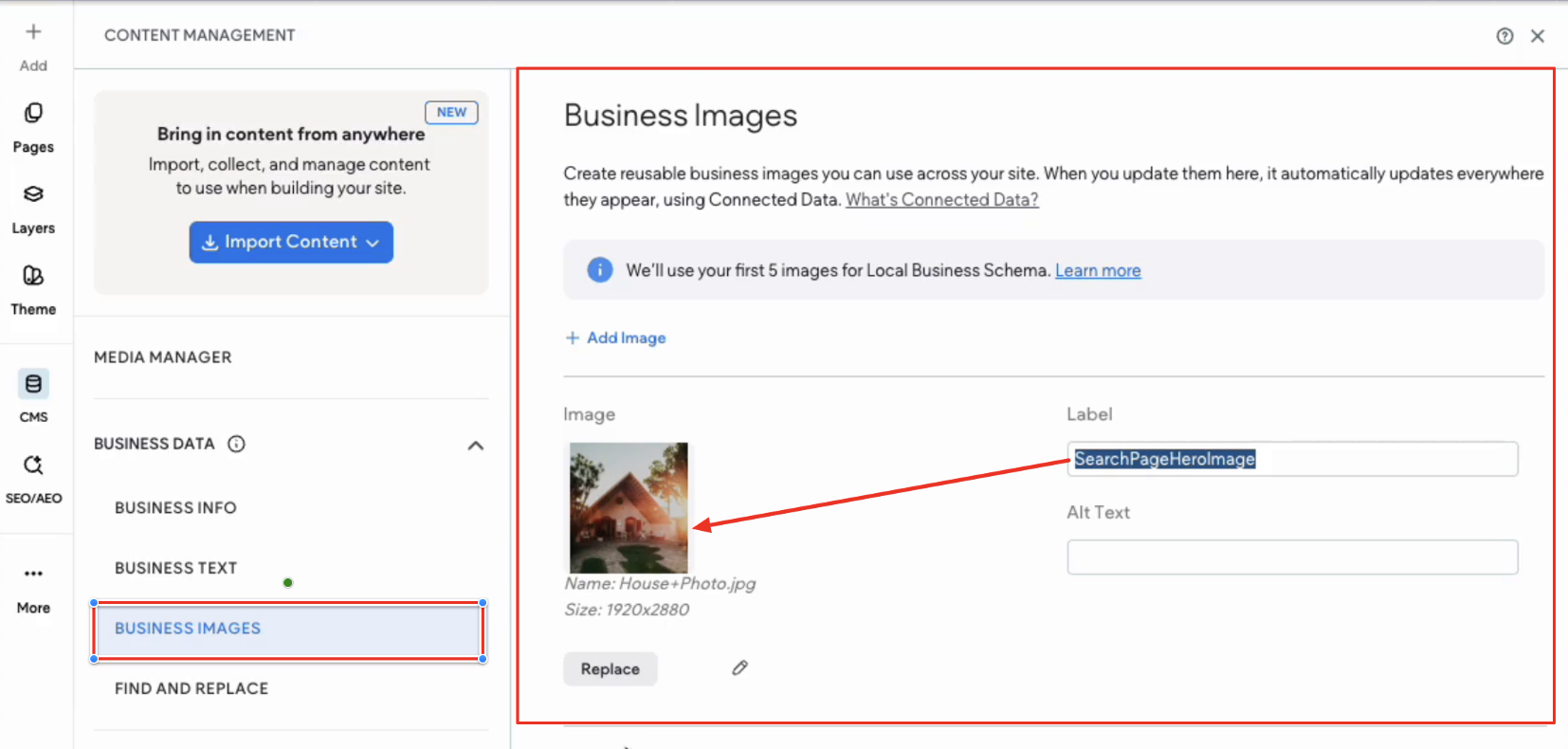
- The Business Images window will open, showing the default hero background image - labelled “SearchHeroBackground” in the Label field.
Any updates made to this image will automatically become the new background displayed on the Direct Booking search page.
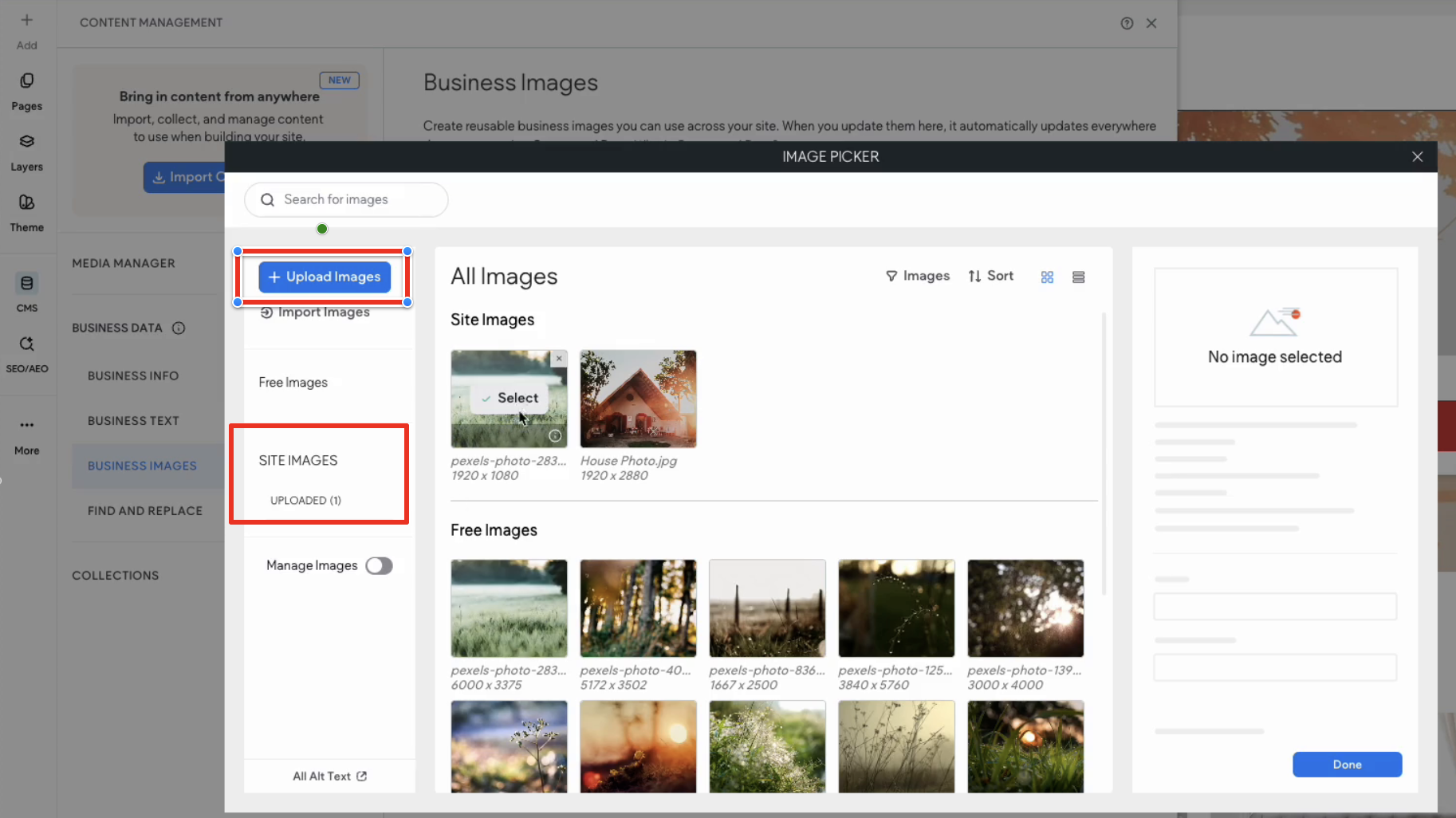
- In the Business Images window shown in the image above, click on the Replace button
- Select a new image. You can:
- Upload a new image
- Or select an existing uploaded image
- Close the editor once the image has been selected
- Republish your changes
The updated hero image will now appear on your live website.
Deleting the Custom Hero Image
To test or intentionally delete a custom hero image:
- Start by copying the label “Search Page Hero Image” so you can reuse it later
- Delete the custom image from: CMS → Business → Data → Business Images
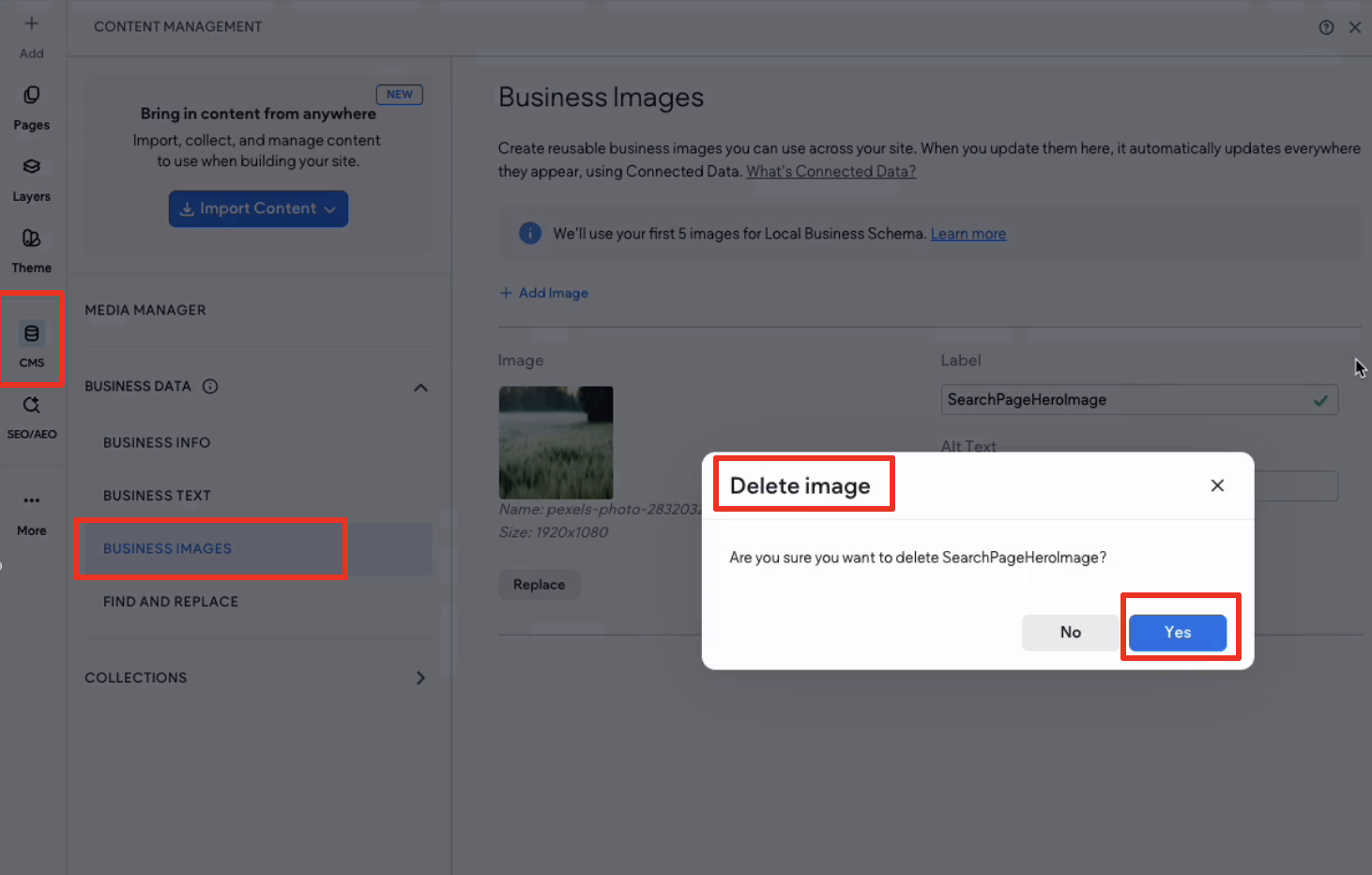
- Close the editor. The website will automatically display the default background image instead.
Restoring the Hero Image
To restore a custom hero image after deletion:
- Return to: CMS → Business → Data → Business Images
- Create a new image entry
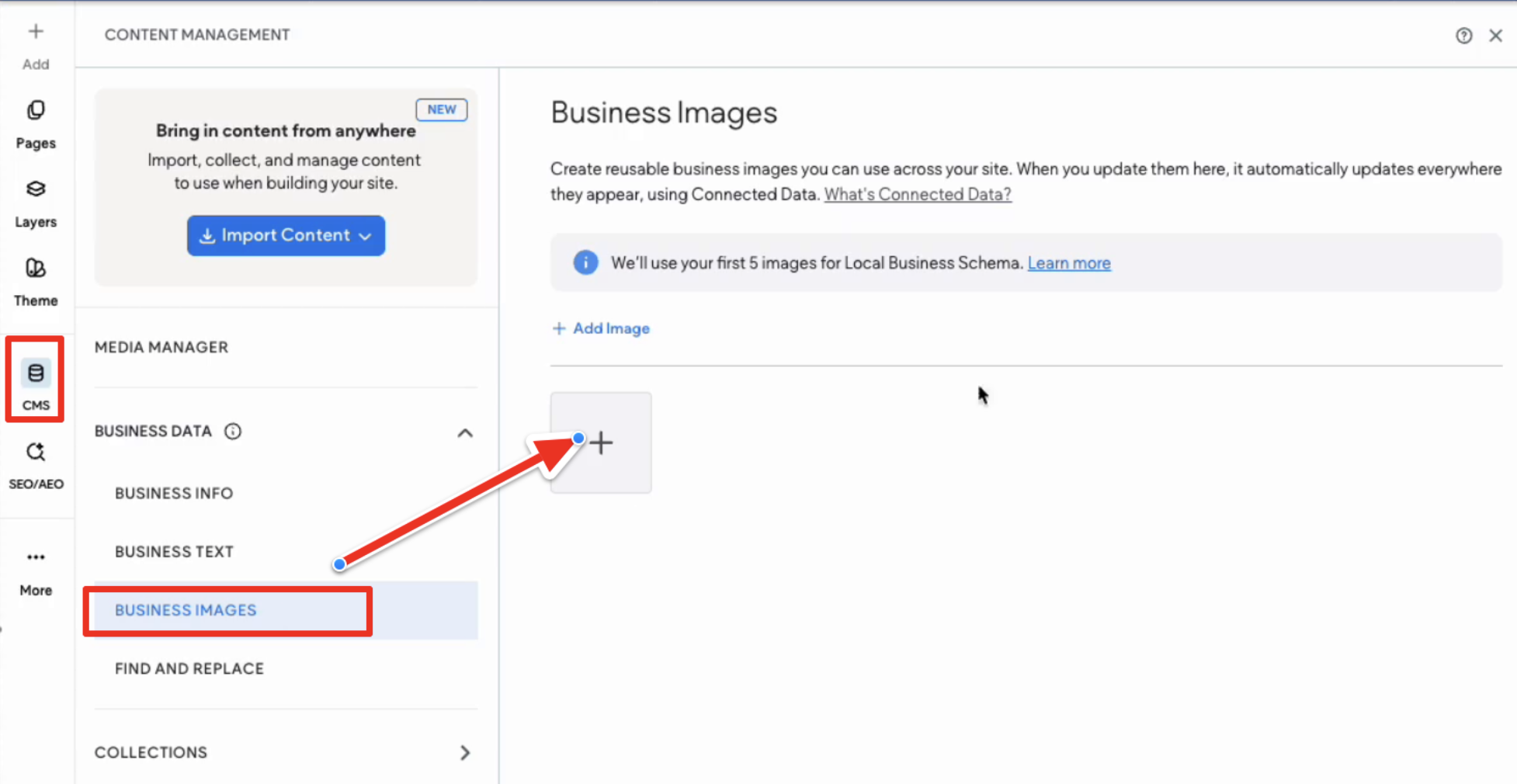
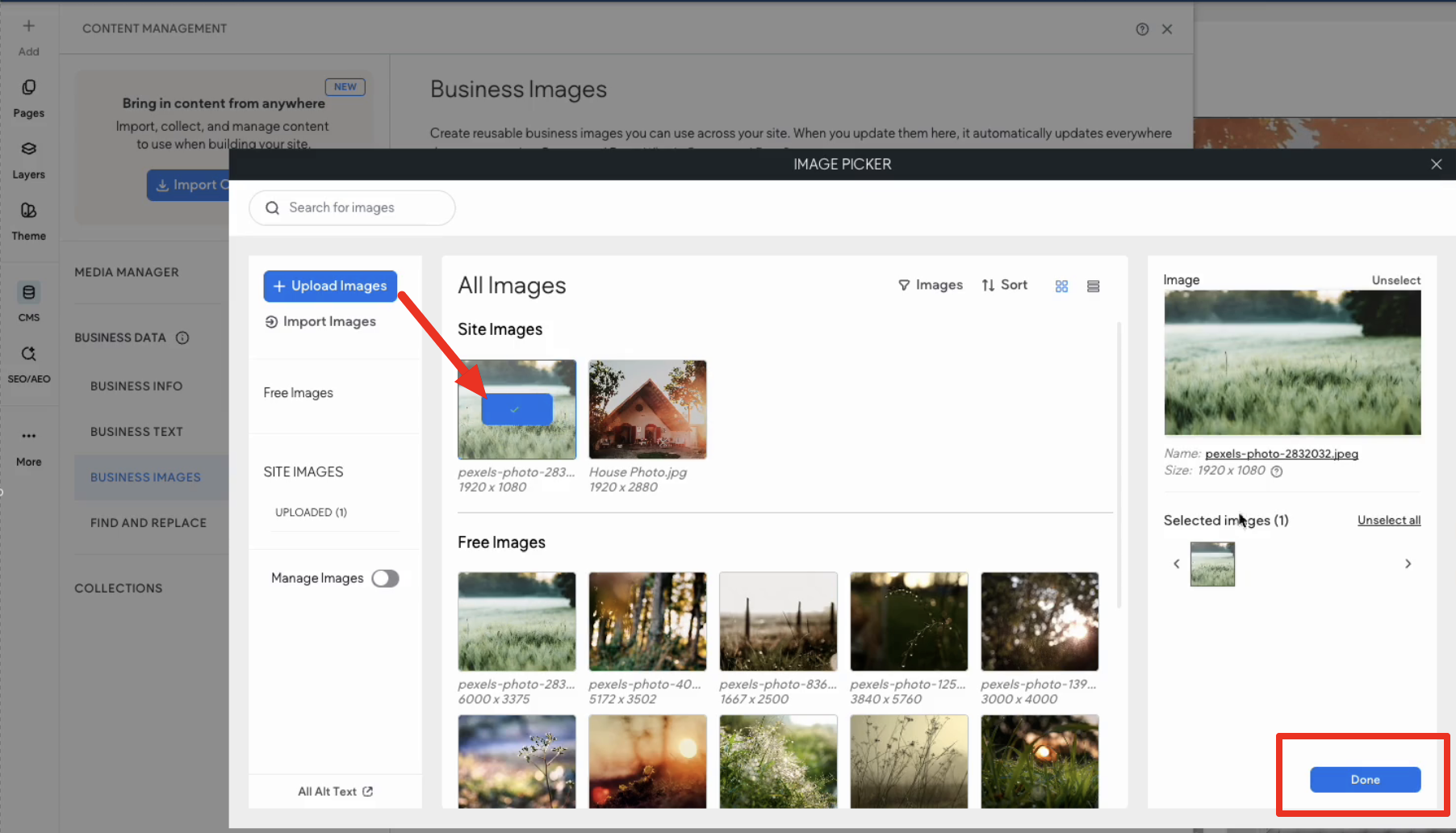
- Upload or select the desired image
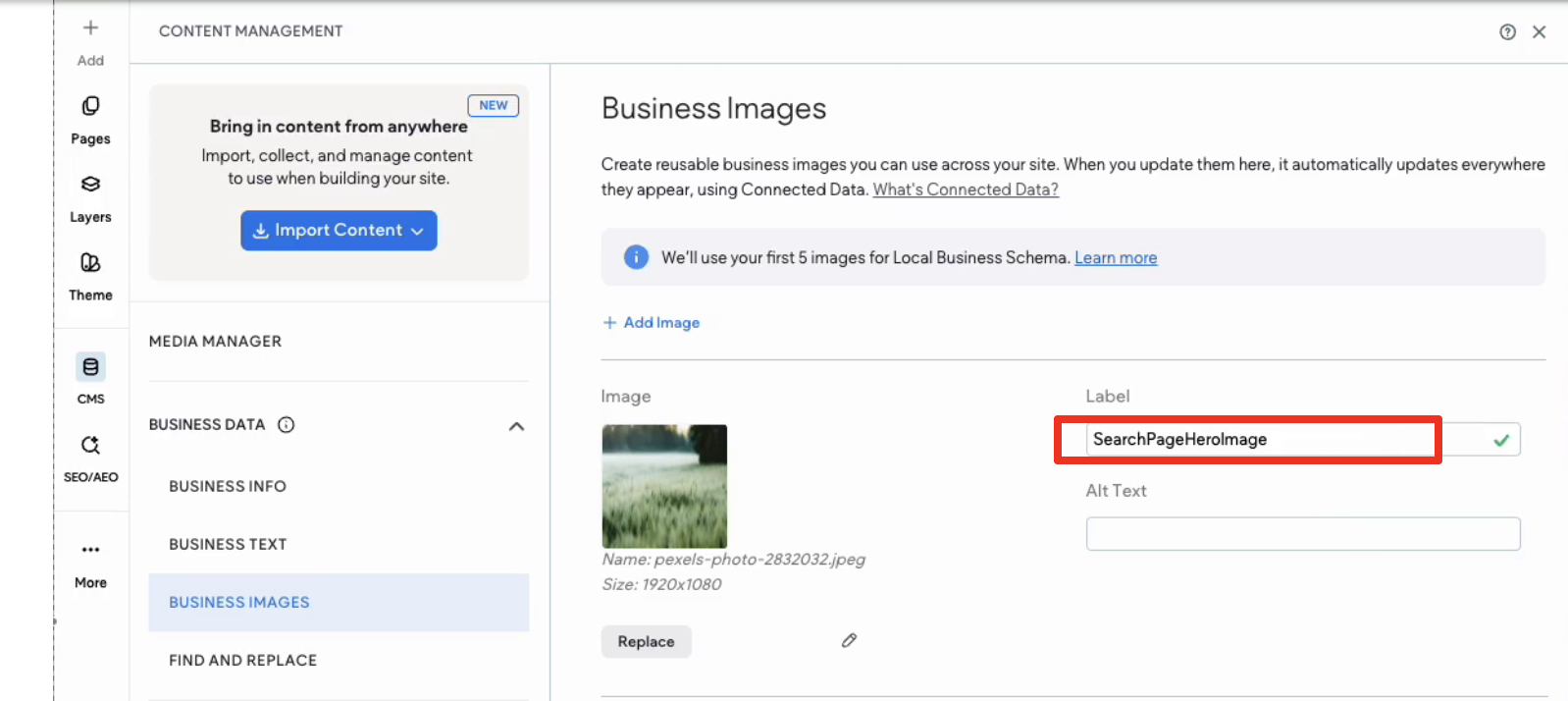
- Name the entry exactly: Search Page Hero Image so it reconnects to the search page.
- Close the editor
- Republish your changes
The custom hero image will now display again on the search page.
2. Search Page Heading and Sub-heading
Editing The Search Page Heading and Sub-heading
To update the heading and subheading text shown on the search page:
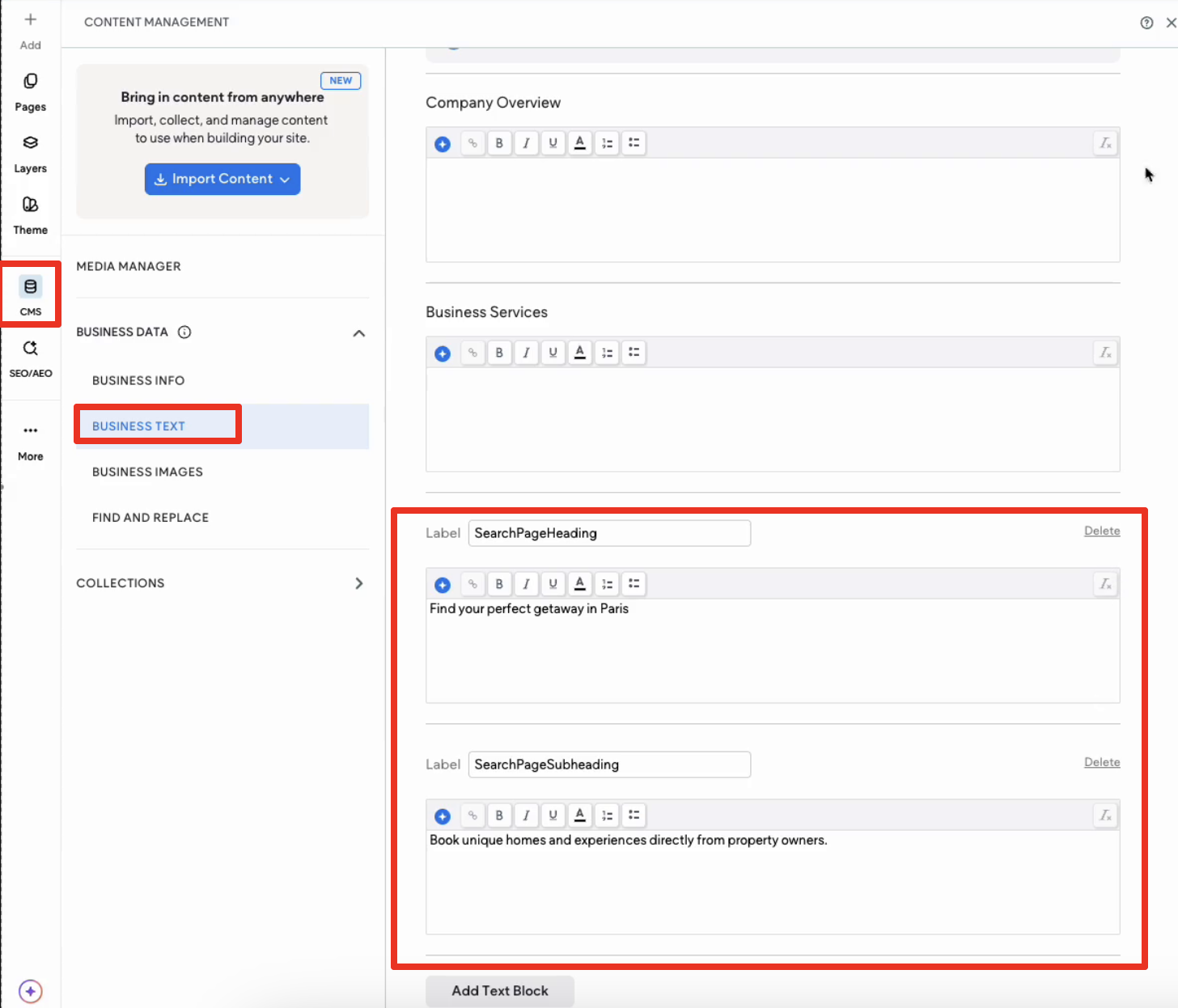
- Navigate to: CMS → Business → Data → Business Text
- Locate the relevant text entries controlling:
- The search page heading and the search page subheading
Examples may include:
Search Page Heading
Search Page Subheading
- Edit the text as required
- Close the editor
- Republish your changes
Your updated text will now appear publicly on the website.
Deleting and Restoring Heading or Subheading Text
The same fallback behavior applies to Business Text entries.
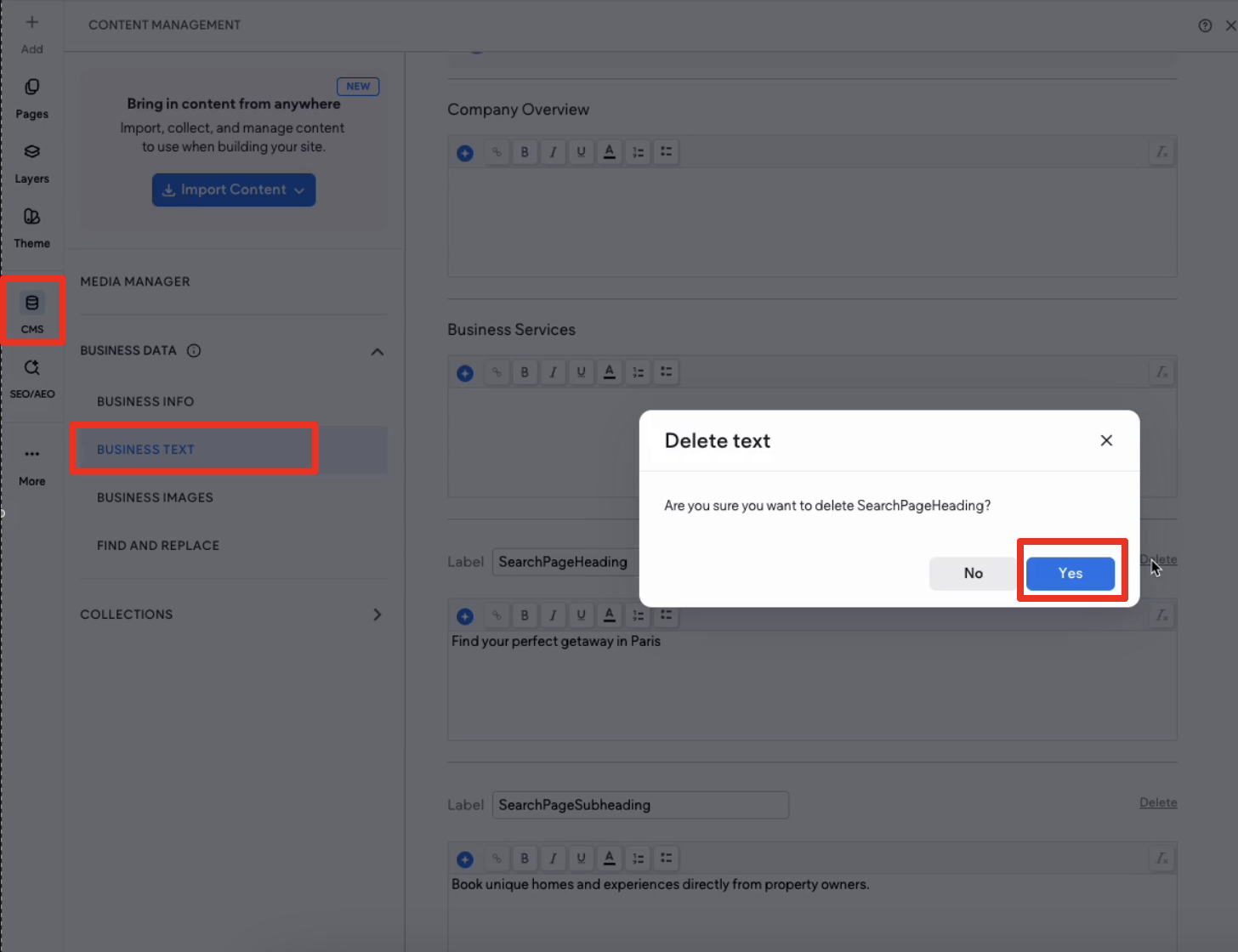
Deleting a Text Entry
- Copy the current text label
- Delete the corresponding text block from: CMS → Business → Data → Business Text
- Close the editor
The website will revert to the default heading or subheading text.
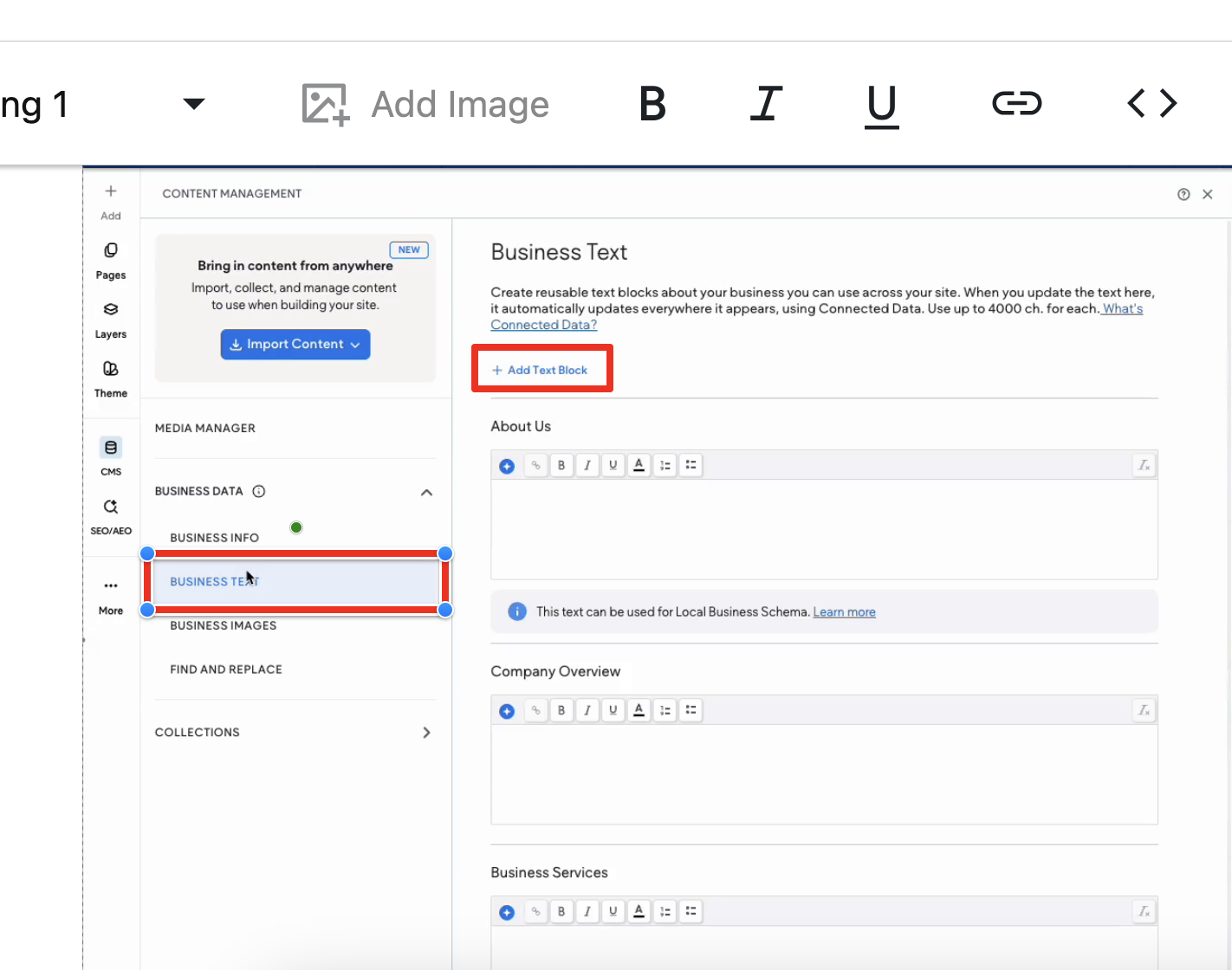
Restoring a Text Entry
- Create a new text block
- Use the original label exactly as before. For example: 'Search Page Heading'
- Enter your custom text
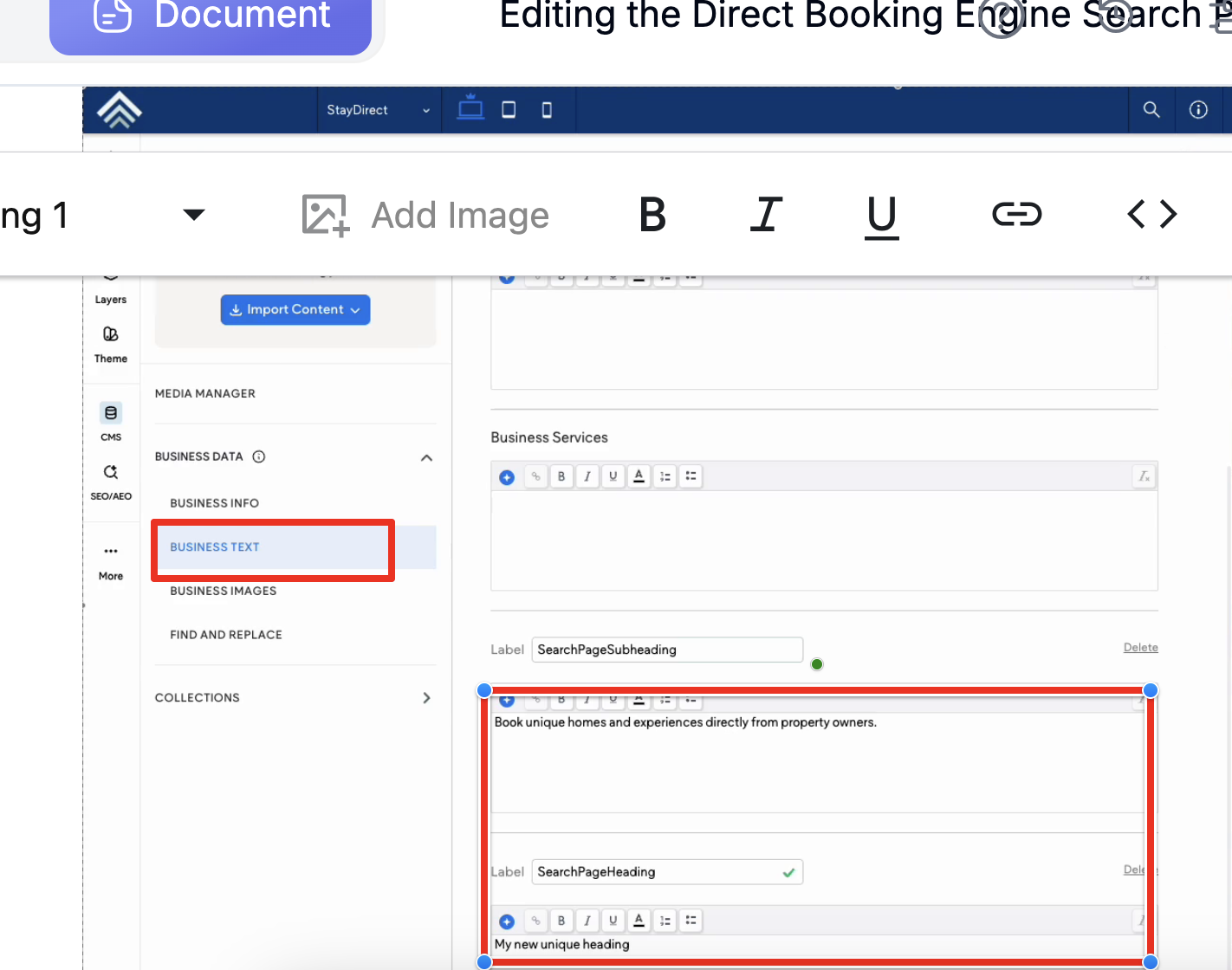
- Close the editor
- Republish your changes
Your custom heading or subheading will appear again on the website.
3. Editing the Business Logo
To update the default logo displayed on your website:
- In the site editor, click the CMS icon.
- Go to CMS → Business Info → Business Logo.
- Click the three horizontal dots (...) and select Replace image.

- Select your logo from the image picker. The image must meet these requirements:
- Format: PNG or JPG
- Dimensions: 250 × 250px to 720 × 720px
- File size: 10KB to 5MB
- Click Done, then republish your website to apply the changes.

Editable vs Locked Sections on Basic and Plus Plans
Currently, only specific content areas can be customized on each plan.
Editable Content - Basic Plan
On the Basic plan you can currently edit:
- Hero background images
- Headings
- Subheadings
- Text styling options such as font size and formatting
Locked Content - Basic Plan
On the Basic Plan any section currently shown as "View only" are locked by default cannot currently be:
- Edited
- Removed
- Repositioned
- Re-linked
Understanding Default Fallback Content
📘 If a custom Business Image or Business Text entry is deleted, the website will automatically revert to default content.
This applies to:
- Hero images
- Headings
- Subheadings
This fallback behavior helps ensure the search page continues to display correctly even if custom content is removed.
📘Important Notes
- Changes must be republished before they appear on the live website
- Some sections of the website builder are intentionally locked
- Locked sections cannot currently be customized
- Incorrect labels may prevent content from displaying properly
- When recreating deleted entries, labels must match exactly
Additional Editable Features on Plus Plan
Everything that is editable in the Basic plan as highlighted in this article under the section Editable Content - Basic Plan is also editable in the Plus plan
The additional features below are supported in the Plus plan:
- Request to Book: guests request dates and you approve or decline before any payment is taken
- 12 premium templates: switch your site's design without losing your content
- Custom domains: connect a domain you already own, or buy a new one inside the editor
- Advanced SEO: edit page titles and descriptions, control indexing, set URL redirects and run a site audit
- Popup overlays: show targeted popups for offers, newsletters or announcements
- Discount promotion: length-of-stay discounts appear across your site with strikethrough pricing and promo badges
- Airbnb profile link: optionally show a link to your Airbnb listing as social proof
Updated on: 05/10/2026
Thank you!