
Terms & conditions
Terms & conditions
If you're using the New Website Builder:
The Terms & Conditions page used by the legacy Direct Booking website is not available in the New Website Builder.
Instead, manage your rental agreement using the eSign Rental Agreements feature.
To do this:
- Go to Automate → eSign Rental Agreements : https://app.uplisting.io/automate/rental-agreements
- Create or edit your rental agreement.
- Enable the rental agreement for the booking channels you want it to apply to, including Direct Bookings.
For detailed setup instructions, see our guide on: eSign Rental Agreements
If you're using the Legacy Direct Booking Engine:
You can add terms and conditions which a guest must confirm before they can confirm their reservation.
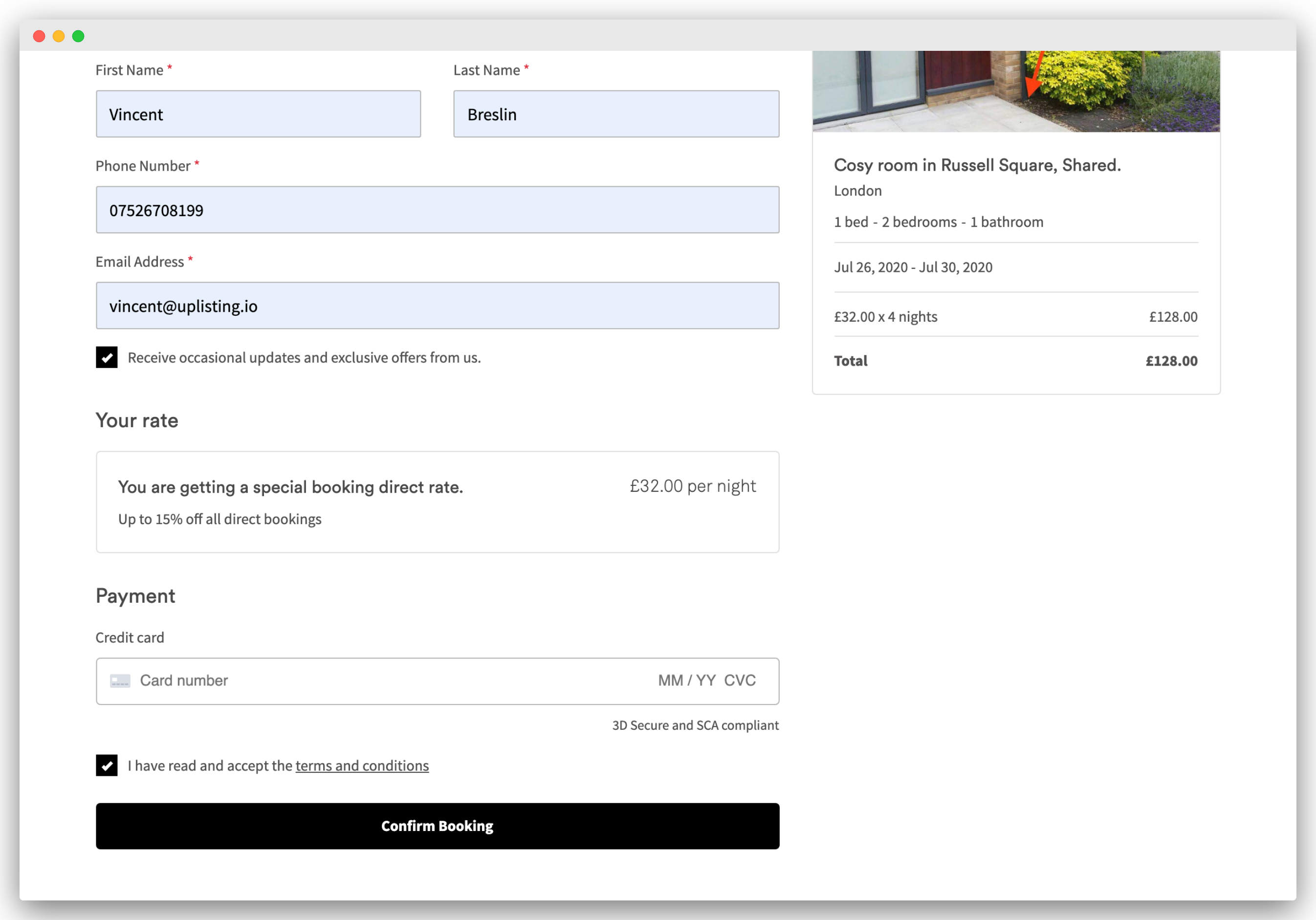
Guests will see a "I have read and accept the terms and conditions checkbox" just above the 'Confirm Booking' button (shown in the image below). A link to the page is provided also.
👍 This is timestamped as the time of booking (which shows on all bookings on your Uplisting calendar), just in case you need to provide proof for chargebacks/disputes.
How to edit your Terms & conditions content
Add and edit your content on the Terms & conditions tab, here.
How the terms appear to guests
The terms and conditions appear just above the 'Confirm booking' button. The confirm button is disabled until the guest accepts the terms. The guest can view your terms by clicking on the 'terms and conditions' hyperlink.
Updated on: 09/07/2026
Thank you!