
Promotions
Promotions
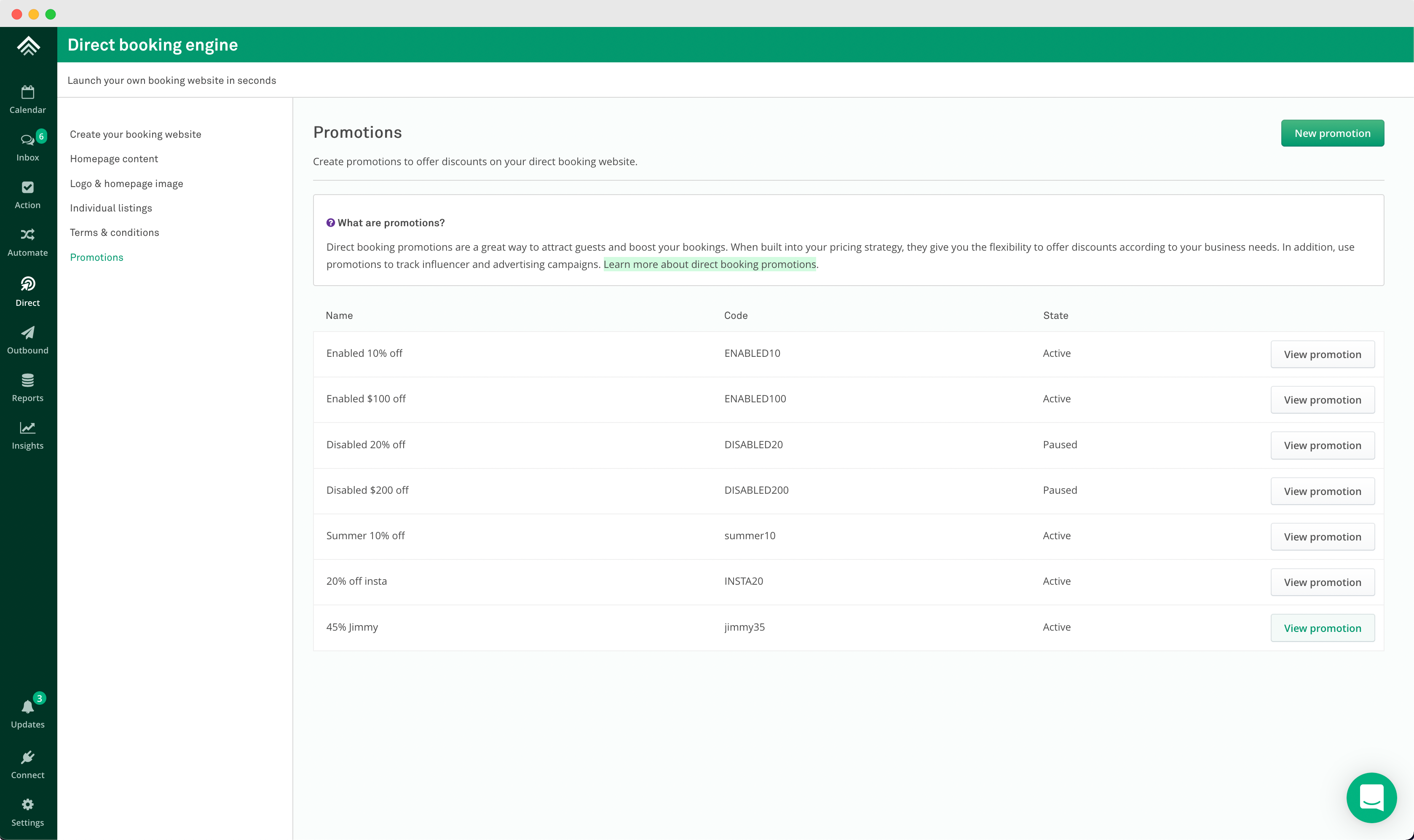
Introduction to promotions
Direct booking promotions are a great way to attract guests and boost your bookings. When built into your pricing strategy, they give you the flexibility to offer discounts according to your business needs. In addition, use promotions to track influencer and advertising campaigns.
How to create a promotion
Go to Direct from the left hand Navigation Panel and then click Promotions
Types of promotion
There are two types of promotions, fixed and percentage-based.
Fixed
Setting a fixed promotion means that a fixed amount will be discounted from the booking price. For example, a fixed promotion of $100 will discount a booking by exactly $100.
Percentage-based
Setting a percentage based promotion means a % discount will be applied based on the price of the booking.
👍
The % discount is applied to the accommodation total (i.e. the price before the cleaning fee, extra guest charges, taxes and other discounts).
How does a guest apply a promotion?
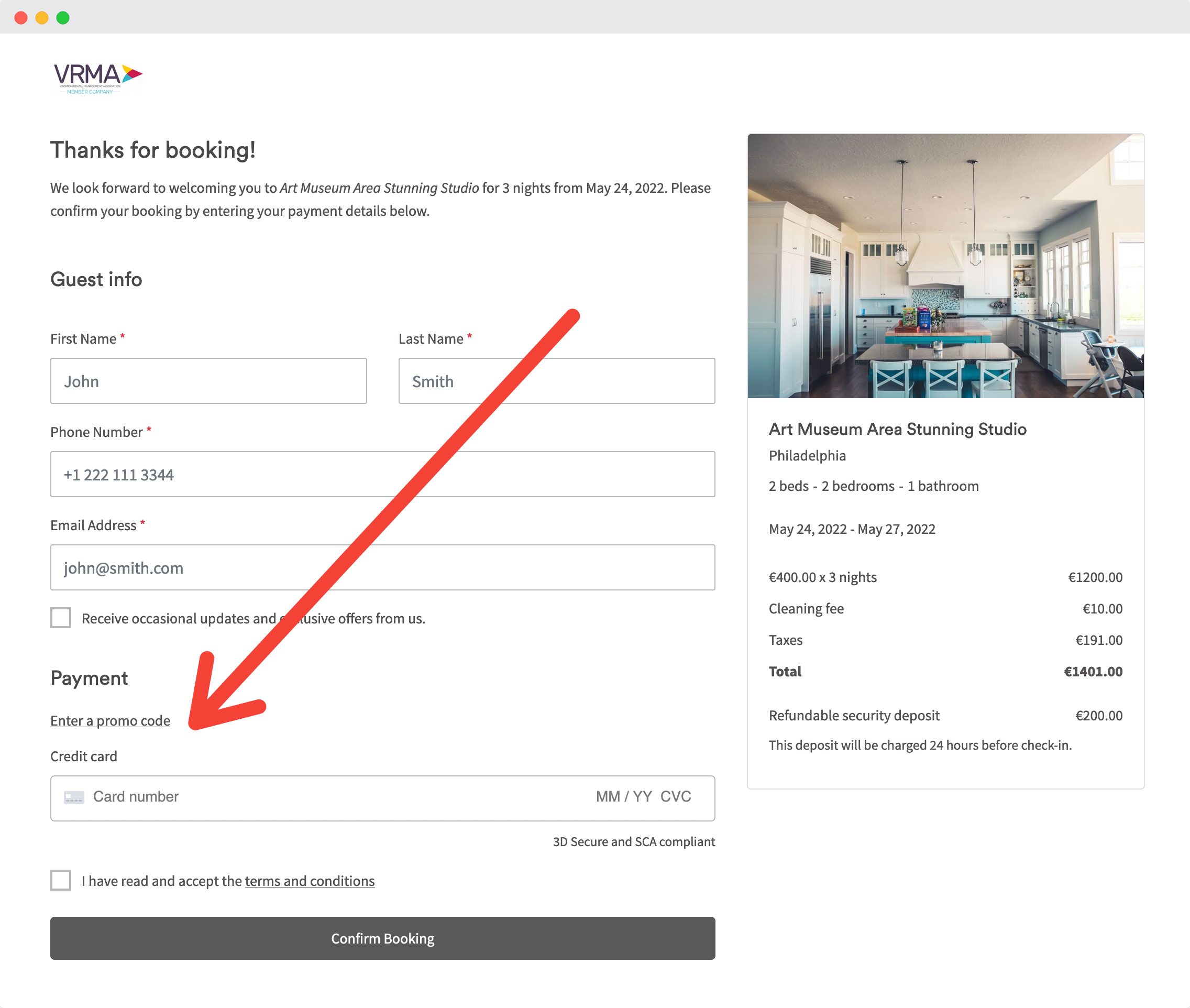
The promotion input appears on the payment page (i.e. once a guest has selected their dates).
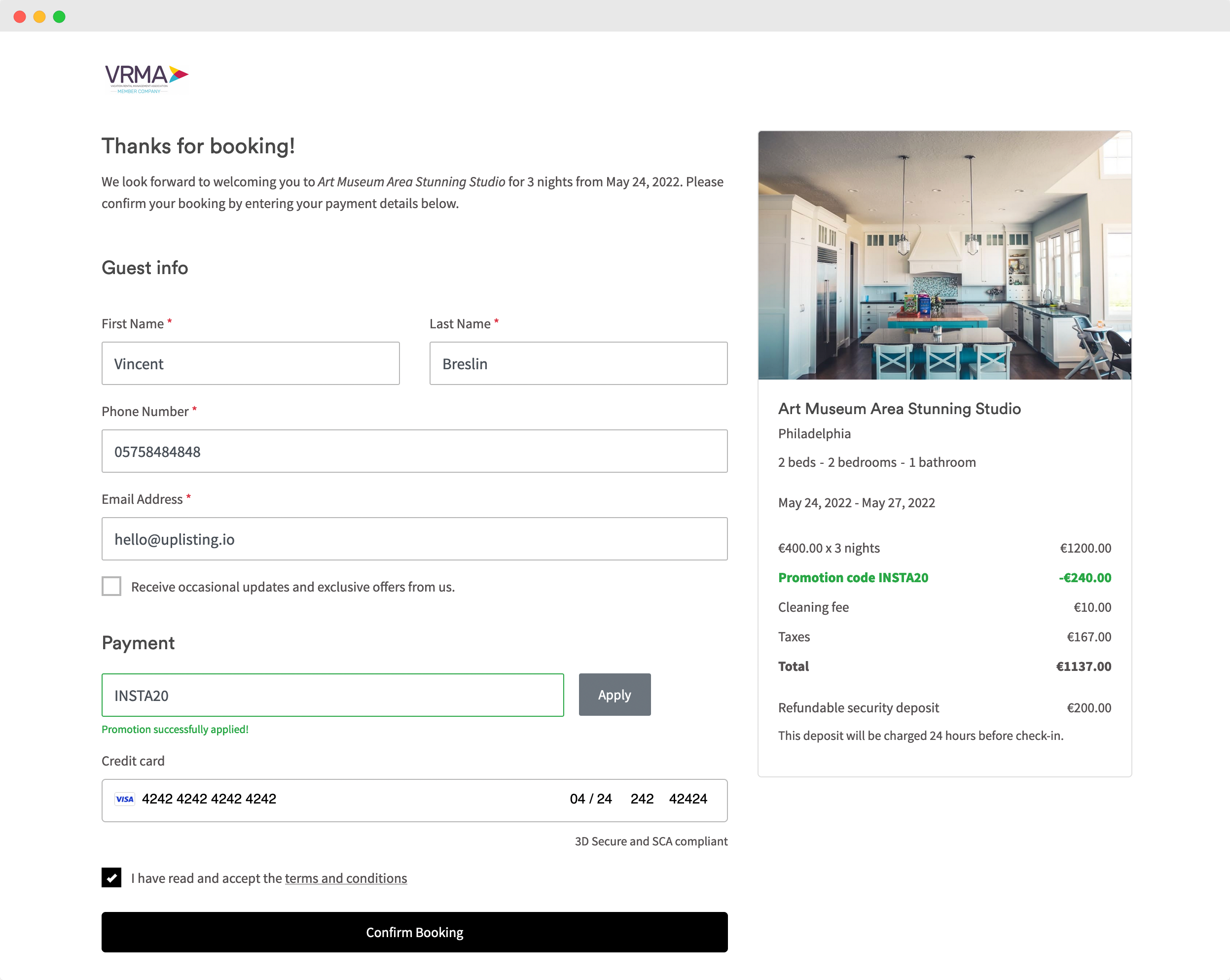
View once a promo code has been applied:
Once a promotion has been applied successfully, it will display as successful in green, and the discount will display on the pricing breakdown (on the right-hand side).
Creating a promotion with validity periods
- Navigate to Direct → Promotions.
- Create a new promotion or edit an existing one.
- Under Validity periods, select Add validity period.
- Choose the Start date and End date.
- Repeat this step if multiple date ranges are required.
- Save the promotion.
Note: Validity periods are optional. If none are added, the promotion behaves exactly as it did previously and applies to all eligible stays.
Validation
When creating or editing a promotion:
- The End date cannot be before the Start date.
- Validity periods within the same promotion cannot overlap.
- Users can add multiple non-overlapping date ranges to a single promotion.
The guest experience
At checkout, guests continue to enter their promotion code as normal.
The system will automatically:
- Apply the discount if the stay falls fully within a validity period.
- Prorate the discount if only part of the stay falls within a validity period.
- Reject the promotion code if none of the stay dates are eligible.
Troubleshooting
The promotion code is rejected
Verify:
- The promotion is active.
- At least one night of the guest's stay falls within a configured validity period.
- The promotion code has been entered correctly.
If none of the stay dates fall within a validity period, the code will be treated as invalid.
The discount amount is lower than expected
This is expected behaviour if only some nights fall within the configured validity period.
For example:
- Promotion: £100 off
- Stay: 5 nights
- Eligible nights: 3
The guest receives £60 off (£100 × 3/5).
The same logic applies to percentage discounts, where only the eligible nights receive the percentage reduction.
FAQs
Are promotions case sensitive?
Yes, for example, if you create a promotion code INSTA20, and your guest enters insta20, the promotion will not be applied.
Can I have different discount amounts for different date ranges?
No. A promotion can contain multiple validity periods, but only one discount value. Create separate promotions if different discount values are required.
Can I edit the validity periods after creating the promotion?
Yes. Validity periods can be added, removed, or updated after the promotion has been created.
The promotion code, discount type, and discount value remain locked.
Are validity periods based on when the guest books?
No. Validity periods are based on the stay dates, not the booking date.
Updated on: 29/06/2026
Thank you!