Outbound message logs
Introduction video
Watch video
Rules will appear even if the message won't send due to the filters you have selected
Outbound message logs include all messages that could be sent. Don't be alarmed if you see several pending or failed messages, as that message may not be relevant. For example, a rule dependent on a deposit payment failing will appear here as pending even if the security deposit has not failed. The message could have been sent, but it wasn't, as the deposit had not failed.
Outbound message logs breakdown
Each row on the message log table is explained on the table below:
|
Parameter
|
Description
|
Value
|
|
Status
|
The status explains whether the message is due to send, has been sent or is too late to send.
|
`Pending`, `too late`, `sent`.
|
|
Name
|
The name of the Outbound message rule as displayed on the [Outbound page](https://app.uplisting.io/outbound/messages).
|
|
|
Rule ID
|
All Outbound message rules have a unique ID. This ID is helpful for Uplisting customer support.
|
|
|
Trigger
|
When the message is due to send. 1 day before arrival, for example.
|
`x`\
`days/hours/minutes` `before/after`\
`booking/arrival/departure`
|
|
Due to send
|
The date and time the message is due to send.
|
`August 11th 2022 @ 3:00 pm`
|
|
Sent at
|
The date and time the message was sent.
|
`August 11th 2022 @ 3:00 pm`
|
|
Event time
|
The event trigger time.
|
`August 12th 2022 @ 11:00 am`
|
|
Reason not sent
|
This note explains why a message was not sent.
|
Values explained in the table below
|
Reason not sent values
Messages may not be sent due to the booking not meeting your set filters. For example, if you require a rental agreement to be signed, which is not, then that message will not send.
💡
A message may fail to send due to multiple reasons. Each reason will be displayed on the message log.
|
Reason not sent output.
|
Reason not sent in friendly form
|
|
`Expect booking#duration to be gt value (1)`
|
The booking duration was not met.
|
|
`Expect booking#lead_time to be lt value (24)`
|
Booking lead time not matched.
|
|
`Expect booking_rental_agreement#successful? to be eq value (true)`
|
The booking rental agreement has not been signed.
|
|
`Expect security_deposit#successful? to be eq value (true)`
|
Security deposit payment failed
|
|
`Expect security_deposit#needs_payment_information? to be eq value (true).`
|
The booking does not have a security deposit payment method.
|
|
`Expect security_deposit#failed? to be eq value (true)`
|
The deposit on this booking was captured successfully.
|
|
`Expect guest_identity_verification#successful? to be eq value (false)`
|
The guest has not verified their identity successfully.
|
|
`Airbnb connection without API access`
|
We attempted to deliver the message, but we don't have API access to the Airbnb account.
|
|
`Message content failed to pass security filters`
|
Booking.com rejected this message due to some word, phrase or link in the message.
|
|
`Can't send messages in read-only mode. Please upgrade your Airbnb connection`.
|
Sending messages requires full Airbnb account access.
|
|
`Problem delivering the message to Airbnb.`
|
Airbnb rejected the message without specifying a reason.
|
|
`Guest email not set.`
|
No email address on the booking.
|
|
`Problem delivering message via email.`
|
No specific error was provided, please get in touch with support.
|
FAQ's
Which Outbound messages appear on message logs?
If a property is selected on an Outbound message rule, that message rule will be displayed on the message logs tab for all bookings on that property.

In this example, this message rule will appear in the message logs for all bookings on all properties except for the listing titled `Main.
I can't see an Outbound message on the log
There are two reasons you won't see an Outbound message on the log tab:
- The Outbound message is not enabled
- The property this booking is on has not been selected under the Outbound message rule
Turning off Messages Per Booking/Guest
On 14th December 22 we pushed a frequently asked for feature; the ability to toggle on and off scheduled messages per booking.
If you need to turn off a particular automated message for a guest,
- Click on to your Calendar view
- Find the relevant Booking & click to open the detail page
- Click "Logs"
- Scroll to the relevant message & click the Toggle to the left of the Message Title
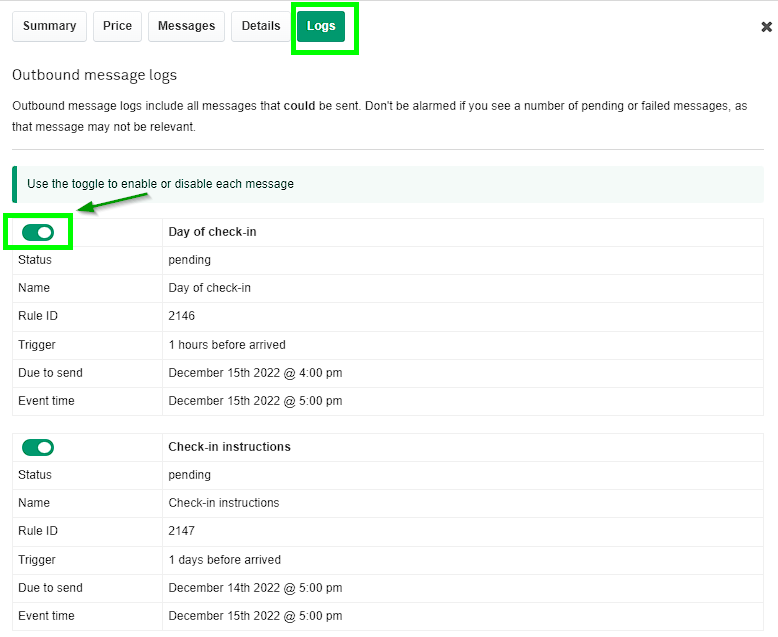
Once the message is turned off the Status will show as Disabled.
If you need any assistance on this feature feel free to reach out to our Customer Support team via Live Chat or email and we'll be happy to help.
Updated on: 12/05/2026
