
Multi-units
Multi-units
How to enable and configure multi-units
What are multi-units?
Multi-units are very specific and are not what most of our members need. In order for a listing to be multi-unit compatible, each physical property needs to be identical (or at least in so much as a guest won’t notice the difference).
Are multi-units suitable for my use case?
Each unit of a multi-unit will have the exact same price, availability, length of stay restrictions and listing content (such as images, title, description).
❗️ Do you require each unit be priced differently?
If yes, multi-units will not work for you. All units within a multi-unit are priced exactly the same. they also share restrictions (such as length of stay), images, description and everything listing content related.
Benefits of multi-units
A few of benefits of using multi-units are primarily:
1. Easier to manage
You only have 1 listing on each booking site, rather than each property having its own individual listing. This means updating content, images, prices, availability and restrictions is easier.
2. Optimising allocation
You can play Tetris with multi-units by moving bookings between units to ensure the maximum length of stay is available for guests to book.
3. Group bookings
This is especially true for Booking.com. If you have 3 available units, a large group booking could book all 10 for a certain date range. In this scenario, a group of say 3 couples search Booking.com for 10 rooms/properties. Your listing will appear where most will not. This is a significant advantage.
4. Higher search ranking due to combined reviews
With 3 multi-units under 1 listing, all reviews are pooled together where each individual listing will have a lower number of reviews.
How to set multi-unit availability
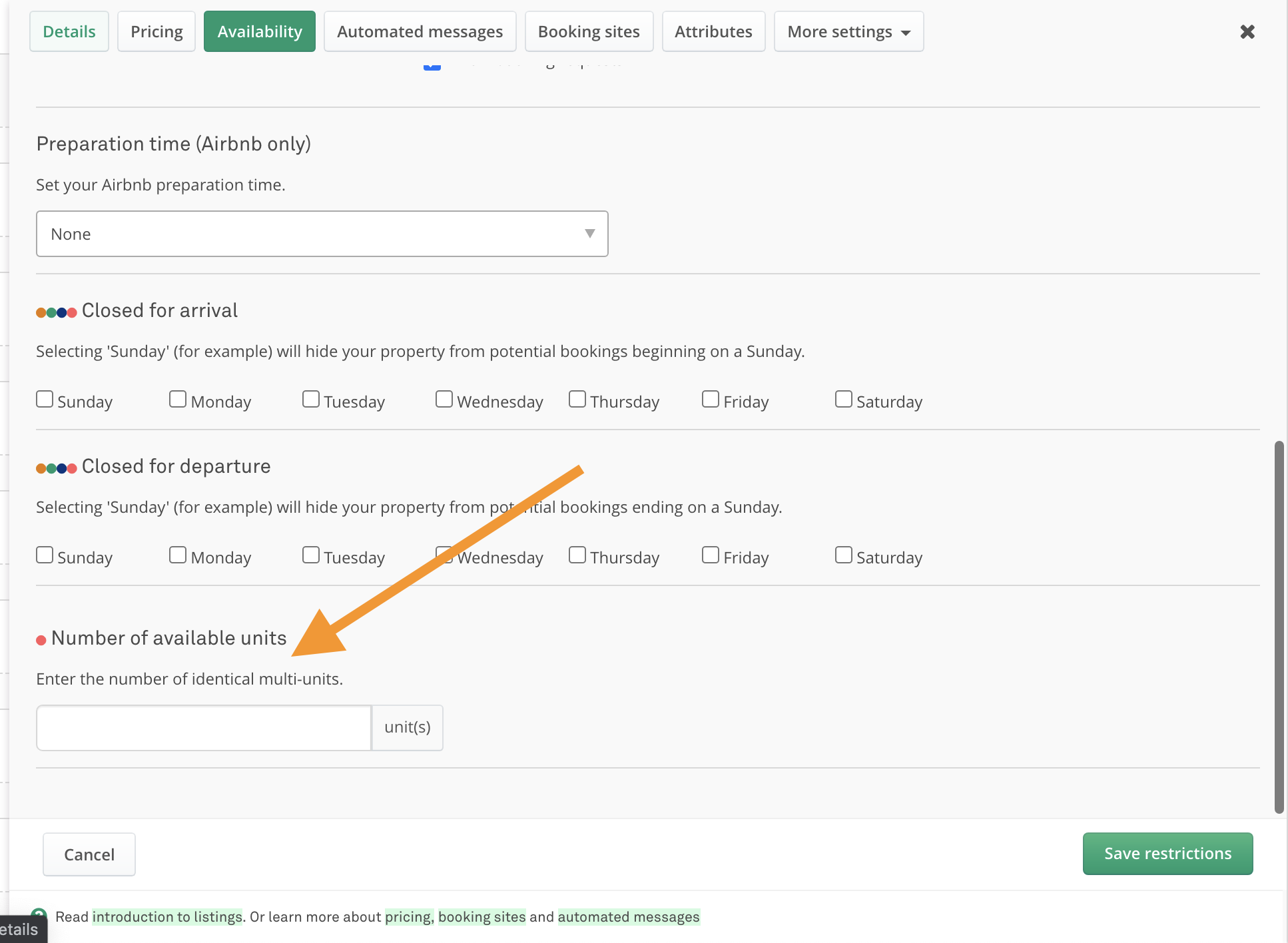
- Go to Property settings > Availability
- Enter the number of units under "Number of available units"
- Save.
Once you enter a figure greater than 1 in this input, this property will convert into a multi-unit listing. The available units will sync to Airbnb, Booking.com and your direct booking website.
How to view multi-units
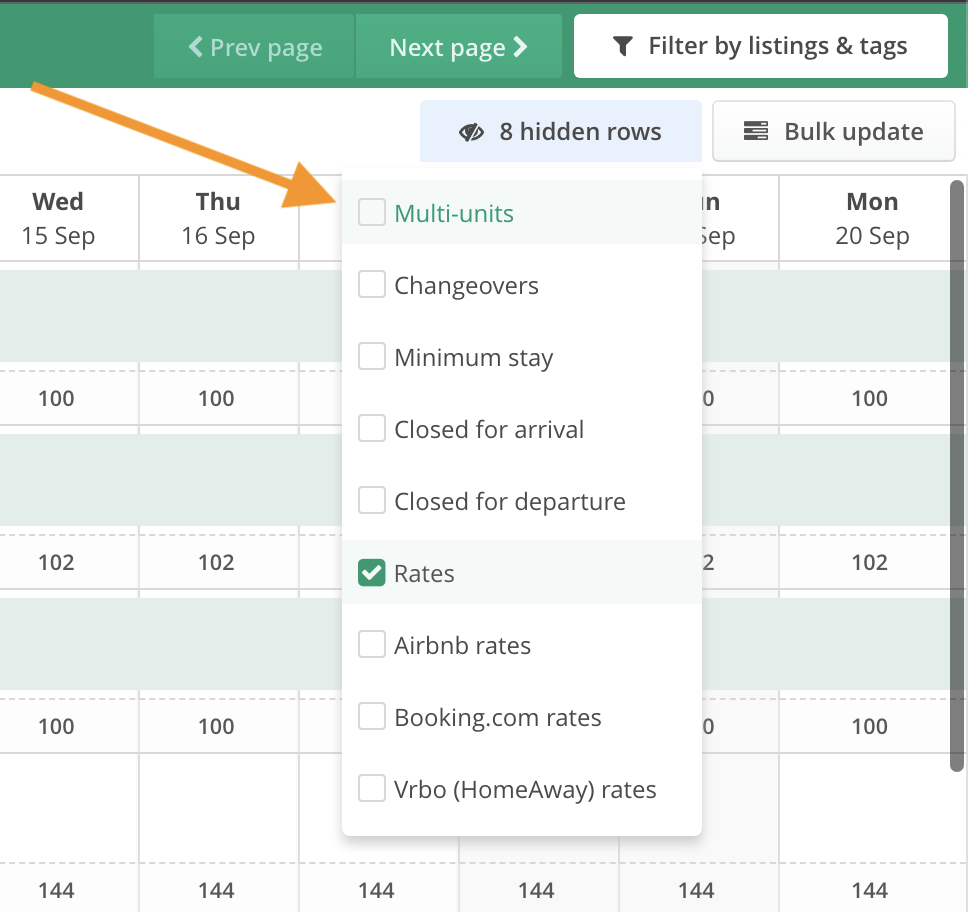
Select the "Hidden rows" button on the calendar and check "Multi-units"
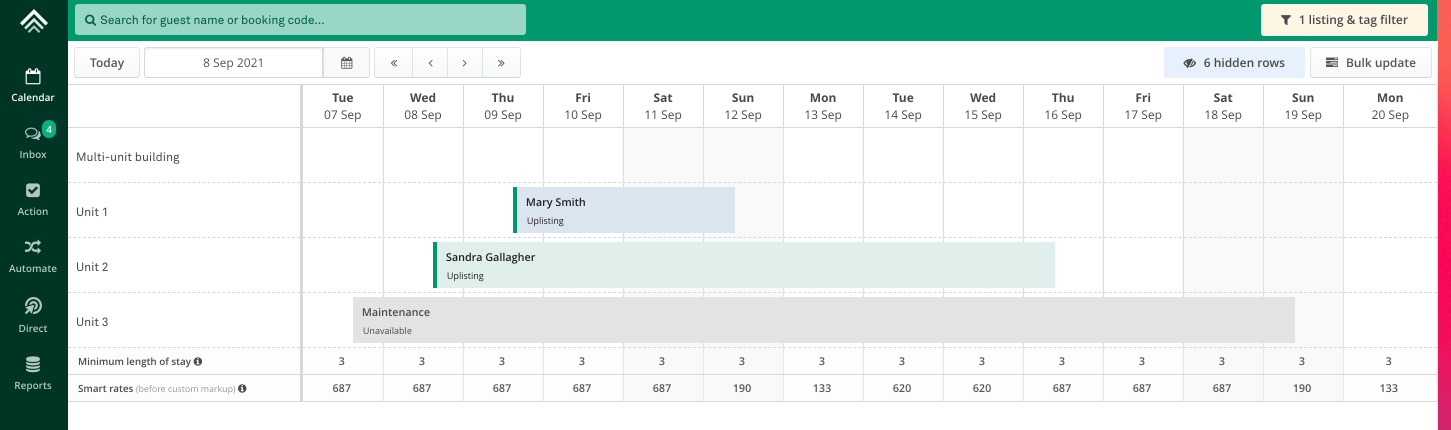
Once checked, you will see multi-units under the original property. By default, the new multi-units will be named Unit 1, Unit 2, Unit 3 etc. You can select the multi-unit name and edit it.
📘 Pricing for Multi-Units
Please note that each new multi-unit will be classed as another listing and will therefore be charged according to your agreed upon pricing or our current per listing charge.
Updated on: 12/05/2026
Thank you!