
Media Manager, Libraries, and Pickers
Media Manager, Libraries, and Pickers
The Media Manager, Libraries, and Pickers contain all your site’s media, i.e., images, videos, audio, and files.
To access the Media Manager, click on Content from the side panel, then select Media Manager. The Libraries and Pickers are accessed from widgets. For example, to access the Image Picker, add an image widget to your site (the Quick View should automatically come up) and select Full View.
Navigating and Managing Media: Media Manager, Libraries, and Pickers
The Media Manager, Libraries, and Pickers offer a similar layout and management options. The primary differences are the media categories available and the ease of managing the media.
All categories are available from the Media Manager, while only the media the widget supports is available in Libraries and Pickers (for example, when opening a library from a video widget, you will only be able to see videos).
Media is primarily managed from the Media Manager, but can also be managed from a Library or Picker by enabling the manage toggle.
📘
NOTE
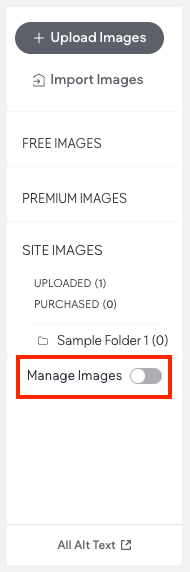
To manage media from Libraries and Pickers, toggle on Manage Images, Manage Icons, Manage Videos, Manage Audio, Manage Files (the verbiage is dependent on the library or picker you are currently viewing).
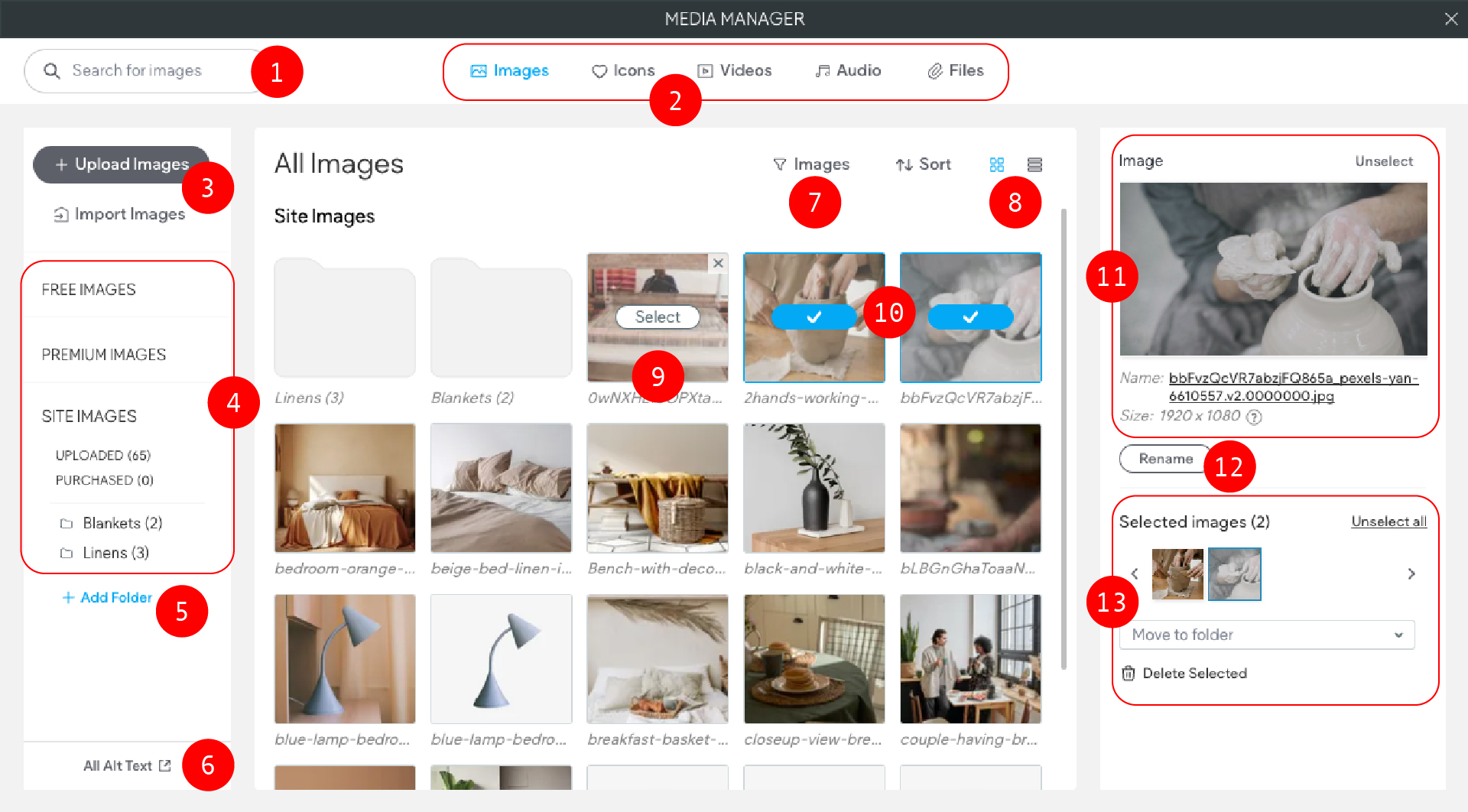
Numbered List of Settings
Folders
Folders are a great way to keep your content organized. Here are some key points about using folders:
• Universal Availability: Once created, a folder is available across all tabs, libraries, and pickers, regardless of where it was initially created.
• File Count Indicator: Each folder displays a number next to its name, indicating the total number of files it contains. This number remains consistent across all tabs, libraries, and pickers. However, when you open the folder, only the files relevant to the current media type will be shown. For example, if a folder contains an image and an icon, and you open it on the Videos tab, no files will appear since the folder doesn't contain any videos.
• File Visibility: After moving a file into a folder, it will no longer appear in the media type's main tab. You can access it through the folder or, if it was uploaded, by clicking on Uploaded.
• Deleting Folders: Deleting a folder will also delete all files contained within it.
Using folders effectively can greatly enhance your ability to manage and locate your media files.
Media Manager
The Media Manager combines all media types under one location. There are tabs at the top to navigate between the media categories (Images, Videos, Audios, Files). All media can also be easily managed here. For more information on managing content see the section in this article, Navigating and Managing Media: Media Manager, Libraries, and Pickers
To access the Media Manager:
• In the side panel, click Content, then click Media Manager.
Libraries, Pickers, and Quick Picker
Each type of media (Images, Icons, Videos, Audios, Files) has its own Library or Picker that will open depending on the widget’s supported format.
When selecting an image, icon, or video, the Quick Picker will be the first to appear. To view the picker or library, the Full View button can be selected.
Select Media
To select media, click the media file to select it.
For some widgets and elements, you can select multiple files at one time. As you select files, each will be surrounded by a border. When you click Done, all selected files will be added to the widget or element.
Quick Picker
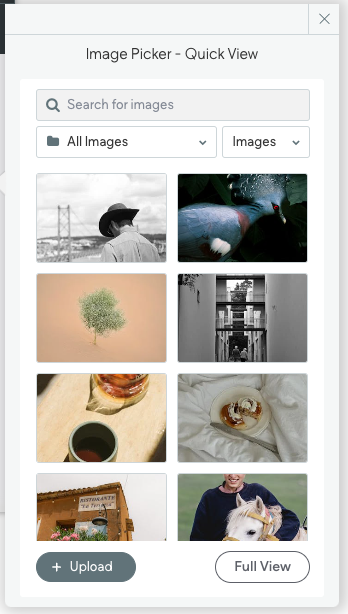
The quick picker is a simple way to choose the desired image, icon, or video. You can select from your folders or from media that we have already pulled into the platform.
For most image and video widgets, when selecting an image or video to use on your site, by default the Quick Picker will appear first. To view the picker or library, the Full View button can be selected.
We use infinite scrolling, so just scroll down to reveal more options in this window.
With the quick picker open, you can:
• Select the folder with media you want to use.
• Click the + icon to upload your own media.
• Switch to the Full View to open the Picker or Library.
• (Images only) Select the type of image: Images, Textures, or Giphy.
Managing Content from a Library or Picker
Individual media files can be deleted by hovering on the desired file then clicking the "x".
For all other manage options, toggle the Manage setting on. For more managing options, see the section in this article, Navigating and Managing Media: Media Manager, Lib_raries, and Pickers
FAQs and Troubleshooting
How do I access a media file's link?
To access a file's link:
- In the side panel, click Content.
- Click Media Manager.
- Navigate to the tab the file is located (Images, Icons, Videos, Audio, or Files).
- Click on the desired file.
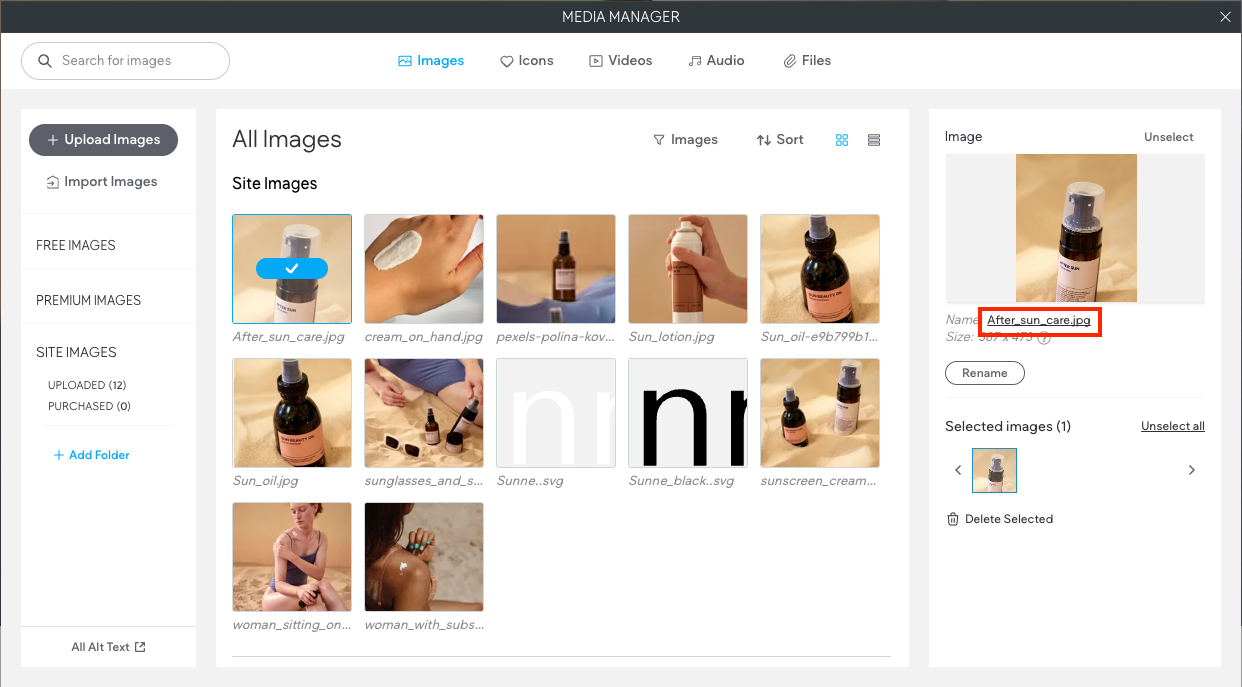
- In the side panel with the file's thumbnail and information, click the file's name.
- The file should open in a new tab (depending on your browser's settings).
Updated on: 12/05/2026
Thank you!