> ## Knowledge Base Index
> Fetch the complete knowledge base index at: https://support.uplisting.io/sitemap.xml
> Use this file to discover available pages before exploring further.
> Pure-Markdown content can be obtained by appending a '.md' suffix to the content URLs listed in the sitemap (without the trailing slash).
# Canvas Actions and Options
# Canvas Actions and Options
You can easily edit and access options for any widget, column, or row with just a click of a **button**. This
functionality allows you to customize your site efficiently, whether you're moving elements, adjusting
settings, or adding new content. With intuitive drag-and-drop features and quick access to editing tools,
you can create a versatile and engaging website with ease.
## Context Menus
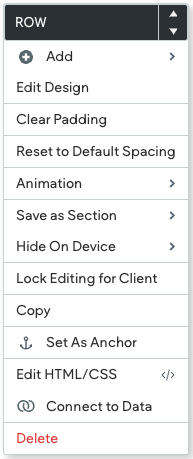
Everything in the editor has the option to open up a context menu. To open the context menu, *right-click*
any widget or space in the editor.
Example context menu:
 ## Anchor Tags and Links
Anchor links let you send visitors to a specific sections of the page, making it easier for them to get from
place to place on a longer page or to a specific section that you would like to reference. Anchor links
are very useful for letting users skip past content that may not apply to them, keeping them focused on
what is important to them.
> **📘 NOTE**
> Anchors cannot be added to content in the footer or header. While anchors can be added to dynamic pages, they can only be linked to from within the same dynamic page. For example, if an anchor is added to an element on a dynamic page, you won’t be able to link to it from the homepage (it won't show as an option)
## Add Anchors
To add an anchor on your page:
1. *Right-click* an element to open the context menu.
2. Click **Set As Anchor.**
3. Type an Anchor Name. To add the anchor to the site's navigation, select Add to Site Navigation
(by default, this option will be checked; un-check it to prevent it from being added to the site
navigation). The option, Add to Site Navigation, won't be available for dynamic pages.
4. Click **Add**.
> **📘**
> **NOTE**
> If an anchor is added to site navigation, it will appear in the list in the Pages area located in the side panel. For information on managing it in the Pages area, see [Pages](https://uplisting.crisp.help/en/article/pages-single-page-management-1v9cuqu/)
## Link to an Anchor
To add a link to an existing anchor:
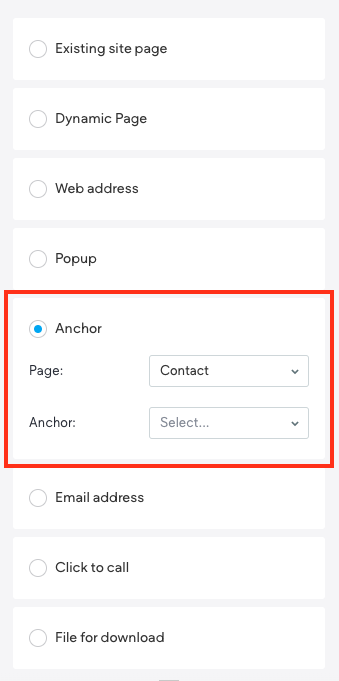
1. When creating a text or button link, select the Anchor option (located in the link picker that opens
when adding a link).
2. Select the page the anchor is on, and select the anchor from the drop-down.
## Anchor Tags and Links
Anchor links let you send visitors to a specific sections of the page, making it easier for them to get from
place to place on a longer page or to a specific section that you would like to reference. Anchor links
are very useful for letting users skip past content that may not apply to them, keeping them focused on
what is important to them.
> **📘 NOTE**
> Anchors cannot be added to content in the footer or header. While anchors can be added to dynamic pages, they can only be linked to from within the same dynamic page. For example, if an anchor is added to an element on a dynamic page, you won’t be able to link to it from the homepage (it won't show as an option)
## Add Anchors
To add an anchor on your page:
1. *Right-click* an element to open the context menu.
2. Click **Set As Anchor.**
3. Type an Anchor Name. To add the anchor to the site's navigation, select Add to Site Navigation
(by default, this option will be checked; un-check it to prevent it from being added to the site
navigation). The option, Add to Site Navigation, won't be available for dynamic pages.
4. Click **Add**.
> **📘**
> **NOTE**
> If an anchor is added to site navigation, it will appear in the list in the Pages area located in the side panel. For information on managing it in the Pages area, see [Pages](https://uplisting.crisp.help/en/article/pages-single-page-management-1v9cuqu/)
## Link to an Anchor
To add a link to an existing anchor:
1. When creating a text or button link, select the Anchor option (located in the link picker that opens
when adding a link).
2. Select the page the anchor is on, and select the anchor from the drop-down.
 ## Delete or Edit an Anchor
To delete or edit an existing anchor:
1. *Right-click* widget or row with the anchor to open the context menu.
2. Click the gear icon, then select **Edit Anchor.**
3. Click **Delete anchor** or edit the anchor as necessary.
4. If you edited the anchor, click Update to apply the changes.
> **📘**
> **WARNING**
> If an anchor in the site navigation (located in the Pages area of the side panel) has,sub-pages, deleting the anchor will also delete the sub-pages.
## Floating Menu Bar
Elements in the Editor have floating menu bars that offer different options depending
on the widget or element. The floating menu can also be used when trying to select a prior level layer
(for example, if you click on a column, you can only select the section layer. The top layer is a section,
followed by a column, then an element, and so on).
Example floating menu:
## Delete or Edit an Anchor
To delete or edit an existing anchor:
1. *Right-click* widget or row with the anchor to open the context menu.
2. Click the gear icon, then select **Edit Anchor.**
3. Click **Delete anchor** or edit the anchor as necessary.
4. If you edited the anchor, click Update to apply the changes.
> **📘**
> **WARNING**
> If an anchor in the site navigation (located in the Pages area of the side panel) has,sub-pages, deleting the anchor will also delete the sub-pages.
## Floating Menu Bar
Elements in the Editor have floating menu bars that offer different options depending
on the widget or element. The floating menu can also be used when trying to select a prior level layer
(for example, if you click on a column, you can only select the section layer. The top layer is a section,
followed by a column, then an element, and so on).
Example floating menu:
 To select a prior layer, *click* on an element to bring up the floating bar, then *hover* on the element's
name (it should expand to show its prior layers), and click on the desired layer.
To select a prior layer, *click* on an element to bring up the floating bar, then *hover* on the element's
name (it should expand to show its prior layers), and click on the desired layer.
 > **📘**
> **NOTE**
> For detailed information on the Editor options, see [Design with Flex](https://uplisting.crisp.help/en/article/design-with-flex-am3j8b/)
## Select Container or Layer
If you are having trouble selecting a container (column or row) in the editor, click a widget and click **Select Layer** to select the Column or Section.
> **📘**
> **NOTE**
> For detailed information on the Editor options, see [Design with Flex](https://uplisting.crisp.help/en/article/design-with-flex-am3j8b/)
## Select Container or Layer
If you are having trouble selecting a container (column or row) in the editor, click a widget and click **Select Layer** to select the Column or Section.